





Asana has earned its reputation in project management through its user-friendly interface and robust reporting suite. But scaling comes with trade-offs, particularly around workflow customization and what you get relative to the cost. Like any project professional who eventually outgrew it, I looked for Asana alternatives that deliver more in terms of pricing, features, and overall value, and what I found might surprise you.
Best Asana alternatives compared
| monday | Best for customization | ||
| ClickUp | Best native AI features | ||
| Jira | Best for IT service operations | ||
| Teamwork.com | Best for profit tracking | ||
| Smartsheet | Best for data-heavy projects | ||
| Wrike | Best for enterprise use | ||
| Notion | Best for building company wikis | ||
| Trello | Best for visual thinkers |
| Why you can trust TechRepublic |
| I’ve spent the past four years testing nearly 20 project management platforms, and some of them have become part of my workflow. Writing dozens of PM software guides for businesses of all sizes taught me what individuals and teams need from these tools beyond the marketing pitch. I also build custom scoring rubrics for each review to ensure fairness and that selected platforms get evaluated on the same criteria.
Marianne Sison |

1. monday work management: Best for customization
My rating: 4.93 / 5
Visit monday
Why I chose monday Work Management
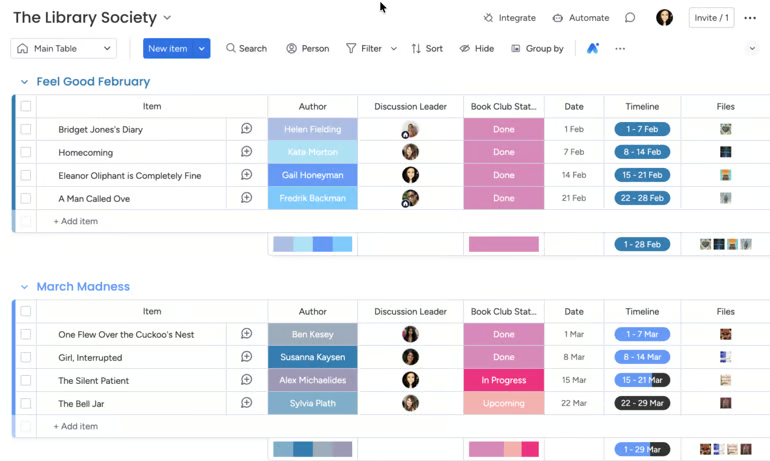
I consider monday one of the strongest Asana alternatives for customization, as nearly every part of the workspace can be configured to your unique workflows.
The platform is built around the idea that software should conform to how you work rather than the other way around. Project boards let me mix and match more than 20 column types, including color-coded status fields, while the no-code automation builder lets me create custom trigger-and-action workflows beyond the preset recipes.
What sets monday further apart from competitors is its Agent Factory and dashboard system. Agent Factory allows me to create AI-powered digital workers that can independently handle recurring tasks, which feels far more advanced than the rule-based automations. I can also combine data from multiple boards into a single dashboard view using modular widgets, making it easier to build live reports based on my priority metrics.
| Pros | Cons |
| ✅Colorful grid-style boards | ❌Freeform setup overwhelming for first-time users |
| ✅No-code automation recipes cover the most common workflows | ❌Action limits hit quickly on lower-tier plans |
| ✅Highly flexible column types and board structures | ❌Seat-block pricing model can lead to empty seats |
monday pricing
- Free: Up to 2 users — Includes 3 boards, task tracking, basic column types
- Basic: $9/user/month — Adds unlimited boards and items, unlimited viewers, dashboard, file storage
- Standard: $12/user/month — Adds timeline and Gantt views, calendar view, basic automation, integrations
- Pro: $19/user/month — Adds time tracking, private boards for task control, advanced automation limits, formula columns
- Enterprise: Custom pricing — Adds advanced permissions, enterprise-scale task dashboards, audit logs, higher automation and integration limits
Standout features
- Have the same information in columns reflected across multiple boards, with changes syncing automatically.
- Let an AI assistant perform tasks on your behalf, such as tagging teammates, analyzing board data, and highlighting project trends.
- Track and manage multiple file versions in one place to view the latest updates and review previous changes.
- See upcoming and overdue tasks at a glance with color-coded columns.

2. ClickUp: Best native AI features
My rating: 4.66 / 5
Visit ClickUp
Why I chose ClickUp
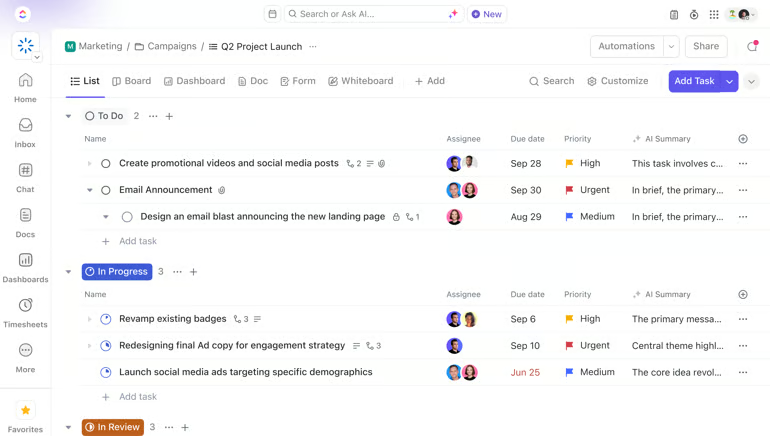
Among Asana competitors, ClickUp makes the strongest case for native AI by building its own model into the platform. It functions as a neural network connecting projects, docs, people, and company knowledge, which lets me run workspace-wide searches, automate task execution, and pull AI-generated insights.
Brain automatically selects the best model for each task, giving me access to GPT, Claude, and Gemini under one subscription, with each running on a full workspace context. I can also customize Super Agents to monitor project activity, identify top performers, and assign work to teammates. For teams that need AI working across external tools, Brain MAX handles enterprise search, text-to-speech, and admin workflows through its desktop app and Chrome extension.
| Pros | Cons |
| ✅Over 15 views: list, board, Gantt, calendar, and more | ❌ClickUp AI is charged separately |
| ✅1600+ pre-built templates across industries | ❌Overwhelming feature density for new users |
| ✅Super Agents automate board setup from plain language | ❌Nested menus and settings are difficult to navigate |
ClickUp pricing
- Free Forever: — Includes unlimited tasks, multiple task views (list, board), basic task statuses, task comments, mentions
- Unlimited: $7/user/month — Adds Gantt charts, time tracking, custom fields, resource management
- Business: $12/user/month — Adds sprint points, advanced automation, workload management, time tracking, task dependencies
- Enterprise: Custom pricing — Adds advanced permissions, custom roles, enterprise-scale task management controls
Standout features
- Create dedicated team channels or chat with teammates in real-time without leaving ClickUp
- Record your screen with video or audio clips from your entire screen, a specific window, or your current browser tab.
- Set personal time off to prevent scheduling tasks on your teammate’s non-working days.
- Receive a warning before closing task dependencies to help prevent missed work.

3. Jira: Best for IT service operations
My rating: 4.64 / 5
Visit Jira
Why I chose Jira
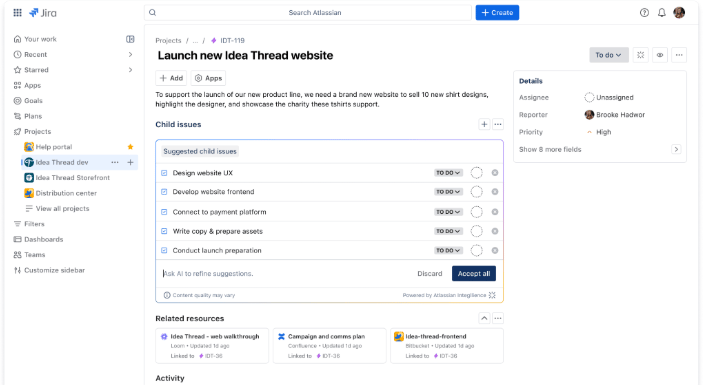
Jira is designed from the ground up for IT and software teams, making it the best option for teams running agile workflows. Backlog grooming, velocity tracking, and story point estimation are all native to the platform, so teams can estimate stories, adjust sprint scope, and re-prioritize work items in the backlog during planning meetings.
Custom work types let teams configure workflows and fields for each item type, whether that’s bug reports, stories, or deployment tasks. The Release Hub provides a consolidated view of what’s shipping next, with automatic warnings flagging work items with broken builds, missing code, or unresolved pull requests.
Another reason I rate Jira highly for IT operations is how it supports a number of agile reports, such as burndown charts, velocity charts, cumulative flow diagrams, and epic burndown reports, each tied to specific stages of the delivery cycle. It also tightly integrates with the Atlassian ecosystem and developer tools, allowing me to link Jira issues with Bitbucket commits, deployment pipelines, and Confluence documentation.
| Pros | Cons |
| ✅Scrum and Kanban boards are industry-standard for devs | ❌Agile terminology alienates marketing, HR, ops teams |
| ✅Fully customizable workflows, statuses, and issue types | ❌2 to 4 week ramp-up typical; JQL knowledge often required |
| ✅Sprint burndown, velocity, and release notes auto-generated | ❌Interface not intuitive for non-technical users |
Jira pricing
- Free: Up to 10 users — Includes unlimited tasks, board/backlog/timeline views, reporting dashboards
- Standard: $9.05/user/month — Adds user roles, guest access, and AI features
- Premium: $18.30/user/month — Adds cross-team roadmaps, dependencies, custom issue hierarchy, and unlimited storage
- Enterprise: Contact sales — Adds unlimited automation rule runs, up to 150 sites, and analytics
Standout features
- Generate Scrum reports, such as velocity chart, epic burndown, and cumulative flow diagram.
- Plan work across multiple teams with Advanced Roadmaps that map dependencies and manage capacity.
- Automate workflows with rule-based triggers, conditions, and actions.
- Create Scrum or Kanban boards with custom workflows, issue statuses, swimlanes, and backlog prioritization tools.

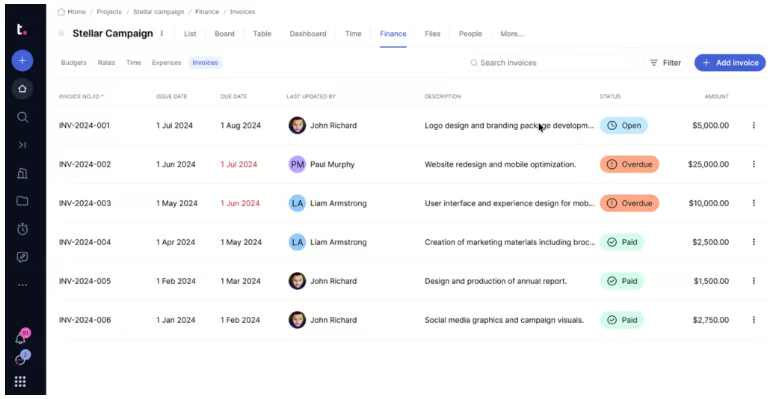
Why I chose Teamwork.com
Among the tools in this roundup, Teamwork.com is the only one built specifically for tracking profitability in client services. I can create project budgets based on fixed fees, billable hours, or retainer models while tracking actual costs against planned revenue in real time.
Teamwork.com offers profitability reports that break down margins by client, project, or team member, and invoices can be sent from the platform to bill clients. It also connects to accounting tools like Xero and QuickBooks for invoice export. Time and expenses log against each budget in real time, with team rates factored into cost calculations. AI profitability forecasting, expense tracking, and time approvals are also part of its core offerings, placing it ahead of competitors like ClickUp, where budgeting features are limited or require third-party integrations.
| Pros | Cons |
| ✅Clean layout praised for quick adoption | ❌Interface feels functional but dated |
| ✅Custom expense categories and role-based billing rates | ❌AI feature set is limited compared to Jira or ClickUp |
| ✅Live support earns consistent praise for its response speed and technical knowledge | ❌Active project limits cause billing surprises at scale |
Teamwork.com pricing
- Free: Five users, time log, and basic project management features.
- Basics: $9.99 per user for intake requests, project health & planned vs actuals, and time report
- Accelerate: $24.99 per user for time budgets, retainers, and AI-powered capacity and utilization overview
- Optimize: Custom pricing for profitability forecasting, financial tracking, multi-currency budgets, revenue, cost and profitablity insights
- Enterprise: Custom pricing for advanced security and priority support
Standout features
- Plan project timelines with Gantt charts that support task dependencies, drag-and-drop scheduling, and milestone tracking.
- Manage team capacity with workload and resource planning tools.
- Track billable and non-billable hours with time tracking, timesheets, and budget monitoring tools.
- Collaborate on project work with task comments, @mentions, client permissions, and file management tools.

5. Smartsheet: Best for data-heavy projects
My rating: 4.49 / 5
Visit Smartsheet
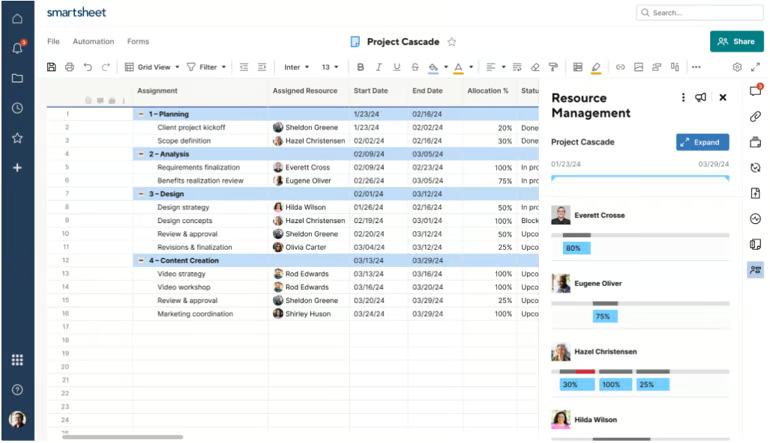
Why I chose Smartsheet
Where most Asana alternatives lean on visual boards, Smartsheet uses a spreadsheet-style environment to cater to users working with large, complex datasets. With formulas and functions, I can link data across sheets and run calculations that reflect changes in source data automatically. Cell linking syncs all related sheets, while reports let me combine and filter information from multiple sheets into a single exportable view or dashboard widget.
Data Shuttle automates transfers between Smartsheet and external systems, while DataMesh keeps sheets and reports in sync across workspaces. I can also bring in large datasets from ERPs, CRMs, and external databases through DataTable, and use the Pivot App to summarize that data into trends, comparisons, and patterns.
For enterprise environments, event reporting exports more than 100 activity types, including object creation, edits, deletions, and attachment activity, into CASB platforms such as McAfee MVISION and Microsoft Cloud App Security.
| Pros | Cons |
| ✅Control Center scales portfolio-wide templates | ❌Performance degrades on large sheets |
| ✅Customizable dashboards with live widgets | ❌Resource management is sold as an add-on |
| ✅Low learning curve for Excel users | ❌Hidden costs escalate at scale |
Smartsheet pricing
- Pro: $9/user/month — Includes rich formulas, Gantt/board/calendar views, unlimited sheets and reports
- Business: $19/user/month — Adds timeline view, workload tracking, unlimited automations
- Enterprise: Custom pricing — Adds scenario planning, AI formulas and charts, project portfolios
- Advanced Work Management: Custom pricing — Adds Control Center for portfolio scaling, Dynamic View for granular sharing, Data Shuttle sync
Standout features
- Combine data from multiple sheets into centralized reports that filter, summarize, and export project information.
- Configure formulas and functions to calculate metrics and link cross-sheet data.
- Build no-code workflows with automated triggers, approval requests, and row updates.
- Capture project requests with custom forms that support conditional logic

6. Wrike: Best for enterprise use
My rating: 4.44 / 5
Visit Wrike
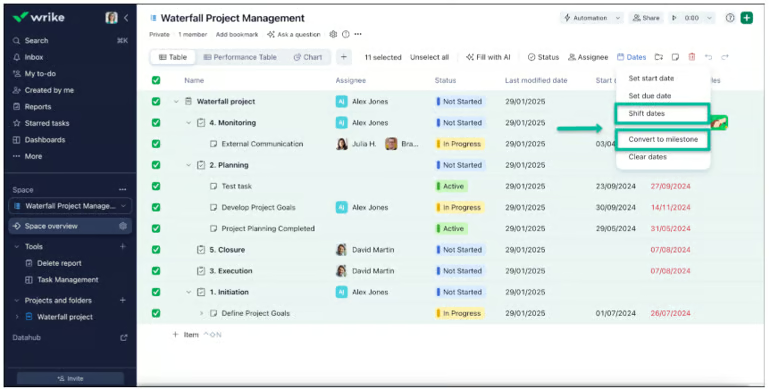
Why I chose Wrike
Wrike covers the security and governance controls I usually expect from enterprise project management platforms. I can create custom user types, configure locked spaces for confidential work, and assign access roles that match departmental structures. For organizations with stricter security requirements, Wrike Lock allows teams to manage their own encryption keys instead of relying entirely on vendor-controlled access.
Blueprints allow me to save recurring projects, folders, and task structures as reusable frameworks, while Wrike Integrate connects workflows across hundreds of third-party apps through custom integrations. When projects depend on external systems, Wrike Datahub can pull information into dashboards, automations, and reports from a centralized data source.
On the resource planning side, Wrike supports workloads and job role allocation across the workspace. It also features its own AI engine, Work Intelligence, which flags project risks and surfaces historical work patterns.
| Pros | Cons |
| ✅Cross-tagging lets tasks appear in multiple projects simultaneously | ❌Integrate, Sync, Whiteboard, Datahub are sold separately |
| ✅Dynamic request forms auto-route work to correct teams | ❌Setup takes longer than most comparable tools |
| ✅Work Intelligence® predicts project risks and delays | ❌Feature density overwhelming for new and non-technical users |
Wrike pricing
- Free: Unlimited users — Includes task management, folder hierarchy, board/table view, custom views
- Team: $10/user/month — Adds Gantt charts, dashboards, basic AI features
- Business: $25/user/month — Adds resource management, AI agents, forms, workflow automation
- Pinnacle: Custom pricing — Adds budgeting, advanced security
- Apex: Custom pricing — Adds bi-directional integrations, Wrike Sync, enterprise-scale automations with Wrike Integrate
Standout features
- Collaborate on creative assets with proofing and approval tools.
- Create custom request forms with conditional logic, dynamic fields, and automated task creation.
- Generate advanced analytics reports with custom charts and project filters.
- Track project updates with real-time activity streams that log status changes, comments, approvals, and file uploads.

7. Notion: Best for building company wikis
My rating: 4.25 / 5
Visit Notion
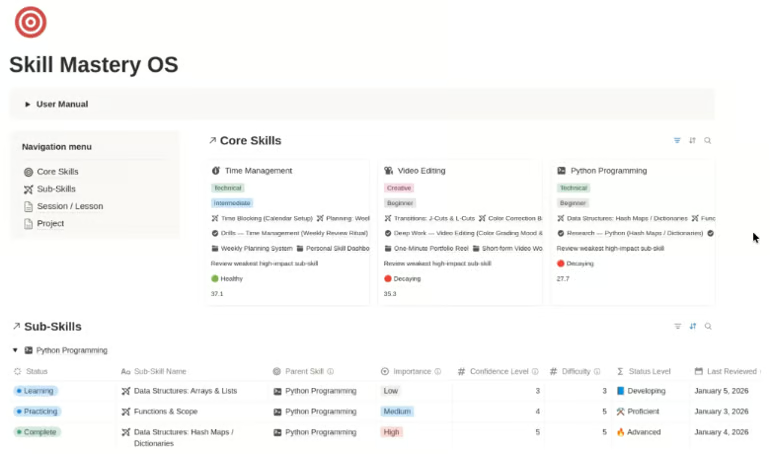
Why I chose Notion
Notion approaches project organization differently by building the workspace around linked pages and shared documentation. I can organize large workspaces through the sidebar hierarchy, link pages instantly with @mentions, and rearrange content via drag-and-drop editing.
Synced Blocks keep recurring information consistent across multiple pages, so updates made in one location automatically appear everywhere else the content is embedded. I also like that the Verification feature allows me to mark pages as reviewed and current, which makes it easier to tell whether documentation is still up-to-date.
Search and filtering tools let me find documents across teams without digging through folders or databases. For enterprise environments, Notion includes analytics tools for tracking content engagement alongside SAML SSO, SCIM provisioning, advanced permissions, and domain management controls.
| Pros | Cons |
| ✅Highly flexible block-based page builder | ❌Limited charts and data visualizations |
| ✅Clean, minimal UI with low visual noise | ❌No native Gantt chart or timeline view |
| ✅Large template library for quick starts | ❌Native time tracking and resource management are not supported |
Notion pricing
- Free: Includes databases (subtasks, dependencies, custom properties), Notion Calendar, 7-day page history, basic forms
- Plus: $10/user/month — Adds unlimited collaborative blocks, unlimited file uploads, 30-day page history, unlimited charts
- Business: $20/user/month — Adds AI features, database permissions, private teamspaces, 90-day page history, SAML SSO
- Enterprise: Custom pricing — Adds user provisioning (SCIM), advanced security and controls, audit logs, unlimited page history
Standout features
- Create linked databases with custom properties, linked views, and relational fields.
- Embed code snippets, PDFs, Figma files, and third-party apps directly into workspace pages.
- Generate AI-powered summaries, content drafts, meeting notes, and database autofill entries inside documents
- Publish pages to the web with custom domains and searchable navigation.

8. Trello: Best for visual thinkers
My rating: 4.14 / 5
Visit Trello
Why I chose Trello
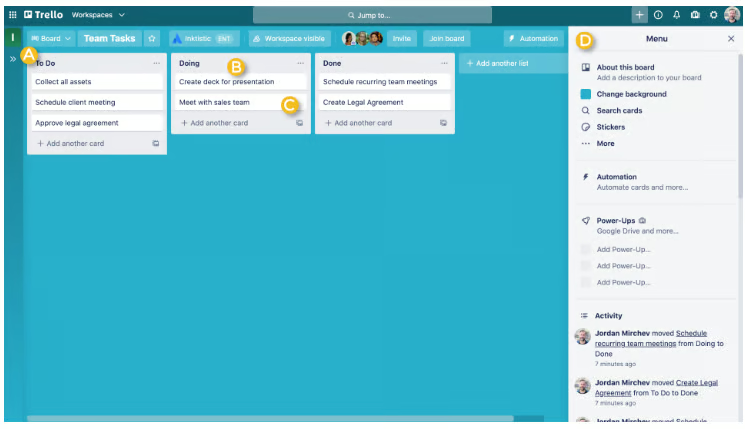
For teams that find spreadsheet-style tools like Smartsheet too rigid, Trello offers a more visual and flexible way to track tasks.
Within Kanban boards, I use color-coded labels to mark cards by priority level. I can also filter the board to show only cards under a specific label when I need a focused view.
Advanced checklists let me assign individual checklist items to specific teammates with their own due dates, so subtasks have owners without the need for separate cards. I also like how the Calendar View arranges cards and checklist items by due date, displaying labels, members, and checklists on each entry.
Power-Ups extends the platform beyond a simple Kanban board. With over 200 integrations, I can connect Slack, Google Drive, Figma, and Jira to my boards, pulling in files, design previews, and issue updates. Compared to ClickUp or monday.com, Trello intentionally stays lightweight, which makes it a better fit for small teams or individuals who want a visual board without the complexity of a full project management suite.
| Pros | Cons |
| ✅Near-zero learning curve; same-day adoption | ❌Reporting and analytics remain very basic |
| ✅Mirror cards sync tasks across multiple boards | ❌AI features are weaker than Notion, Monday, and ClickUp |
| ✅Affordable paid plans | ❌No native time tracking |
Trello pricing
- Free: Includes unlimited cards, unlimited Power-Ups per board, assignees, due dates,
- Standard: $5/user/month — Adds unlimited boards, advanced checklists, custom fields, card mirroring
- Premium: $10/user/month — Adds timeline/calendar/table/map views, AI features, board collections
- Enterprise: $17.50/user/month — Adds org-wide permissions and multi-board guests
Standout features
- Organize project tasks with drag-and-drop Kanban boards that move cards across workflows.
- Automate repetitive actions with Butler rules that trigger card updates.
- Attach files and link cloud storage content directly to cards with support for cloud storage platforms
- Extend board functionality with Power-Ups that add reporting, time tracking, approvals, and third-party app connections.
More project management coverage
My methodology
To find the best Asana alternative, I built a scoring rubric to rank each software. From there, I added my expert judgment to make sure the final recommendations hold up in real-world project environments.
General features (25%): I scored each tool on task management capabilities, available views, collaboration options, workflow automation, and project templates. The focus was on how flexible and fully developed these features are, not just whether they’re present.
Pricing (20%): I evaluated feature inclusions across free and paid plans, whether AI tools come bundled or require an upgrade, and the real cost of ownership beyond the base price. Tools that offer transparent pricing with minimal required add-ons scored highest.
Advanced and niche features (20%): I evaluated AI task automation, resource and workload management, reporting and analytics, portfolio tracking, and integrations. Higher scores went to tools that handle these at an enterprise level without requiring workarounds.
Expert score (15%): I factored in my expert score to measure overall value beyond the raw feature checklist. This category factored in scalability, third-party review sentiment, and how well each platform could replace or outperform Asana for growing teams. This is where close calls between tools are resolved based on market context and long-term fit.
Support (10%): I assessed the availability of support channels, community engagement, security and data governance, and educational resources.
Ease of use (10%): I looked at how well each tool balances customization with usability, how intuitive the navigation is based on user feedback, and the technical skill required.
How to choose the best Asana alternative
When switching to a new project management software, I recommend starting with the issues you currently experience in Asana. Some teams need stronger automation or reporting, while others care more about pricing, resource management, or collaboration across teams. Here’s what I always tell project managers to look at before making the switch.
- Workflow complexity: Not every tool can handle complex projects, dependencies, and cross-team coordination equally well. Before committing, map out your most intricate workflow and check if the platform can support it without requiring constant workarounds.
- Pricing transparency: Some tools look affordable upfront, but lock key features like reporting, automations, or guest access behind higher tiers. I always calculate the true per-seat cost based on my feature requirements, not just what the base plan advertises.
- Customization options: A good Asana alternative should bend to your workflow, not the other way around. Look for tools that let you configure custom fields, statuses, and views without needing a developer or a dedicated admin to set everything up.
- Automation and AI capabilities: We can no longer ignore how much heavy lifting smart automation does for modern project management. Look for an alternative that uses built-in intelligence to predict project risks or draft status updates.
- Integration library: It’s worth checking which integrations are native and which ones depend on a third-party connector like Zapier, as native connections tend to be more stable and require less maintenance. A tool that connects directly to your CRM, communication stack, and file storage will save your team hours of manual syncing.
FAQs
Is there a free Asana alternative?
Yes. ClickUp, monday.com, and Trello each offer permanent free plans that include core project management features. Among these options, ClickUp provides the most generous free tier because it supports unlimited users and includes access to select premium features through usage-based credits.
Is monday.com better than Asana?
For workflow management, customization, and automation, most independent reviewers rank monday.com ahead of Asana. Asana holds an edge in task hierarchies and ease of use. The better choice depends on whether your team prioritizes custom workflows or usability.
Which Asana alternative is best for agencies?
Teamwork.com is consistently ranked high for agencies due to its built-in time tracking, billable rate management, client portal, and profitability reporting. These are features Asana doesn’t offer natively at any subscription plan.
Read the full article here