




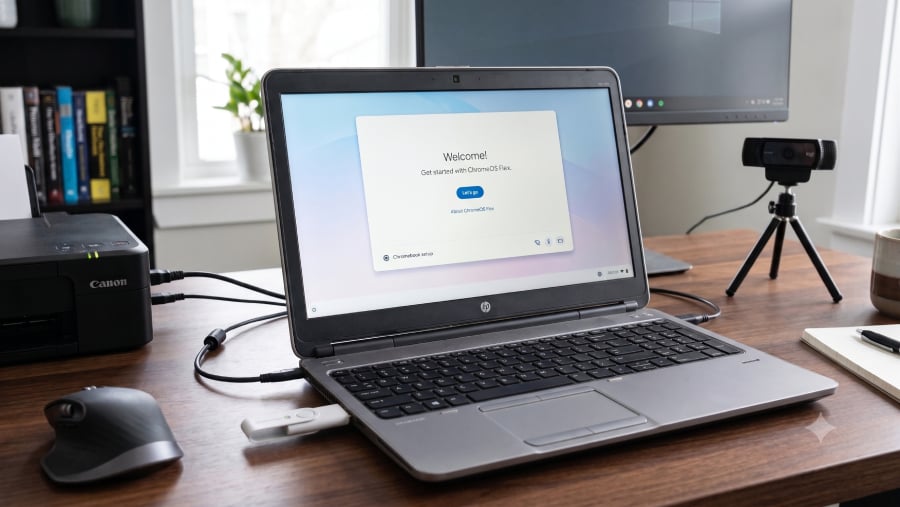

The $3 ChromeOS Flex USB Kit offers a simple way to revive an old Windows 10 PC.
Deciding whether that computer should actually lose Windows takes more work.
Google and Back Market introduced the reusable installer for people who do not want to create their own bootable drive, though ChromeOS Flex itself remains free to download. Before installing it permanently, users should confirm hardware support, test essential peripherals, review their Windows applications, and prepare a recovery path.
The USB kit simplifies installation—not compatibility. A computer that starts ChromeOS Flex may still have problems with cameras, printers, security tools, specialist software, or workplace requirements.
1. Find the PC on Google’s certified model list
ChromeOS Flex has minimum system requirements, although meeting them does not guarantee full hardware support.
According to Google’s installation guidance, users should confirm that their computer is certified, meets the minimum requirements, and can boot from USB before beginning the conversion.
The company also maintains a certified-device list showing support status, certification dates, and known issues for individual models. Users should search for the exact manufacturer and model rather than assume similar devices from the same product family will behave identically.
2. Test the hardware before removing Windows
ChromeOS Flex can run directly from the USB drive before users install it permanently. The temporary environment gives users time to test the system without immediately erasing Windows or local files.
During the test, users should connect to Wi-Fi, play audio, check the webcam and microphone, adjust brightness, and test sleep and wake behavior. Printers, docking stations, external displays, and Bluetooth accessories should also be connected if they are part of the normal setup.
Reaching the desktop confirms that the operating system can start. It does not prove that every component will remain dependable during a full workday.
Google notes that running ChromeOS Flex from a USB drive may be slower than a permanent installation, but the trial remains the safest way to identify hardware or peripheral problems before Windows is removed.
3. Review the Windows apps you still need
ChromeOS Flex centers on browser-based services and cloud applications. Traditional Windows desktop software does not run natively.
People who rely on accounting platforms, Adobe applications, engineering programs, VPN clients, device utilities, or other specialist software should check for suitable browser-based alternatives before installing ChromeOS Flex.
A web version may cover basic tasks while leaving out advanced formatting, plug-ins, automation, offline access, or support for local equipment. Testing those alternatives before the conversion can prevent users from discovering missing features after Windows is gone.
ChromeOS Flex also differs from a standard Chromebook. Google says it does not support Android applications through the Google Play Store, and several Chromebook-specific hardware and software capabilities are unavailable.
More Google coverage
4. Check the security and management tradeoffs
ChromeOS Flex receives automatic operating system updates, but installing it does not restore hardware support from the PC manufacturer.
Google does not manage BIOS or UEFI firmware updates on converted devices in the same way it manages firmware on purpose-built Chromebooks. Older PCs may also lack Chromebook-specific security hardware and some verified boot protections.
These differences matter more in a workplace than on a secondary home computer.
Businesses should review encryption, endpoint management, VPN compatibility, security-agent support, firmware maintenance, and compliance requirements before adding converted PCs to a managed fleet.
Chrome Enterprise tools can provide management controls for ChromeOS Flex devices, although licensing, deployment policies, and ongoing support still require separate consideration.
Extending the life of older hardware may reduce replacement spending and electronic waste. Continuing to support outdated firmware, weak batteries, or unreliable components can introduce maintenance and security costs of their own.
5. Preserve a path back to Windows
A permanent ChromeOS Flex installation erases Windows, installed programs, and files stored on the internal drive.
Users should back up documents, downloads, browser data, passwords, software licenses, and BitLocker recovery keys. Creating Windows installation or recovery media also provides a route back if ChromeOS Flex lacks an essential feature.
The $3 kit is convenient, but not required. ChromeOS Flex remains free, and users can create their own installer with Google’s Chromebook Recovery Utility and an 8GB or larger USB drive.
What to check first
Start with the certified-device list, then test the USB environment and open every application or accessory that matters. These steps may reveal compatibility problems before any files are erased.
ChromeOS Flex can extend the life of a Windows 10 PC when most daily tasks happen in a browser. It is a weaker fit for users who depend on Windows-only software, specialist peripherals, or strict workplace security requirements.
An old PC does not always need replacing once Windows is no longer practical. A lighter operating system may be enough, provided the hardware and the user’s workflow are ready for the change.
More News: Here’s who may benefit from the $3 ChromeOS Flex USB Kit, who should skip it, and the security limitations to consider before replacing Windows.
Read the full article here