





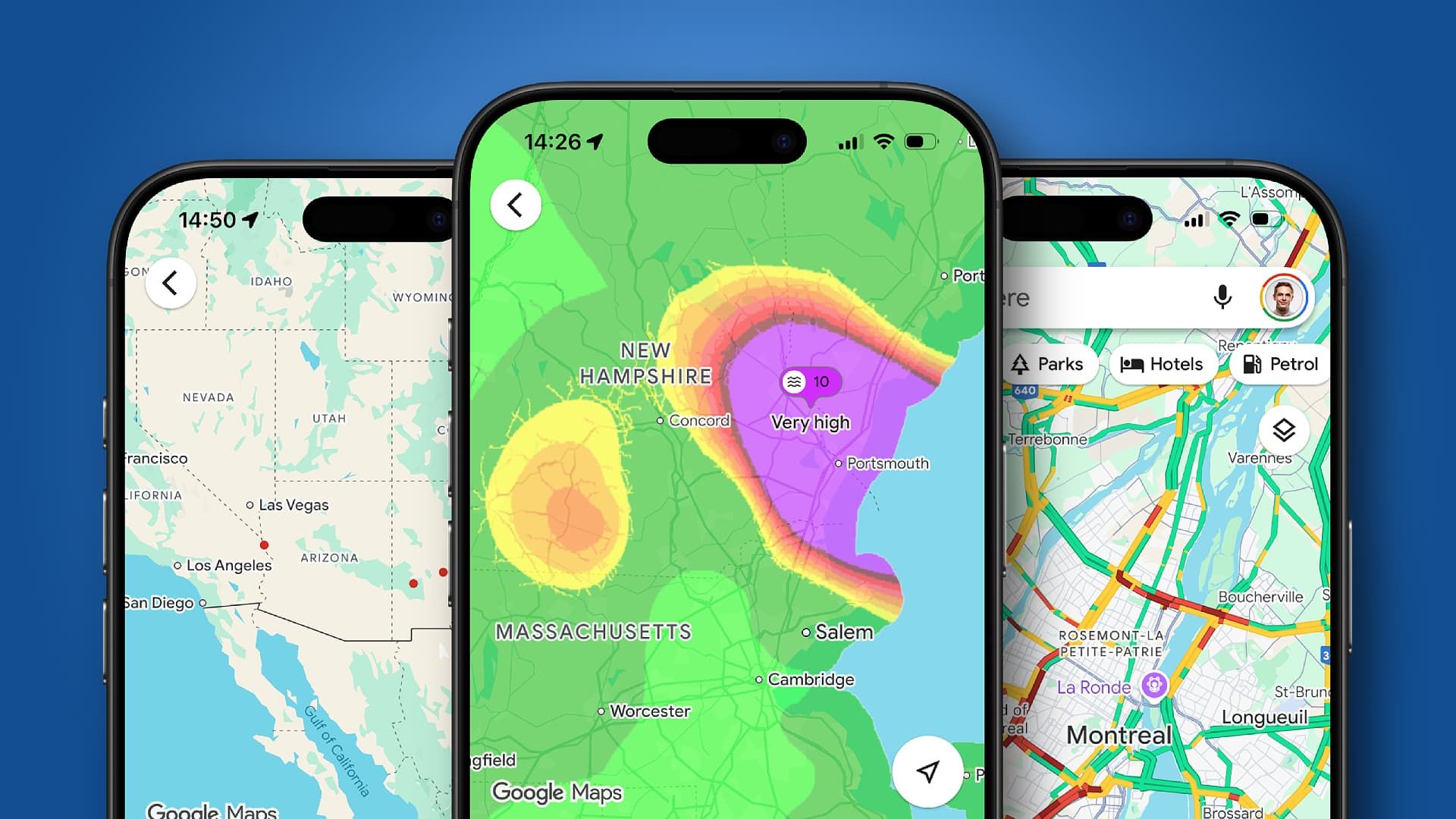

There’s a strong case to be made for Google Maps being the single best smartphone app around. Yes, even on iPhone. Since it launched on mobile in 2008, Google has spent the past two decades improving its mapping service, with new features, visual overhauls, and, of course, the introduction of AI.
I’ve been using Google Maps on smartphones since the app first launched, and over those 18 years, I’ve witnessed these changes first-hand. It’s been an invaluable travel companion as I’ve ventured around the world, but in 2026, Google Maps is so much more than a simple mapping app.
Article continues below
Do your pre-trip research in Maps
Google Maps is my first port of call when it comes to planning a work trip or vacation. Rather than head to a search engine or the likes of Gemini or ChatGPT, I find the mapping service a wholly encompassing experience.
Zooming in on the area where I want to stay or explore, I use the handy shortcut buttons just below the search bar to display hotels or restaurants nearby.
Google’s comprehensive business listings, complete with user reviews, provide a detailed breakdown of what’s available, and filter settings allow me to narrow down the options to those that interest me — all while seeing where they are on the map.
You can even view hotel prices and availability, and book table reservations at restaurants from Google Maps.
During a recent visit to Miami, for instance, Maps helped me plan a four-stop burger tour around Wynwood, with all the joints within a five-minute walk of our hotel. Seeing them all on the map in relation to our hotel, and with easy access to reviews, made the planning process easy.
Don’t forget where you want to go (or where you’ve been)
To make sure your pre-trip research isn’t forgotten, use the Lists feature to flag the places you’ve found. Tap a location of interest, and in the card that pops up, you’ll see a little bookmark icon. Tap that, and you’ll be able to add the location to one or more Lists.
Google offers some pre-made lists, including ‘Want to go’ and ‘Starred places’, but you can also create your own. ‘Want to go’ is self-explanatory, and is what I use when planning a trip. It pops a green flag marker on all the locations you add to the list, making them easily viewable when you zoom in on the area in Maps.
And once I’ve visited places, I move the ones that really stood out to me to a List I created called “Visited”. This gives you a personal history of your travels plotted directly on the map, and allows me to return to the places I really enjoyed if I were to visit the area again in the future.
And these Lists can go further, too: you can add a note to a location you add to a List.
While planning a trip to New York City in 2027, I’ve added Rudy’s Bar & Grill to my ‘Want to go’ list. However, I know once the trip rolls around next year, I will have forgotten why I flagged this spot — so by adding a note saying “With every beer, you get a free hot dog,” I know I’ll be primed once I arrive in Manhattan.
Download before you go
The ability to download offline maps is no secret, but if you’re not aware of this feature, it’s not overtly obvious when using Google Maps. It is, however, massively useful when traveling abroad and you don’t fancy paying extortionate roaming charges.
I always download the map for the areas I’ll be visiting, as I can’t always guarantee mobile signal, or whether my mobile plan will cover roaming.
I’ve been able to save whole cities (including New York, Bangkok, and London) for offline use, and even multiple Caribbean islands in a single cache. Not everywhere is available to download offline, though. South Korea isn’t, for example.
While not all functionality is possible with offline maps, you can use driving navigation and location search with the downloads without the need for an internet connection.
To get to this feature, tap your profile picture in Google Maps, then tap ‘Offline maps’.
Personalize your driving navigation
Speaking of Google Maps’ in-car navigation — which has been a lifesaver on more than one occasion when I’ve been driving at home and abroad — you can further customize your experience.
Diving into the settings to set the fuel your vehicle uses (gas, diesel, hybrid, electric), will allow Google Maps to better plan driving routes for you based on fuel efficiency and — in the case of EVs — charging stops.
In the US, you can even tell Maps the exact make and model of your vehicle for even more accurate trip calculations, such as estimated battery usage for EVs.
You can take the vehicle customization a step further too, with the ability to change the blue navigation arrow to a car icon. Google Maps offers eight different car models (plus five bikes) and eight different colors for a fun, personalized experience.
Let others know how you’re getting on
A feature we love in our family is trip sharing. If I’m on the long drive home and using Google Maps for navigation, I can share my route with my partner, who can view my real-time progress, including my phone’s battery percentage, departure time, and estimated time of arrival.
It’s easy to do — just start navigation in Maps, swipe the navigation card up, tap ‘Share trip progress’, and then select the contact you want to share with.
Use less power
I came across this feature accidentally during a recent long road trip, where I was slightly panicking that my phone battery was getting low and the USB port in my car had decided to stop charging.
Navigation in Google Maps can be power hungry, and on long journeys, your phone will likely need a top-up. However, as I fumbled with my phone, I knocked the power key, which locked the handset. To my surprise, my Google Pixel 10 Pro continued to show navigation on the lock screen — albeit in black and white and with limited details compared to the full-fat experience.
But it was a game-changer. Battery consumption was reduced, and I was able to make it home without my phone running flat. At the time of writing, lock screen navigation is only available on the Google Pixel 10 series of handsets, but here’s hoping Google rolls it out more widely in the future.
Never lose your car again
Vast parking lots can be challenging for the old memory. Great swathes of asphalt stretching far into the distance, each row of vehicles looking nearly identical to the last. I’ve found myself scratching my head at numerous locations when trying to remember where in a massive theme park or sports complex lot I left my car.
Thankfully, Google Maps has come to my rescue on more than one occasion, with the ability to automatically drop a pin when it detects you’ve reached your destination and parked up.
The small, circular ‘P’ icon it leaves on the map might look unassuming, but it can save you a lot of time and stress when returning to your vehicle.
Look out for a prompt at the end of your navigated journey asking if you want maps to remember where you parked, or go to Settings > Notifications > Getting around > Parking Location.
Is the sun shining?
If you’re thinking about heading to the beach for the day and are checking out possible shorelines in Maps, you can also view the weather and air quality for a location without leaving the app.
Zoom in on an area, and a weather icon will appear in the corner of the card at the bottom of the screen. Tap on this, and you’ll see the 24-hour forecast and air quality for that spot.
Time travel is real (in Google Maps at least)
I’m a sucker for a nostalgia trip, and combine that with a geeky obsession for maps (I have a geography degree after all), and Google Maps can end up stealing hours of my day as I take a step back in time with two features I just love.
First up is Timeline, which has been around for a while. If you allow it, Google Maps can record your movements and save them in a calendar view. This is perfect if you’re trying to remember that really cool bar you stumbled into on a whim six months ago while on vacation in Rome, Italy, but can’t for the life of you remember what it was called or where in the city it was.
A quick hop into Timeline, find the date in the calendar view, and you’ll get an itinerary breakdown of your movements that day so you can retrace your steps.
As someone who enjoys digging into data and recounting previous excursions, I love this feature — but this level of tracking won’t be for everyone. You can turn Timeline tracking off by going to Settings > Location and Privacy > Timeline.
The second time travel feature is a newer addition and is part of Street View. Enable this first-person view of a road, and you’ll see there’s an option to ‘See more dates’.
From here, you’ll be offered up the snapshots taken by Google’s Street View vehicles over the years — with some locations going back two decades. It’s fascinating to look at how areas have changed over the years.
What are your top Google Maps tips?
How many of my tips and features did you already know about? I’d love to hear how you use Google Maps — let me know your favorite tricks in the comments below.
Follow TechRadar on Google News and add us as a preferred source to get our expert news, reviews, and opinion in your feeds. Make sure to click the Follow button!
And of course you can also follow TechRadar on TikTok for news, reviews, unboxings in video form, and get regular updates from us on WhatsApp too.
Read the full article here