




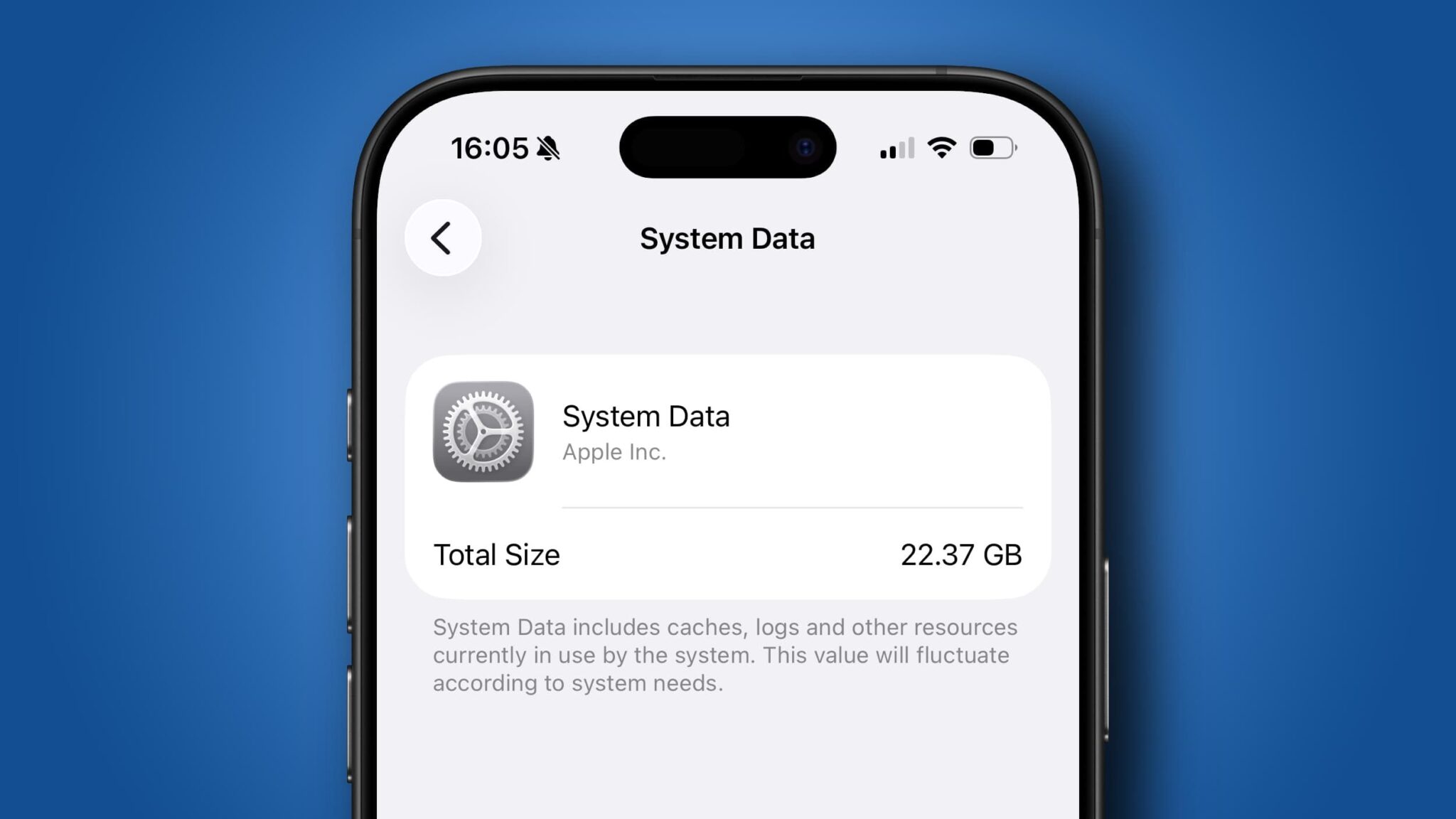

- Reddit users have complained of a worrying storage ‘bug’ in iOS
- This sees the System Data category eat up huge amounts of storage
- Fortunately, there are several ways to fix this problem
iPhone storage often comes at a premium — after all, it’s not like you can open up any of the best iPhones and add more space after you’ve bought one. That’s why it can be frustrating to see a massive chunk of your storage taken up by your iPhone’s “System Data” category, and especially worrying if this number seems to keep creeping up. Luckily, there are a few solutions you can try to put things right.
This problem was recently illustrated on Reddit, where user TakenToTheRiver posted a screenshot showing that 86.96GB of their iPhone’s storage was taken up by the System Data category. Worse, they only had 128GB of total space, meaning a whopping 68% of their iPhone’s internal storage had already been gobbled up.
As they put it, “This is not something the average iPhone user should have to deal with.” They added that this “bug,” as they called it, “has persisted for years, and we shouldn’t have to work around it ourselves.” It’s also something we’ve seen elsewhere — such as in the Maps app — so it’s not an isolated issue.

They were also far from the only person struggling with System Data on their iPhone or iPad. User laszlotuss had lost 100.62GB, while for DanscoRed that figure stood at 150.56GB. Clearly, something was amiss.
How to reclaim storage space
Luckily, there are one or two ways you can get back precious space eaten up by your iPhone’s System Data category. They might take a little work, but they’re worth it if you’re worried about filling up your device.
Different approaches have worked for different iPhone users. For some, simply backing up their iPhone (either to iCloud or to your computer), resetting it, then restoring from the backup has done the trick.
A similar tip was provided by jg61600, who said (via machine translation), “Back up your entire iPhone in iCloud, and then restore it to DFU mode if you’re going to remove all the cache you have.” DFU mode restores your firmware to working order and installs a fresh copy of iOS, which could help with runaway System Data.
This backup-and-restore method was exactly the one that helped the most when we investigated Apple Maps taking up too much storage space, so it should have a good chance of success. However, it’s quite a drastic technique, so you might want to try one of the other ideas below first.
For instance, another successful technique has been opening the iPhone’s Settings app, going to Apps > App Store, then scrolling down and enabling Offload Unused Apps. This uninstalls apps you haven’t used for a while (but keeps your documents and data intact), which Dapper_Contest_5695 said “seemed to fix the extra system storage issue” for them.
Finally, EffectiveEquivalent shared another potential solution: clear the caches for your web browser and podcast app. They also “deleted a game that had an extra download once in the app.” They added: “I suspect the latter will trip up most people.”
Seeing your iPhone’s storage space slowly diminish without knowing how to stop it can be an exasperating experience, but that doesn’t mean there’s nothing you can do about it. Try the ideas that have worked for us and others above and you might be able to reclaim lost storage and put an end to the misery.
Follow TechRadar on Google News and add us as a preferred source to get our expert news, reviews, and opinion in your feeds.
Read the full article here