




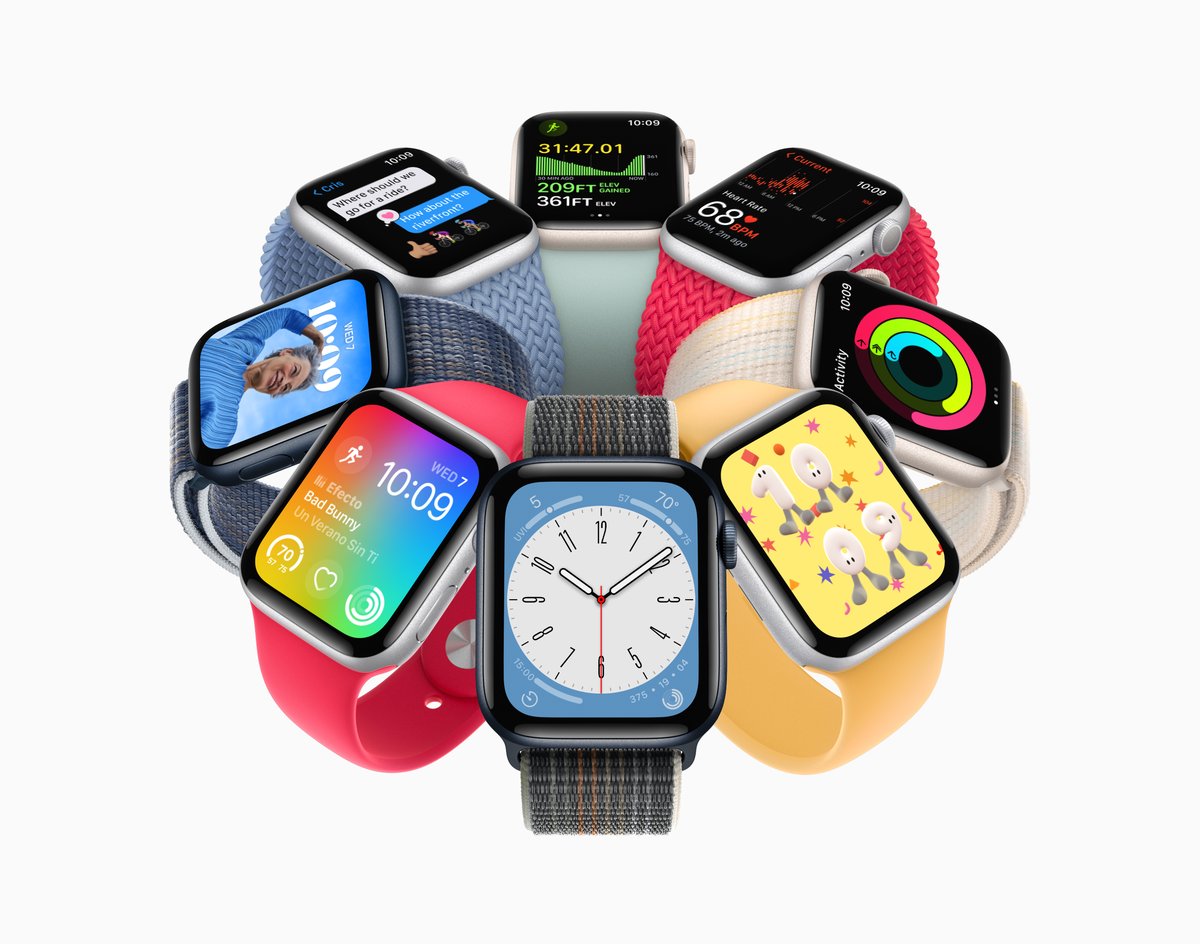

The best Apple Watch faces do more than show the time. They can surface your next meeting, track activity, display weather, show world clocks, or turn your watch into a more personal accessory.
With watchOS 26, Apple has added new watch faces including Flow, Exactograph, and Waypoint, while also refreshing the overall Apple Watch experience with its Liquid Glass design language. Not every face is available on every model, so the best option depends on your watch, daily routine, and how much information you want at a glance.
SEE: iCloud vs. OneDrive: Which is best for Mac, iPad, and iPhone users? (free PDF) (TechRepublic)
Below, we’ve rounded up the best Apple Watch faces for productivity, fitness, travel, style, and everyday use, plus quick steps for changing your watch face from your Apple Watch or iPhone.
16 best Apple Watch faces
1. Metropolitan
The Metropolitan is a classic, type-driven watch face that features custom-designed numbers that dynamically change in style as you turn the Digital Crown. The numerals rotate to become pills when your wrist is down.
You can add complications to this face, such as Activity, Alarms, Astronomy (Moon Phase), Audiobooks, Calendar, Remote Camera, Compass (Compass, Elevation, and Level), Compass Waypoints, Contacts, News, Phone, Reminders, Sleep, Stock, Workout, and World Clock.
2. Lunar
This face depicts the relationship between the Gregorian calendar and the lunar calendar used in many cultures, such as Chinese, Hebrew, and Islamic. Customizable features for this face include Color, Calendar (Chinese, Hebrew, and Islamic), and Time.

3. Playtime
Apple teamed up with artist Joi Fulton to create this face. The result is a dynamic, colorful art face unique to the brand. You can rotate the Digital Crown to change the background, and characters react when you tap on the face.

4. Astronomy
The latest Astronomy face features a new star map and current cloud data. This watch face shows a continuously updated 3D model of the earth, moon, or solar system. You can customize the view of the Earth, Moon, and Solar System; set a random view and change the style.

5. California
Several Apple Watch faces offer visuals, animations, and other bells and whistles, but sometimes simplicity is best. The California face offers a clean look with a traditional analog time display with numerals in Arabic, Roman, or other styles. The Simple style serves up a clean, primary analog display, and the Typograph type displays large numerals, so you can easily see them.

6. Numerals Duo
For a straightforward Apple Watch face, Numerals Duo displays the current time using two oversized numbers for the hour and minute. This watch face uses large numbers in an Apple-designed font made specifically for Apple Watch, making it a clean, bold option if you want a simple digital-style face without extra complications or visual clutter.

7. Nike Analog, Bounce, and Globe
Since watchOS 9, Nike watch faces have been available to all compatible Apple Watch users, even those without a Nike model. Nike Analog prominently displays the time in large numerals and gives the watch a clean, sporty look.

Nike Bounce is more playful and motion-driven. Its digital numerals react to your movement, including steps, jumps, and wrist motion. You can also tap the display or turn the Digital Crown to set the numbers in motion.

Nike Globe features a retro, sci-fi-inspired design with room for up to four complications, making it a more practical Nike option if you want quick access to information alongside the stylized clock display.

8. Motion
The Motion watch face displays a beautiful animated theme and adds a more playful, visually dynamic look to the Apple Watch. You can choose which object appears in motion, including butterflies, flowers, or jellyfish, and customize the face with several complications.

9. GMT
Knowing the time in different countries and regions can certainly be helpful if you deal with colleagues, customers, or other people around the world.
The GMT face displays your local time in the inner part of the dial and the time for a different zone in the outer part. To set a different time zone, tap the watch face and turn the Digital Crown until you find the zone you want to view. Tap the checkmark. Now, the outer ring will show you the time in that region.

10. World Time
The World Time face lets you track the time in 24 time zones at once. The sun and moon icons represent sunrise and sunset where you are, and the light and dark zones on the globe reflect night and day moving across the earth.

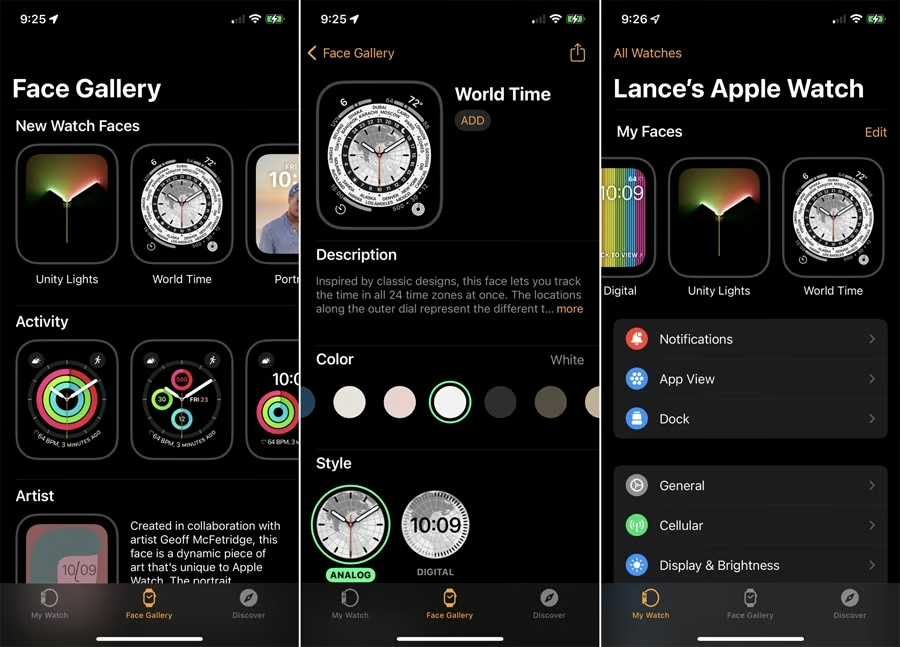
To set this face, first, make sure you’re running the latest version of watchOS. Next, open the Face Gallery on your iPhone’s Watch app. The World Time appears at the top of the screen under New Watch Faces and toward the bottom of the screen as part of the alphabetical list. Choose the color and style you wish to apply to the face. You can also customize any of the four complications at the four corners.
SEE: BYOD Approval Form (TechRepublic Premium)
The inner dial shows the time in your current zone with an analog or digital display. The outer dial shows the time in each zone worldwide in military or 24-hour time.
11. Infograph
The Infograph face features up to eight rich, full-color complications and subdials. Maybe you need to see a lot of information, such as the weather, temperature, elevation, mail, reminders, or stock activities. Or perhaps you want to be able to easily use certain tools on the Apple Watch, such as the calculator, camera remote, compass, stopwatch, timer, or voice recorder. In those cases, you need an Apple Watch face that can display multiple details.

To set up Infograph on your Apple Watch, go to the Face Gallery in the phone app, and swipe down to and tap the Infograph face. Choose your favorite color. Then tap each of the complications to select the information you want to see. Add the face. The different complications appear in the four corners of the face and a series of small dials in the center.
12. Breathe
Sometimes you just need to unwind from the daily grind. For that, you can turn to watch faces that encourage you to relax.
The Breathe face offers quick access to the Breathe app, which helps you breathe in and out for a short duration as a way to calm yourself. The face displays a gentle drawing of a face, which you can tap to transform into a different image. And the Fire and Water face displays a changing animated image of fire and water interacting to create a peaceful effect.

13. Kaleidoscope
One particularly relaxing Apple Watch face is Kaleidoscope, which displays a series of slowly moving kaleidoscopic images that are soothing to watch.

To set this face, from the Face Gallery in the Watch app, tap the Kaleidoscope face. Choose the image you wish to see. You can even add one of your own photos. Select a style and add complications if you wish. Add the face and watch the image change when you need a break.
14. Snoopy
By far the cutest Apple Watch face on offer, the Snoopy watch face features characters from the Peanuts comic strip, including Snoopy and Woodstock, who interact with the watch hands and react to weather conditions. The face offers various animations, changing each time the wrist is raised. When the display is dimmed, the characters are shown as sleeping.
Comic fans will also notice that the background changes color on Sundays to mimic the Sunday comic strips.

15. Palette
One of the most visually appealing designs, Palette displays the time using three overlapping layers of colors that shift throughout the day. Users can customize this face with different gradient patterns and add up to four complications.

16. Solar Analog
The Solar Analog watch face shows an analog representation of the sun’s position throughout the day. It provides a classic look with the added functionality of visualizing daylight hours, sunrise, and sunset with light and shadow. The dial style and colors can be customized.

You can also find Apple Watch faces and Apple Watch face apps from third parties. Open the App Store, either on your iPhone or directly on your Apple Watch. Search for the term “watch faces,” and you’ll find several paid and some free apps that offer their own faces for your Apple Watch.
How to add faces using the iPhone app
You can add new faces to your Apple Watch through your iPhone or using your watch. To add faces using your phone, open the Watch app on your iPhone, then tap the icon at the bottom: Face Gallery. The face gallery will show you all the latest Apple Watch faces, as well as those Apple has unveiled in the past.
Swipe down and across the gallery, and tap a face you like. Each face can be customized, and you can add extra information displays like data, weather, time zones, heart rate, mail, and voice memos, among many others. You can even add complications from third-party apps. Once you are done, tap the Add button to add it to your Apple Watch. The face you added will appear in the My Faces list in the Watch app and on your Apple Watch.
Add a new face using your Apple Watch
To add faces using your Apple Watch, swipe edge to edge across the watch face to see other faces in your collection. To see all available watch faces, touch and hold the watch face. Then swipe to the one you want and tap to select it.
You can also customize a face directly on the watch. To do this, press down on the face until it shrinks in size, and an Edit button appears. Tap the Edit button, and turn the Digital Crown to choose a different color or style. Swipe the face to the left to see the Complications screen. Tap a specific complication and turn the Digital Crown to change it.
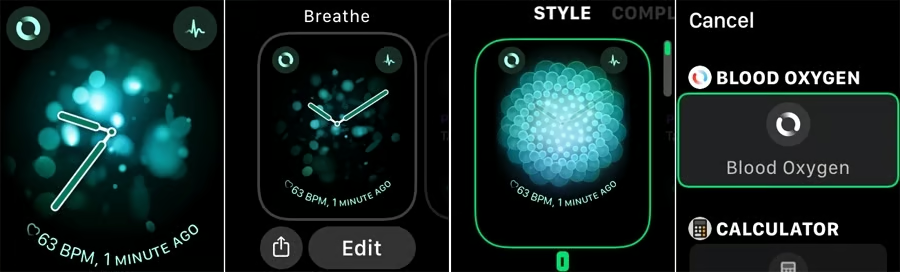
To add complications to a face using your watch, first touch and hold the display, then tap Edit. Swipe left all the way to the end — the different available complications will show up on the last screen. Tap a complication to select it. To choose more complications, turn the Digital Crown and find a new one.
Once you are finished, press the Digital Crown to save your changes, then tap the face to switch to it. The entire process is very intuitive; once you have done it, adding complications comes easily. You can also add saved faces to your collection to access them easily.
Read the full article here