






| Provider | Best for | Starting price (billed annually) |
|---|---|---|
| Keeper | Best overall for enterprises | $2 |
| Dashlane | Cross-platform compatibility | $4 |
| 1Password | Ease of use | $2.99 |
| Bitwarden | Free option | $1.65 |
| Enpass | Flexibility and customization | $1.99 |
| ManageEngine Password Manager Pro | Password sharing and collaboration | $595 for two administrators |
| Zoho Vault | Access Controls | $0.90 |
| NordPass | Cross-browser compatibility | $1.99 |
As organizations embrace hybrid and remote work models, the surge in online accounts supporting workflows has led to a growing challenge of managing numerous login credentials. This not only escalates the complexity of password management but also gives rise to potential security issues.
To simplify the password management process and mitigate password-related breaches, organizations leverage enterprise password managers.
Enterprise password managers offer a secure, efficient, and centralized platform to create, store, and manage passwords, reducing the risk of unauthorized access and fostering regulatory compliance.
This article will explore the top enterprise password managers, examining their key features, pricing, benefits, and drawbacks.
Top enterprise password managers: Comparison table
The table below is a comparison of the key features that can be found in every top-quality enterprise password manager.
| Browser extension | Encryption type | Password sharing | Biometric access | Free version | Pricing | |
|---|---|---|---|---|---|---|
| Keeper | Brave, Chrome, Firefox, Opera, Edge and Safari. | AES 256-bit, Elliptic-Curve cryptography (EC) | Yes | Yes, on macOS. | Yes | Starts at $2 |
| Dashlane | Chrome, Firefox, Opera, Brave, Edge and Safari. | Argon2 | Yes | Yes | Yes | Starts at $4 |
| 1Password | Chrome, Brave, Firefox, Edge and Safari. | 256-bit AES | Yes | Yes | No | Starts at $2.99 |
| Bitwarden | Chrome, Firefox, Opera, Edge and Safari. | AES-CBC 256-bit, PBKDF2 SHA-256 or Argon2. | Yes | Yes | Yes | Starts at $1.65 |
| Enpass | Opera, Vivaldi, Brave, Chrome, Firefox, Edge, Safari and Tor. | 256-bit AES 256-bit, PBKDF2-HMAC-SHA512 on SQLCipher engine. | Yes | Yes | Yes | Starts at $1.99 |
| ManageEngine Password Manager Pro | Chrome, Edge, Firefox, Opera, Brave and Safari. | AES-256 encryption | Yes | Yes | No | Enterprise pricing starts at $595 for two administrators |
| Zoho Vault | Ulaa, Chrome, Firefox, Safari, Edge, Vivaldi, Brave, Opera. | AES-256 bit | Yes | Limited | Yes | Starts at $0.90 |
| NordPass | Opera, Vivaldi, Brave, Chrome, Firefox, Edge, Safari. | XChaCha20 | Yes | Yes | Yes | Starts at $1.99 |
Top enterprise password managers
With the breadth of enterprise password manager options, I tested and reviewed each tool based on features, security, and price to see which ones are truly worth considering. Here are our picks for the eight best enterprise password managers in 2025.
Keeper: Best overall enterprise password manager
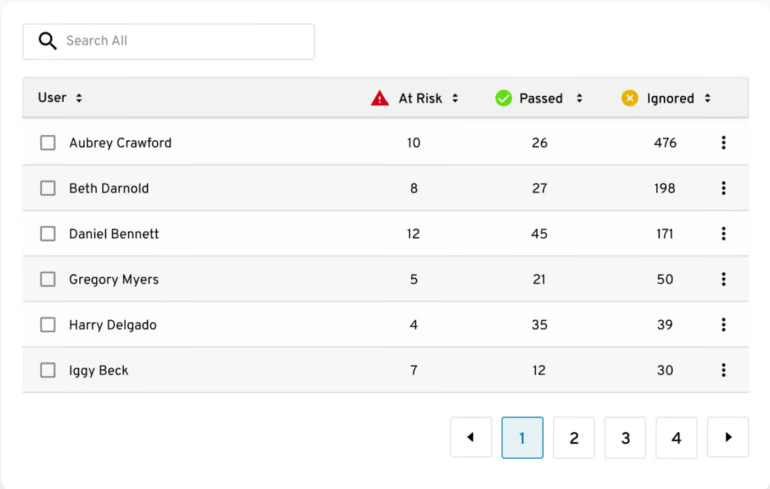
Keeper is a password management solution that offers encrypted vaults for every user. It provides users with an organizational structure with folders and subfolders, along with shared team folders. With Keeper, users can access their encrypted vaults from an unlimited number of devices. In addition, Keeper has a policy engine and enforcement feature that guarantees compliance with security protocols, while its Security Audit and Activity Reporting features offer insights into password usage and user actions.
I particularly liked Keeper’s BreachWatch feature — a dark web monitoring tool that constantly scans employees’ password vaults for passwords that have been exposed to the dark web and alerts security teams for immediate response.
Why I chose Keeper
I was impressed with Keeper’s emphasis on ease of use, combined with strong security measures like secure file storage, secrets manager and role-based access controls for large organizations. In my opinion, its balance of usability and management-focused features helps it stand out as my top option for enterprises looking for a password management solution.
Features
- Command Line Provisioning.
- Multi-factor authentication.
- Event log and notification.
- Security audits.
- Active Directory and LDAP synchronization.
- Single sign-on (SAML 2.0) authentication.
Keeper pros and cons
| Pros | Cons |
|---|---|
|
|
Pricing
Keeper offers three pricing plans for its business and enterprise users.
- Business Starter: Starts at $2 per user, per month, billed annually
- Business: Starts at $4 per user, per month, billed annually
- Enterprise: Starts at $6 per user, per month, billed annually
- KeeperMSP: Contact sales
Visit Keeper
If you want to learn more, read our full Keeper review here.
Dashlane: Best for cross-platform compatibility

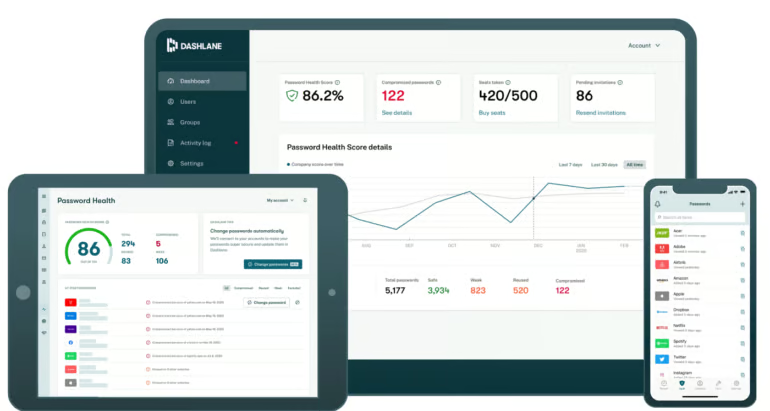
Dashlane is a password management tool that allows users to access and manage passwords across different devices and platforms. It has an unlimited, secure password-sharing feature that allows users to share passwords while maintaining total control. This means that access to shared passwords can be revoked at any time. For enhanced security, the tool includes dark web monitoring and the ability to auto-send alerts in case of a data breach.
Personally, I like how Dashlane integrates with popular identity management solutions like Okta, Duo and OneLogin. This offers organizations a well-rounded and multi-layered security posture to ward off against attacks and vulnerabilities.
Why I chose Dashlane
Dashlane made it to our list for its inclusion of a VPN feature for Wi-Fi protection and a limitless secure password-sharing feature.
Features
- Unlimited secure password sharing.
- Cross-platform accessibility.
- One-click passwords and forms.
- Dark web monitoring and alerts.
- Password generator.
Dashlane pros and cons
| Pros | Cons |
|---|---|
|
|
Pricing
Dashlane has four main subscriptions under its Business tier:
- (Personal) Premium: $5.42 per month, billed annually
- (Personal) Friends & Family: $8.13 per month for 10 members, billed annually
- (Business) Password Management: $8 per user, per month, billed annually
- (Business) Credential Protection: $4 per user, per month, billed annually
- Enterprise: Custom pricing
Visit Dashlane
If you want to learn more, visit our full Dashlane review here.
1Password: Best for ease of use

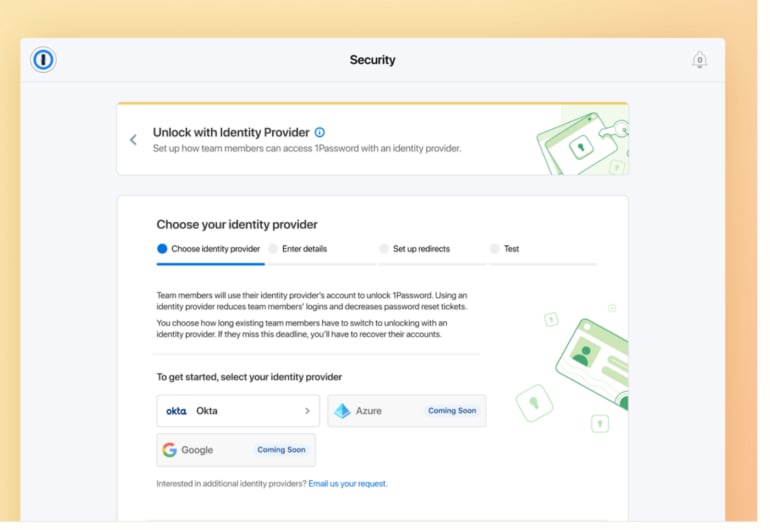
1Password is a password management solution that offers various security, admin, and compliance features. Its security features include multi-factor authentication that supports a variety of MFA methods, including TOTP, U2F and WebAuthn, to add an extra layer of security to employee logins.
In terms of its business capabilities, I really like its security monitoring capability that makes it easy for enterprises to monitor employee password activity for suspicious behavior, such as failed login attempts and unusual password changes.
Why I chose 1Password
I picked 1Password because of its security features, such as end-to-end encryption, customizable team roles, and seamless integrations, all of which cater to enterprises looking for a secure yet easy-to-use password manager. I also find 1Password’s intuitive interface a noteworthy strength, making it easy for less tech-savvy users to secure their passwords and logins.
Features
- Centralized password storage and sharing.
- Delivers vulnerability alerts.
- Phishing protection.
- Shared vaults.
- Customizable access policies
1Password pros and cons
| Pros | Cons |
|---|---|
|
|
Pricing
For businesses and enterprises, 1Password offers the following plans:
- Individual: $2.99 per month, billed annually; $4.99 per month
- Families: $4.49 per month, billed annually; $7.99 per month
- Teams Starter Pack: $19.95 per month, billed annually; $24.95 per month
- Business: $7.99 per month, billed annually; $9.99 per month
Visit 1Password
If you want to learn more, read our full 1Password review here.
Bitwarden: Best free password manager
If you’re looking for a free password manager, I recommend Bitwarden. It offers a range of specific features that make it a comprehensive password management solution for enterprises. Administrators have access to advanced tools such as user management, where they can easily add, remove, or modify employee access to credentials. Bitwarden also integrates seamlessly with single sign-on providers like Okta and Azure Active Directory, streamlining the log-in process for employees across multiple business applications.
One highlight I want to emphasize with Bitwarden is its open-source nature. With this, there’s an added level of transparency as Bitwarden’s source code is publicly available for review. Eagle-eyed IT administrators will appreciate the fact that they can spot-check the code themselves for possible holes or vulnerabilities.
Why I chose Bitwarden
Besides being an open source password manager, Bitwarden earned its place for providing strong security measures at an affordable price for enterprise users. I also found that it supports vital features like secure sharing, self-hosting options, and extensive customization capabilities, making it an ideal choice for cost-conscious enterprise users prioritizing security.
This is on top of offering, what I consider, one of the best free password managers for individual users and small businesses.
Features
- End-to-end encryption.
- Open-source.
- Cross-platform accessibility.
- Vault health reports.
- Security audit and compliance.
- Directory synchronization.
- Secure password sharing.
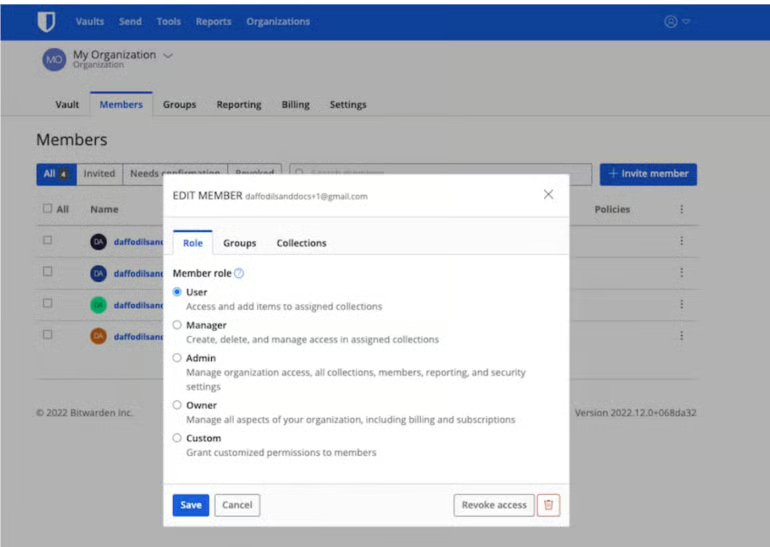
Bitwarden pros and cons
| Pros | Cons |
|---|---|
|
|
Pricing
Bitwarden’s enterprise pricing is captured under the Business plan.
- Free: Available for the individual plan
- (Individual) Premium: $1.65 per month, billed annually
- (Individual) Families: $3.99 per month, billed annually
- (Business) Teams: $4 per user, per month, billed annually
- (Business) Enterprise: $6 per user, per month, billed annually
It also has a free version for its consumer or individual plan.
Visit Bitwarden
It also has a free version for its consumer or individual plan. If you want to learn more, check out our full Bitwarden review here.
Enpass: Best for flexibility and customization
If you’re looking for a flexible password manager, I suggest Enpass. It offers a distinctive password management solution for businesses by allowing password vaults to be stored either locally or on a cloud storage platform of the user’s choice. This provides businesses with the autonomy to decide their storage method, addressing specific security needs. However, this flexibility requires users to install browser extensions separately, which some users have found inconvenient.
Another key feature businesses would find particularly interesting is the Admin Console, which is ideal for managing a large workforce. On the admin console, businesses can track password health and set security policies on a single dashboard.
While Enpass provides a free version for desktop users, the mobile version only allows storage of up to 25 passwords, which could be a limitation for businesses with employees who use their mobile devices.
Why I chose Enpass
I selected Enpass for its strong but flexible password generator features, which allow users to customize their passwords according to their preferences. I also appreciate how Enpass gives businesses the option to store their passwords either locally or through their cloud storage service of choice. This helps businesses tailor-fit their password manager solution to their current tech stack, especially if they already have a service they’re heavily invested in.
Features
- Admin console.
- Security audits.
- Breach monitoring.
- Secure password sharing.
- Serverless deployment.
- Unlimited password storage and recovery.
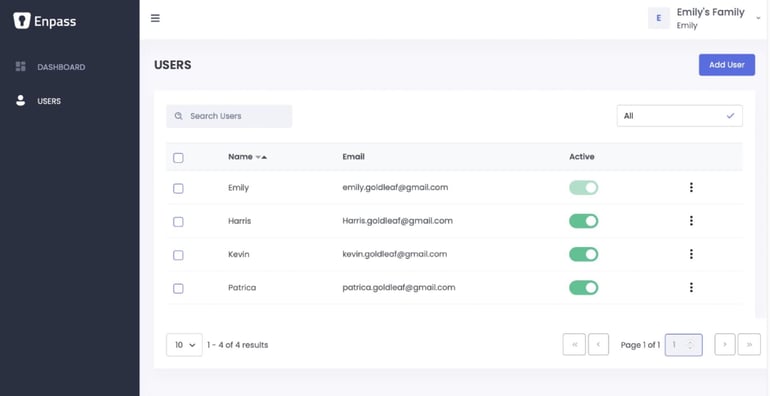
Enpass pros and cons
| Pros | Cons |
|---|---|
|
|
Pricing
- (Personal) Individual Plan: $2.23 per month, billed annually
- (Personal) Family Plan: $3.35 per month, billed annually
- (Personal) 3-Year Plan: $53.75 per month, billed annually
- Business Plan: $1.99 per user, per month, billed annually
- Large Enterprises: Contact sales
Visit Enpass
If you want to learn more, check our full Enpass review here.
ManageEngine Password Manager Pro: Best for password sharing and collaboration

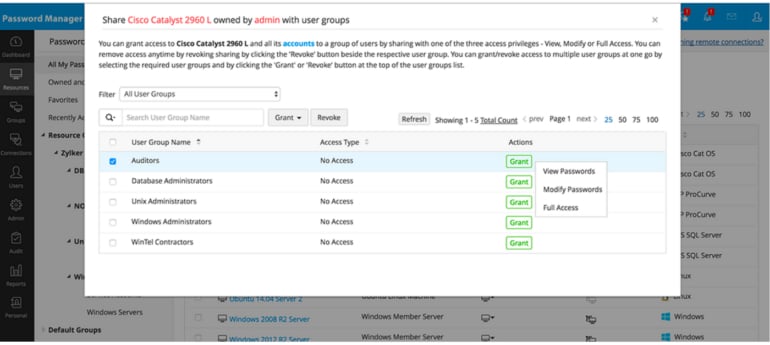
ManageEngine Password Manager Pro allows enterprises to securely store and manage shared sensitive information, including passwords, documents, and digital identities, in a centralized vault. An “automatically reset” feature allows users to reset the passwords of servers, databases, network devices, and other resources easily.
With this tool, users can log in to systems, websites, and applications from the PMP web interface without needing to manually copy and paste passwords. I especially like how ManageEngine enables both preventive and detective security controls by using approval workflows and real-time alerts for password access. This makes sharing passwords across an enterprise much easier while still maintaining a high level of security.
Why I chose ManageEngine Password Manager
I chose ManageEngine Password Manager Pro due to its centralized password vault, which not only allows organizations to store their privileged passwords in a single location but also provides password management flexibility features such as password rotation, password expiration, and password complexity enforcement for strong password security.
I also think ManageEngine is a good pick for administrators specifically looking for a solution that prioritizes collaboration, secure password sharing, and intuitive access controls.
Features
- Remote password synchronization.
- Privileged account discovery.
- Centralized password vault.
- Automated password reset.
- Access and activity reports.
ManageEngine pros and cons
| Pros | Cons |
|---|---|
|
|
Pricing
- Free: For one administrator
- Standard: $595 for two administrators
- Premium: $1395 for five administrators
- Enterprise: $3995 for 10 administrators
Visit ManageEngine
If you want to learn more, check our full ManageEngine Password Manager Pro review here.
Zoho Vault: Best for access control
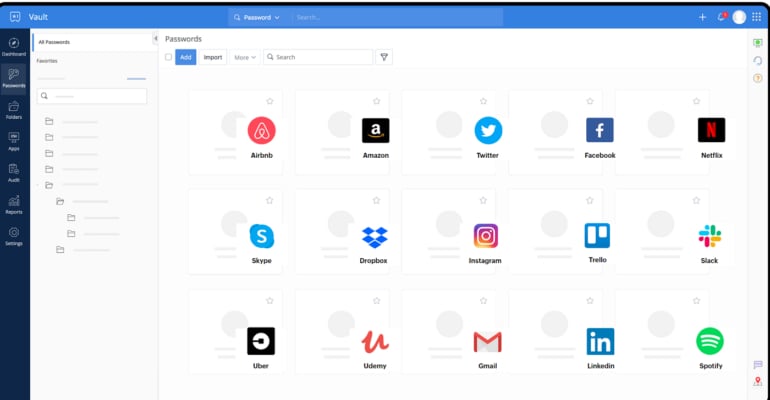
Zoho Vault uses AES 256 encryption for all user passwords and allows users to store unlimited passwords, both personal and enterprise, in one vault. It automatically logs users into saved websites and auto-fills passwords with a single click.
What I like about Zoho is how it allows users to define user roles and manage access privileges as necessary. This is an essential and must-have feature for an enterprise password manager, particularly for firms with complex organizational structures or hierarchies. It supports team collaboration with its secure password-sharing feature, which allows users to share passwords across groups.
Why I chose Zoho Vault
I chose Zoho Vault for its capacity to help businesses store not just passwords in a secure vault but also other sensitive business documents, like admin keys, licenses, and credentials in the vault.
In particular, I found Zoho Vault’s access control functionality as a very capable way of managing access to hundreds of credentials within large org structures and various internal departments.
Features
- Password vault.
- Supports single sign-on.
- Supports secure password sharing.
- Offers real-time audits.
- Provides data backup.
- Provides role-based access.
- Offers multi-factor authentication.
Zoho Vault pros and cons
| Pros | Cons |
|---|---|
|
|
Pricing
- Free Forever: Unlimited passwords, passkeys, and storage
- Standard: $0.90 per user, per month, billed annually
- Professional: $4.50 per user, per month, billed annually
- Enterprise: $7.20 per user, per month, billed annually
- Flex Plan: Contact sales
Visit Zoho Vault
If you want to learn more, check out our full Zoho Vault review here.
NordPass: Best for cross-browser compatibility
NordPass’s password manager helps users check for leaked data, identify vulnerable passwords and recommend stronger ones, share passwords and passkeys among teams and provide an option to protect accounts with biometric security. The shared folders feature allows team members to securely share company information and sensitive data stored in their vaults, making it easy to collaborate across teams.
SEE: How to Start a Career in Cybersecurity (TechRepublic Premium)
For me, I really like NordPass’ cross-device and browser compatibility. With it, businesses are able to easily sync their passwords across computers, tablets or phones, and all popular browsers. This can be useful for organizations that use multiple devices across the board. It also accommodates each employees’ specific browser preferences.
In addition, the solution can help users detect passwords stored in their browsers automatically and import them instantly into the software.
Why I chose NordPass
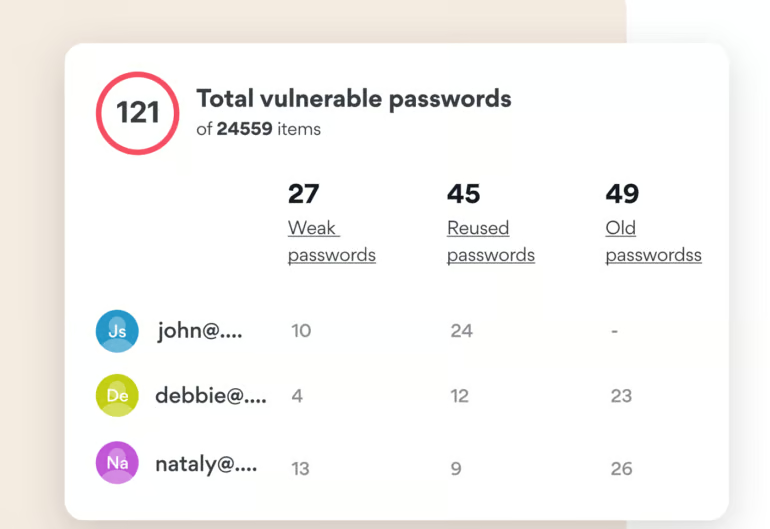
NordPass made it to my list due to its intuitive security dashboard where business owners and password administrators can check for weak, reused, and old passwords, plus the inclusion of a data breach scanner on the dashboard for easy password breach scans. As mentioned, I also like NordPass’ smooth cross-device and cross-browser compatibility. This makes it incredibly easy for users to access their passwords, regardless of which machine or browser they may be using.
Features
- Data breach scanner.
- Supports passkeys.
- Password health audit.
- Encrypted vault.
- Cross-device and browser accessibility.
NordPass pros and cons
| Pros | Cons |
|---|---|
|
|
Pricing
- Free Forever Plan: Only essential features
- Premium: $1.99 per month, billed annually
- Family: $3.69 per month, billed annually
- Teams: $1.99 per user, per month, billed annually (for 10 users)
- Business: $3.99 per user, per month, billed annually (minimum of five users)
- Enterprise: $5.99 per user, per month, billed annually ( minimum of five users)
Visit NordPass
If you want to learn more, check out our full NordPass review.
Must-read security coverage
What features should enterprises look for in a password manager?
Below are the key features to look for when choosing enterprise password managers:
Access control management
Administrators have the ability to define specific access controls within the password manager, determining who can access particular passwords and sensitive information. This ensures that only authorized personnel can access critical accounts and data, reducing the risk of unauthorized access and potential breaches.
Audit trails and reporting
Detailed audit trails help track password-related activities, providing administrators with visibility into password usage, changes and other relevant actions. These logs promote accountability, facilitate compliance auditing and help identify suspicious activities.
Single sign-on integration
With SSO, employees can access multiple applications and services using a single set of credentials. This helps improve convenience and user experience while maintaining security.
Password sharing
In enterprise environments, teams often need to share passwords for shared accounts or projects. This feature allows authorized users to securely share passwords with colleagues or teams.
Multi-factor authentication
MFA adds an extra layer of security by requiring employees to provide additional verification, such as a fingerprint scan, hardware token or one-time password, in addition to their password. By integrating MFA, enterprise password managers enhance the overall security of the authentication process, making it significantly more difficult for attackers to gain unauthorized access, even if passwords are compromised.
How do you choose the best enterprise password manager?
When choosing an enterprise password manager for your business, consider the following factors:
Assess security features and encryption standards
Look for a password manager that implements encryption and follows industry best practices for data protection. Consider features such as end-to-end encryption, strong encryption algorithms and secure password-sharing mechanisms.
Evaluate compatibility and integration
Ensure that the password manager integrates smoothly with your existing infrastructure and applications. Look for compatibility with different operating systems, browsers and devices. Additionally, check if it supports integration with your organization’s SSO or identity management solutions.
Consider scalability and user management
Evaluate the scalability of the password manager to ensure it can accommodate the number of users in your organization. Check if it provides user management capabilities, such as user roles and permissions, to facilitate efficient administration and access control.
Review user experience and accessibility
Choose a password manager with a user-friendly interface to ensure easy adoption by employees. Consider features like browser extensions, mobile apps, and offline access options to enhance accessibility and usability.
Check for audit and compliance capabilities
For businesses operating in regulated industries, ensure that the password manager provides audit logs, reporting features and compliance with relevant security standards. These capabilities are essential for demonstrating compliance during audits and maintaining regulatory requirements.
How I evaluated the best enterprise password manager
To curate this list of the best enterprise password managers, I identified essential features every password manager should have for enterprise use. I prioritized products that offered features such as SSO, password sharing, multi-factor authentication, centralized password management, and cross-platform compatibility. I also gathered more information and data from each vendor’s website, incorporated my and my team’s first-hand experience, and used both video demos and user feedback from reputable third-party review platforms to provide a well-rounded recommendation for this list.
Frequently Asked Questions (FAQs)
What is an enterprise password manager?
An enterprise password manager is software tailored towards businesses and large organizations that stores, manages, and shares a company’s passwords and other sensitive credentials.
Compared to consumer password managers, enterprise solutions are designed to handle records from hundreds of employees and are equipped with more robust management features such as password policies, access controls, SSO, audit logs, and more.
How much does an enterprise password manager cost?
Enterprise password managers can typically cost an average of $4-7 per user, per month, depending on the plan. With that in mind, the final cost will depend on the number of employees and password vaults you and your organization plan to invest in.
Pricing also varies by package or tier, as most providers offer two to three plans that scale in cost alongside added functionality, advanced features, and number of vaults.
Are password managers safe to use?
Yes, password managers are one of the most secure ways to store and manage your passwords. Most, if not all, password managers store user credentials in encrypted vaults—making the data stored therein unreadable to prying eyes.
Beyond storage, password managers help users generate strong, randomized passwords, strengthening security across all your online accounts.
Many solutions also enforce zero-knowledge principles and include strong security features such as advanced MFA, breach alerts, and passkey support, ensuring that all stored passwords remain safe and secure.
If you want a more in-depth look at password managers, check out our feature covering what makes password managers safe.
Can small businesses use enterprise password managers?
Yes, small businesses can use enterprise password managers, but the feature sets are often designed for organizations with hundreds of users. For teams of five to 30 or 50 people, these tools may feel like overkill.
Instead, small businesses should first consider consumer password manager plans, which often include “teams” or “small business” tiers just below the enterprise level. These options are usually more cost-effective and better aligned with smaller organizational needs. If those plans fall short, then upgrading to a full enterprise solution may be the right move.
Read the full article here