






This guide is for businesses and teams looking to improve security and streamline password management, covering the best password managers designed for collaborative use in 2026.
According to Verizon’s 2025 Data Breach Investigations Report, 60% of breaches involve a human element — often due to weak passwords or poor credential management. Password managers help reduce this risk by generating strong, unique passwords and storing them securely, while also improving convenience with features like autofill.
When choosing a solution, it’s important to distinguish between tools built for individuals and those designed for teams. Business-focused password managers provide secure sharing, access controls, and centralized management — critical for protecting sensitive data across users. For organizations aiming to strengthen security and reduce breach risk, I’ve rounded up the five best password managers for teams below.
- Best overall password manager for teams: Dashlane
- Best enterprise password manager: Keeper
- Best password manager for small teams: 1Password
- Best open-source password manager: Bitwarden
- Best for third-party cloud storage: Enpass
1
ManageEngine ADSelfService Plus
Employees per Company Size
Micro (0-49), Small (50-249), Medium (250-999), Large (1,000-4,999), Enterprise (5,000+)
Any Company Size
Any Company Size
Features
Access Management, Compliance Management, Credential Management, and more
Password managers for teams: Comparison table
At a glance, most team-focused password managers offer similar core features — they use strong encryption, include password generators, and support common platforms and browser extensions. However, the differences that matter most often come down to the details.
When evaluating options in 2026, it’s important to look beyond surface-level features and compare how each solution handles security, access control, and team management. Factors like role-based permissions, auditing capabilities, integrations, and overall ease of use can have a significant impact on how well a password manager fits your organization — not just its pricing.
| Single Sign-on | Added Security | Zero trust | Free Plan | Pricing starting at | |
|---|---|---|---|---|---|
| Dashlane 4.6/5 stars |
Yes | MFA, password generator, VPN, dark web monitor, encryption | Yes | Yes (up to 25 storable passwords) | $4.99 per month |
| Keeper 4.4/5 stars |
Yes | MFA, encryption, secrets manager, BreachWatch, offline vault access, privilege access management. | Yes | Yes, for only one mobile device. | $3.33 per month |
| 1Password 4.3/5 stars |
Yes | MFA, password generator, dark web monitor, encryption, biometrics, SIEM integration. | No | No | $2.99 per month |
| Bitwarden 4.6/5 stars |
Yes | Encryption, password generator, security assessments, secrets manager | Yes | Yes (unlimited passwords and devices) | Less than $1 per month |
| Enpass 4.0/5 stars |
Yes | Encryption, MFA (depends based on cloud service), website breach monitoring GDPR compliant | Yes | Yes (desktop; up to 25 storable passwords) | $1.99 per month |
Dashlane: Best overall password manager for teams
Dashlane works well as a password manager for individuals, families, and small teams, but in 2026, it really stands out for business use. It offers a strong set of features, including secure credential sharing, audit logs, user provisioning, and even free access for up to 10 friends and family with its business plan.
What sets Dashlane apart are its added security layers, such as dark web monitoring for compromised credentials and a built-in VPN for safer browsing on public Wi-Fi. It’s important to compare tiers closely, as the business plan unlocks the most value — offering features like remote credential revocation, SAML-based SSO, directory integrations, policy-driven controls, and employee password health monitoring.
Why I chose Dashlane
I chose Dashlane for its intuitive user interface that can accommodate all types of people, be it beginners or tech-savvy users. I also appreciate Dashlane’s top-notch encryption and team-centric features like group sharing, password access controls, and password health dashboards.
Dashlane’s versatility makes it a good pick for larger organizations with hundreds of employees with varying backgrounds. It’s also one of the few password managers that bundles a VPN with their service, adding more value for your investment.
Pricing
- Free: $0 for one device and up to 25 passwords.
- Premium: $4.99 per month billed annually, for individuals only.
- Friends and Family: $7.49 per month for up to 10 people, billed annually.
- Standard: $20 per month for up to 10 employees, billed annually.
- Business: $8 per person per month, billed annually.
- Omnix: Contact for a custom pricing quote; password management plus credential protection.
Features
- Centralized password management to generate, store, autofill, and share passwords.
- Passkey support for easy login and customization of password generation criteria.
- 256-bit AES encryption and two-factor authentication.
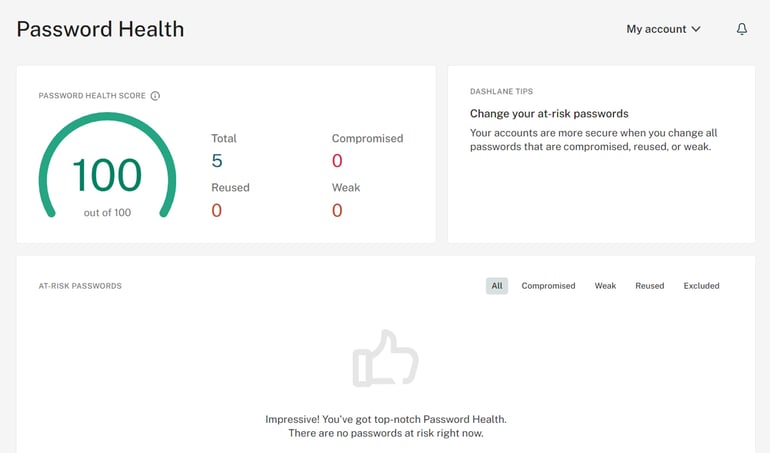
- Password health reporting dashboard.
- Sharing of passwords with individuals or groups (options for full or limited access).
- Group sharing for starter, team, and business plans.
- Dark web monitoring that spots compromised identities and credentials.
Pros and cons
| Pros | Cons |
|---|---|
| Easy-to-use interface and dashboard. | Does not support a desktop app (access via a web app only). |
| Additional dark web monitoring. | Lack of flexibility and customization. |
| VPN included for public Wi-Fi security. | Costlier than other plans. |
| Self-hosted authenticator. | |
| Phone support for business and enterprise plans. |
In our hands-on review, Dashlane received a rating of 4.6 stars out of 5. Check out the full Daslane review here.
Keeper: Best enterprise password manager

Keeper Security is a strong option for teams in 2026, offering flexible password management across desktop and mobile apps along with pricing that works well for smaller organizations. It includes key features like policy enforcement, multi-factor authentication (MFA), secure password sharing, administrative controls, emergency access, and built-in password generation, along with ample storage for sensitive data.
For organizations that need more advanced capabilities, Keeper’s business and enterprise tiers add features like delegated administration, more granular sharing controls, advanced MFA options, SAML-based SSO, and integrations with Active Directory and LDAP. It also includes automated team management and secrets management for more complex environments. One feature I particularly like is the offline vault, which ensures you can still access critical credentials even without a reliable internet connection.
Why I chose Keeper
I selected Keeper as the best choice for enterprise password management because its enterprise plan offers a variety of advanced features like Azure integration, developer APIs, SSO authentication, and SCIM and Command Line provisioning. It also includes event logging and reporting capabilities to accurately monitor password data across an organization.
Pricing
- Personal: $3.33 per month.
- Family: $7.08 per month for up to 5 vaults.
- Business Starter: $2 per user per month, for a minimum of 5 users and a maximum of 10 users.
- Business: $3.75 per user per month, for a minimum of 5 users.
- Enterprise: Contact for a customer pricing quote, for a minimum of 5 users.
Features
- Zero trust security, adding constant verification via multiple security layers.
- MFA via biometrics, authenticator codes, and push notifications.
- SOC2 and ISO 27001 certification.
- 256-bit AES encryption at multiple levels.
- Add-on option called BreachWatch to alert on stolen usernames and passwords.
- Role-based access control via Secrets Manager.
- Integrations with Ansible, Docker, Github Actions, Jenkins, PowerShell, and Terraform.
- Automation of password changes on AWS, AD, Azure, and Windows.
- Privileged access management in enterprise tier.
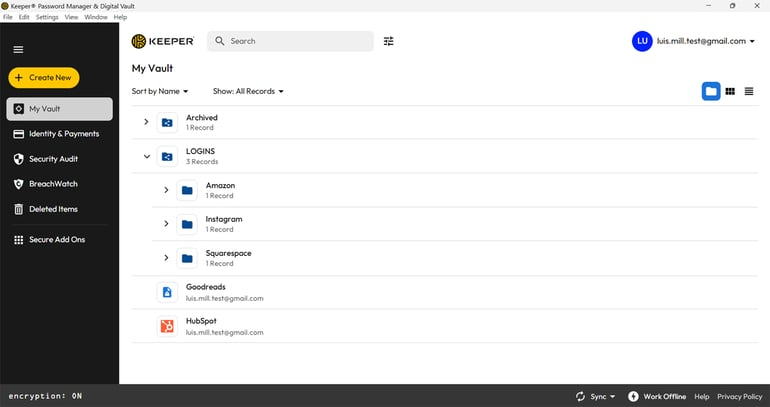
- Offline vault access to retrieve data and manage accounts and passwords despite poor network conditions.
Pros and cons
| Pros | Cons |
|---|---|
| Wide range of business features. | Some key features like advanced MFA and SAML SSO are not available in Business Starter and Business plans. |
| User-friendly interface. | Administrators can’t turn off the password manager for specific sites. |
| Wide range of client devices and formats, including desktop, mobile, browser, and command line. | |
| Multiple layers of security. | |
| Dark web monitoring. | |
| Offline vault access. |
In our hands-on review, Keeper received a rating of 4.4 stars out of 5. Check out the full Keeper review here.
1Password: Best password manager for small teams

1Password offers flexible pricing across individual, team, business, and enterprise plans, making it a versatile choice in 2026. It includes core password management features like strong encryption, password health reporting, multi-factor authentication, passkey support, and secure password generation. A standout feature is its Secret Key system, which adds an extra layer of protection, along with secure vaults that make sharing credentials across teams simple and safe.
For larger organizations, the business and enterprise tiers unlock more advanced capabilities, including a centralized admin console, policy-based security controls, reporting and analytics, and threat monitoring. It also integrates with popular identity providers like Okta, Microsoft Entra ID (Azure AD), and OneLogin, and supports automated provisioning and secrets automation. These features give teams better visibility and control over who is accessing company resources and from which devices.
Why I chose 1Password
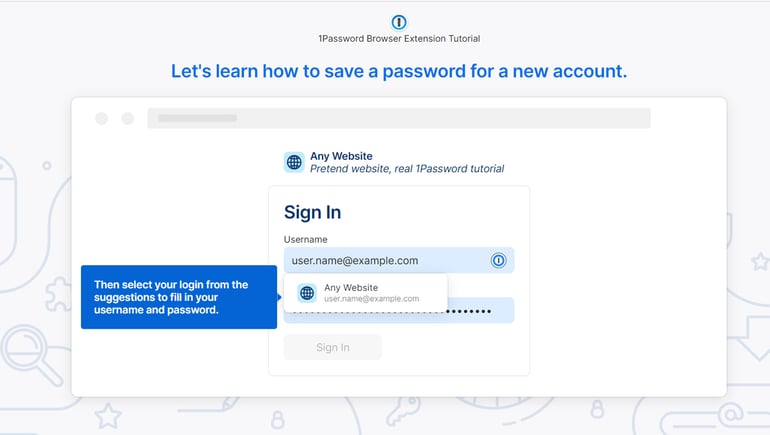
I chose 1Password because it’s an excellent password management solution for smaller teams and businesses due to its affordable pricing plans and great mix of features. In particular, I liked how the Teams plan comes with unlimited shared vaults, permission management for shared vaults, and 24/7 customer support.
It also has a nifty Travel Mode feature that safeguards data when you’re traveling. This can come in handy for businesses or teams that regularly travel overseas for business trips or research.
Pricing
- Individual: $2.99 per individual per month, billed annually.
- Families: $4.99 per month billed annually, for up to 5 people.
- Teams Starter Pack: $19.95 per month billed annually, for up to 10 people.
- Business: $7.99 per user per month, billed annually.
- Enterprise: Contact for a custom pricing quote.
Features
- Admins can create rules to allow or deny sign-in attempts from certain locations, websites, or countries.
- Travel Mode hides vault entries except those deemed safe for travel.
- Includes an automatic data recovery feature.
- The Watchtower dashboard provides password monitoring and alerts of potential breaches or weak/compromised passwords.
Pros and cons
| Pros | Cons |
|---|---|
| Travel Mode helps safeguard sensitive data when users are overseas without completely denying them access to team resources. | Complex interface can be hard to learn. |
| Users can open guest accounts that restrict access to specific areas. | SSO is not available in the Business Starter tier. |
| Offers a desktop app. | |
| Good balance of security features and affordability for small teams. |
In our hands-on review, 1Password received a rating of 4.3 stars out of 5. Check out the full 1Password review here.
Bitwarden: Best open-source password manager

For small teams and privacy-focused users considering an open-source solution in 2026, Bitwarden remains my top choice. It supports Windows, macOS, and Linux, along with a wide range of browser extensions, making it easy to use across different environments. It includes essential features like a password generator, secure vault storage, cloud sync, customizable fields, multi-account support, encryption, and password sharing.
For teams, Bitwarden offers secure vault management, shared access, multi-factor authentication, and its built-in authenticator. The Enterprise plan expands on this with features like SCIM-based provisioning, custom roles, advanced security policies, SSO integration, and even free family plans for users — making it a well-rounded option for growing organizations.
Why I chose Bitwarden
I picked Bitwarden because it’s one of the best open-source password managers today, in addition to offering business-minded features. It also has a generous free tier, which I’ve used for my personal password management for years. It also operates on zero-knowledge encryption and is well-regarded for its clean reputation and commitment to transparency.
Privacy enthusiasts will appreciate the fact that Bitwarden’s source code is available for public review. It also has an impressive portfolio of third-party security audits, undergoing a network security assessment almost every year since 2018.
Pricing
- Free: $0 forever for unlimited devices.
- Premium: $10 billed annually.
- Families: $3.33 per month or $40 billed annually for up to 6 users.
- Teams: $4 per user per month, billed annually.
- Enterprise: $6 per user per month, billed annually.
- Custom quote: Contact for a custom pricing quote.
Features
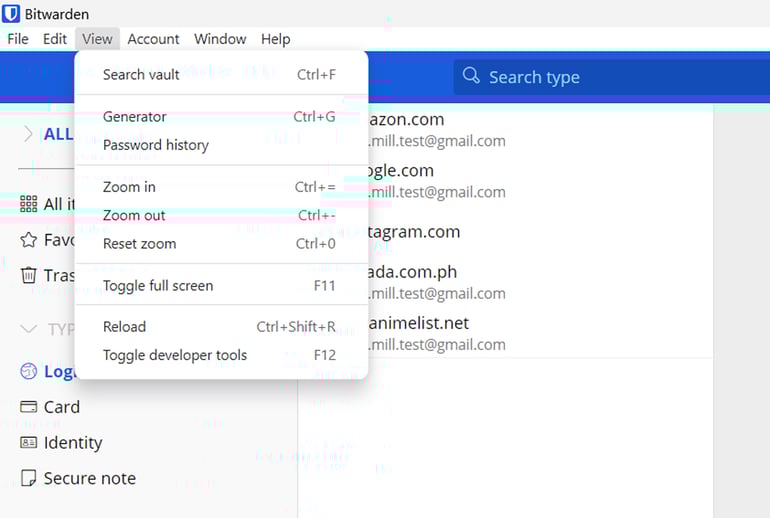
- Self-hosting is available, as well as cloud service.
- A collections feature enables sharing of specific passwords or groups of passwords with certain teams or individuals.
- The interface is user-friendly.
- All components available on GitHub.
- Sharing of multiple vaults with different teams.
- Random password and username generator.
Pros and cons
| Pros | Cons |
|---|---|
| Self-hosting option available. | Security sharing is limited. |
| Attractive pricing for large teams. | Those not familiar with open source software may find implementation challenging. |
| Team members have access to many business and enterprise features, including Bitwarden APIs, Command-Line Interface and directory connector. | Limited auto-fill functionality. |
In our hands-on review, Bitwarden received a rating of 4.6 stars out of 5. Check out the full Bitwarden review here.
Enpass: Best for third-party cloud storage

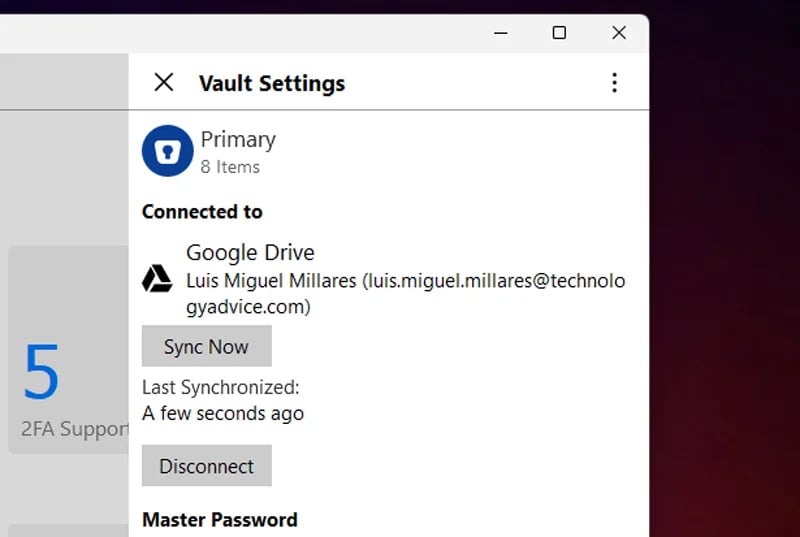
If you want flexibility in where your passwords are stored, Enpass is my top recommendation in 2026. It stands out by allowing you to store your vault data on a cloud service of your choice, including Google Drive, iCloud, Dropbox, or OneDrive — giving you more control over your data compared to some other password managers.
You can also choose how your data is synced, whether through Wi-Fi, your preferred cloud provider, or kept entirely offline for maximum control. Regardless of the setup, Enpass secures your data with 256-bit AES encryption, a trusted standard in the security industry, ensuring your credentials remain protected across environments.
Why I chose Enpass
I chose Enpass as one of the best password managers for teams because it’s one of the few that lets users choose where to store their data. It’s especially convenient for businesses that already have well-established integrations with Dropbox or Google Drive in their specific workflows.
Pricing
- Individual Plan: $1.99 per month billed annually.
- Family Plan: $2.99 per month billed annually for up to 9 members.
- Lifetime License: $99.99 one-time purchase for a lifetime license for one individual.
- Starter Plan: $9.99 per month billed annually for up to 10 users.
- Standard Plan: $2.99 per employee per month billed annually.
- Enterprise Plan: $3.99 per employee per month billed annually.
Features
- Integrates with users’ cloud service of choice.
- Offline password manager.
- Password audit and health dashboard.
Pros and cons
| Pros | Cons |
|---|---|
| Can store data on third-party cloud storage service. | Availability of two-factor authentication depends on the cloud service provider. |
| Fully free desktop version. | Cloud integration requires extra steps. |
| Affordable individual plan. |
In our hands-on review, Enpass received a rating of 4.0 stars out of 5. Check out the full Enpass review here.
Key features of password managers
Password managers have been around for years, and in 2026, most offer a similar foundation of core features. Across the board, you’ll find encryption, password generation, and cross-platform support — capabilities that are now essential to modern security.
However, the differences between solutions often come down to how these features are implemented and what additional capabilities are included.
Single sign-on
SSO simplifies authentication by allowing users to access multiple applications with a single set of credentials. It’s often paired with multi-factor authentication (MFA), which adds layers like PINs, biometrics, or one-time codes for stronger security. Some password managers include SSO natively, while others offer it as an add-on or support standards like SAML.
Added security features
Beyond storing passwords, many tools now include advanced protections such as MFA, dark web monitoring, threat detection, encryption standards, VPNs, and integrations with SIEM tools. The depth and combination of these features vary by vendor, so it’s important to evaluate how they fit into your broader security strategy.
Zero trust support
Zero trust security assumes no user or device is trusted by default. Many modern password managers support this approach by requiring continuous verification and limiting access, helping reduce the risk of lateral movement if credentials are compromised.
Free plan
Free offerings differ widely. Some are limited to individual users or devices, while others provide more generous access. However, specific advanced features may be restricted, so it’s important to assess whether a free plan meets your team’s needs or is better suited for personal use.
Pricing
Pricing across password managers can look similar at first, but the details matter. Some vendors offer lower entry pricing with add-ons, while others bundle more features upfront. Plans also vary based on team size, and certain business-critical features may only be available in higher tiers.
How to choose a good password manager for your team
Choosing the right password manager means aligning the tool with your business operations, security requirements, and budget. Start by identifying must-have features versus nice-to-haves — and avoid paying for capabilities you already have elsewhere, like SSO.
From there, match your needs with available pricing tiers and team limits. Narrow your options to a few strong candidates, then take advantage of free trials to test usability, integrations, and overall fit within your environment.
FAQs
Does Microsoft offer a password manager for teams?
Microsoft doesn’t offer a dedicated team password manager within its Microsoft 365 suite. While Microsoft Edge includes a basic password manager for individual use, teams typically need a third-party solution for secure sharing and access control.
Does Google offer a password manager for teams?
Google Chrome includes a built-in password manager, but it’s designed for individual use and lacks advanced team features like sharing and role-based access. Teams should consider dedicated tools like 1Password, LastPass, or Bitwarden.
Which password manager for teams is the most secure?
Security needs vary by organization, but tools like Dashlane and Keeper stand out for offering advanced security features in their higher-tier business plans.
Methodology
To identify the best password managers for teams, I tested each solution through free trials and hands-on use. I evaluated key factors such as SSO capabilities, security features, zero trust support, pricing, free plan availability, user experience, and customer support to determine overall value and performance.
In 2026, choosing the right password manager for your team comes down to more than just basic features — it’s about finding a solution that aligns with your security strategy, supports your workflows, and scales with your organization. While many tools offer similar core capabilities, the real differentiators lie in areas like access control, integrations, and advanced security features.
By clearly defining your priorities and testing a few top options, you can confidently select a password manager that strengthens both security and productivity.
If you’re interested in learning more about how we evaluate password managers at TechRepublic, you can read our full Review Methodology for Password Managers here.
This article was originally published in October 2024. It was updated by Ken Underhill in March 2026.
Read the full article here