



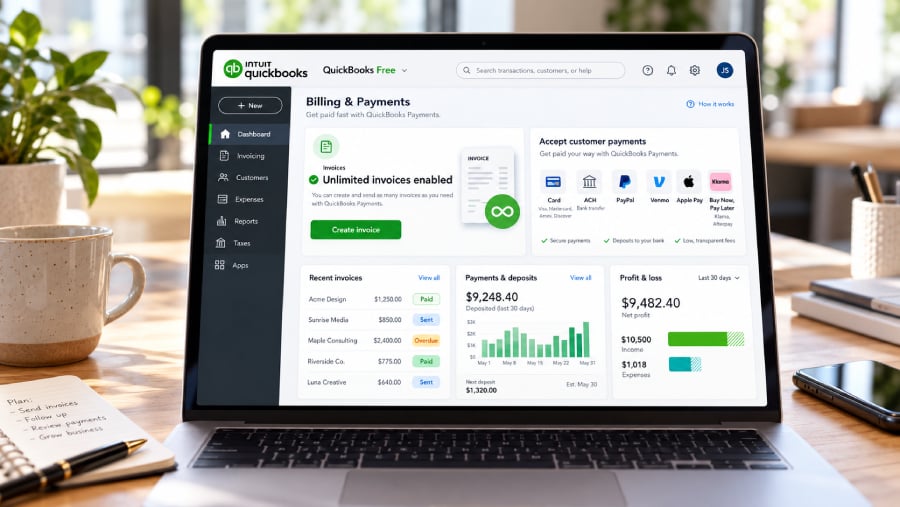

Two invoices a month can disappear quickly when you bill several clients. QuickBooks Free has a way around that cap.
Eligible solopreneurs can send unlimited invoices after enabling QuickBooks Payments without moving to a paid accounting subscription. Enrollment is subject to approval, and online transactions carry processing fees.
For a freelancer handling the books alone, that can keep billing and payment collection in the same account as client work picks up.
Expanding monthly invoicing
QuickBooks Payments is optional, and enabling it changes only the invoice allowance. Free users still get one estimate per month, with invoice customization, estimate-to-invoice conversion, mobile signatures through the QuickBooks app, and manually added sales tax.
Businesses that send quotes before every job can still hit the one-estimate monthly limit. A solopreneur may be able to invoice every client after Payments is enabled, but several estimates in the same month would still exceed the Free plan’s allowance.
Payment-enabled invoices support more ways to pay
Customers can pay eligible invoices by credit or debit card, ACH, PayPal, Venmo, Apple Pay, or Buy Now, Pay Later. Businesses can also request payment through a link so customers can pay online directly.
With Buy Now, Pay Later, eligible customers can split a purchase into payments, while the business receives the amount upfront.
Intuit says instantly payable online invoices can get businesses paid up to four times faster than paper invoices.
Processing is charged per transaction. QuickBooks Payments rates currently list the following charges:
At current rates, a $1,000 ACH payment would cost $10 in processing fees, compared with $29.90 by card or digital wallet. Payment habits can therefore change what a business spends each month even when the accounting subscription stays at $0.
What’s hot at TechRepublic
Existing records can move into QuickBooks Free
QuickBooks Free can also take supported records from another business account. Users moving from Wave, Square, or Zoho can import supported customer, invoice, and transaction data after exporting it from their current service. That can reduce manual re-entry for a solo business with an established client list.
Before moving a full account, test a small export and check how customer names, invoice details, and transaction data appear after import. Billing and reporting can work differently across platforms, so compare those with QuickBooks features before switching.
Setting up Payments for regular invoicing
Solo businesses expecting more than two invoices per month should start Payments enrollment before they need the extra capacity.
To enable QuickBooks Payments, start in your account settings and complete the enrollment steps below:
- Open Settings, select Account and settings, then choose Payments and Set up Payments.
- Enter the requested business and owner information.
- Choose the bank account where customer payments should be deposited. QuickBooks Checking is optional.
- Complete enrollment, then turn on online payments after approval.
Payments enrollment can take a few business days because accounts go through eligibility, credit, and application review. First deposits can take up to five business days as a new account is established.
After approval, confirm the deposit account and review payment method rates before sending the first payment-enabled invoice.
Look at a typical month of invoices before turning Payments on and estimate what the processing fees would add up to. Unlimited invoicing can keep billing inside the Free plan, but the monthly cost still depends on how much you collect and how clients pay.
Related software guides: If invoicing is your main priority, our guide to the best invoicing software compares tools for billing, payment collection, recurring invoices, and client management.
Read the full article here