





Your Mac has more built-in shortcuts than most users ever touch.
Apple’s desktop operating system is packed with thoughtful little features that are easy to miss but can make your day-to-day experience smoother, faster, and delightful. While the sleek interface is highly user-friendly, a deeper look reveals a wealth of hidden tools designed to boost efficiency.
These hidden or often-overlooked Mac features can help users work faster, reduce friction, and get more value out of Apple’s desktop operating system without installing extra software.
File previews and multi-file management
Sorting through folders full of documents can slow you down, but a built-in Finder tool called Quick Look simplifies the process. To use it, select any file in Finder and hit the Spacebar once to see a clean preview of photos, videos, or documents in a pop-up window without launching an actual application.
If you are dealing with a cluttered screen, right-clicking the desktop and selecting “Use Stacks” from the context menu will automatically organize your loose items into neat piles based on their file type. For those managing large batches of data, you can select multiple files in Finder, right-click, and choose Rename to modify text or add sequential numbers all at once.
Smarter window tiling and displays
For users working across multiple apps simultaneously, Split Screen multitasking serves as a lifesaver. By clicking and holding, or hovering over, the green full-screen button in the top-left corner of any window, you can choose options to tile the window to the left or right of the screen, allowing you to run two apps side-by-side.
If you are presenting to an audience or trying to read small text, you can zoom the entire display. Tucked into System Settings > Accessibility > Zoom, you can configure a scroll gesture with a modifier key; holding the Control key and scrolling up or down lets you finely control the screen zoom.
Enhanced screenshot control panels
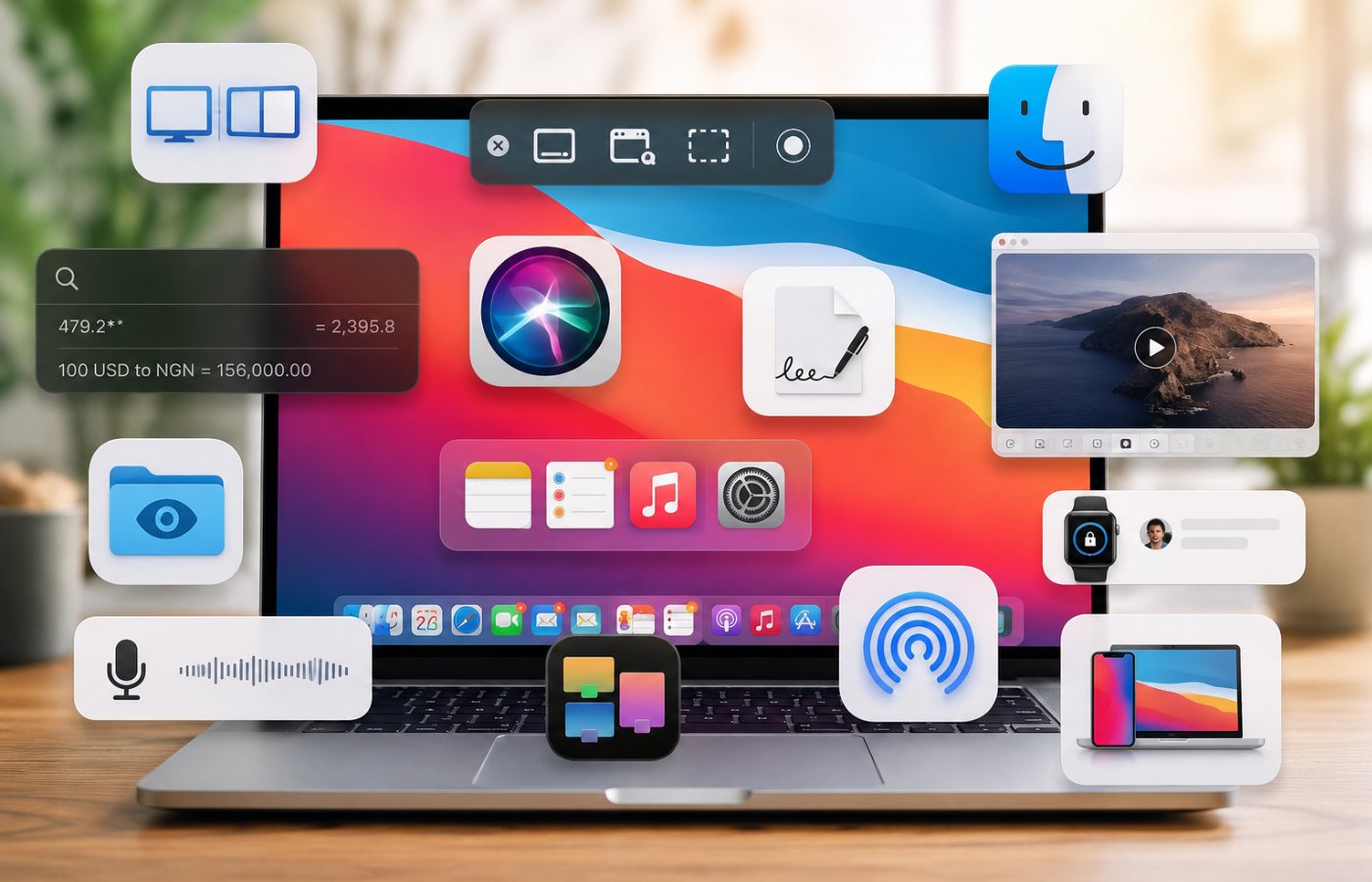
While pressing Command + Shift + 3 captures your entire screen, modern macOS versions offer far more granular capture options. Pressing Command + Shift + 5 opens a hidden control panel that allows users to record their screen activity, capture specific windows, or set capture timers.
For older operating systems, these tools were housed in the built-in Grab utility in the Applications > Utilities folder, but the standalone Screenshot app has replaced it on macOS Mojave and later.
Continuity and cross-device ecosystems
If you own both a Mac and an iPhone, Apple’s ecosystem unlocks features that eliminate the need for cables or third-party applications. A universal clipboard lets you copy text, images, or links on your iPhone and instantly paste them on a nearby Mac, provided both use the same Apple ID.
Similarly, right-clicking in Notes, Mail, or Finder and choosing “Import from iPhone” > “Scan Documents” activates your phone’s camera and instantly sends a high-quality digital scan to your computer. You can even sign PDFs digitally in Preview by using the Markup tool to draw your signature directly on an iPhone screen or trackpad.
Hands-free dictation and audio ambience
Writing a report doesn’t always require a keyboard, thanks to the system’s built-in Dictation tool found under System Settings > Keyboard.
Once enabled, pressing the Fn or Globe key twice brings up a microphone pop-up that converts spoken words into text. Users must speak their formatting aloud, saying words like “comma,” “period,” “open quote,” or “new paragraph” to format text dynamically.
For those who struggle to focus in total silence, Apple also offers background sounds to provide ambiance. Navigating to System Settings > Accessibility > Audio reveals a Background Sounds section designed to “help you to focus, calm, or rest,” offering sounds like rain, a stream, or ocean noise.
Accessibility tweaks for visual tracking
Large displays make it easy to lose track of a small cursor. A built-in accessibility setting allows users to simply shake the mouse pointer or move a finger quickly back and forth on the trackpad to make the cursor temporarily grow massive, making it instantly recognizable.
For environments where you might miss audio cues, another setting in System Settings > Accessibility > Audio briefly flashes the entire screen white whenever a system alert sound occurs, providing a helpful visual warning.
Alternative security and automation tools
Typing a long, secure password every time your computer sleeps can be tedious. If you wear an Apple Watch signed into the same Apple ID, you can navigate to System Settings > Touch ID & Password to enable automatic unlocking. When nearby, pressing any key on your Mac keyboard prompts the devices to communicate, unlocking the desktop while sending a haptic confirmation vibration to your wrist.
For repetitive workflows, power users can turn to Automator, a deep utility located in the Utilities folder. Automator lets you string together built-in actions to create custom automated workflows that run at the click of a button.
System management and force quitting
When an application stops responding entirely, users do not have to wait indefinitely. Pressing Command + Option + Escape opens the “Force Quit Applications” dialog, where you can select the frozen program and shut it down immediately.
To check the overall health of your computer, navigate to Applications > Utilities and open the System Information app. This tool provides highly detailed overviews regarding your Mac’s internal hardware and software configuration.
Spotlight calculations and text expansion
The system’s built-in search bar, Spotlight, is far more capable than a simple file locator. Activated by clicking the magnifying glass icon or pressing Command + Spacebar, Spotlight acts as an instant calculator and currency converter. Typing math problems or phrases like “100 USD to EUR” returns live answers without needing to open a browser.
Additionally, you can speed up regular typing by navigating to System Preferences > Keyboard > Text to set up custom text expansions. This tool allows you to assign brief abbreviations to long phrases, such as mapping “@@” to your full email address so you can type it out automatically.
Finally, if you want to spice up your text fields or file names, press Control + Command + Spacebar to instantly open the system’s global emoji picker.
Apple’s ecosystem is becoming increasingly health-focused, and TechRepublic recently explored the newest Apple Watch and AirPods wellness features in detail.
Read the full article here