





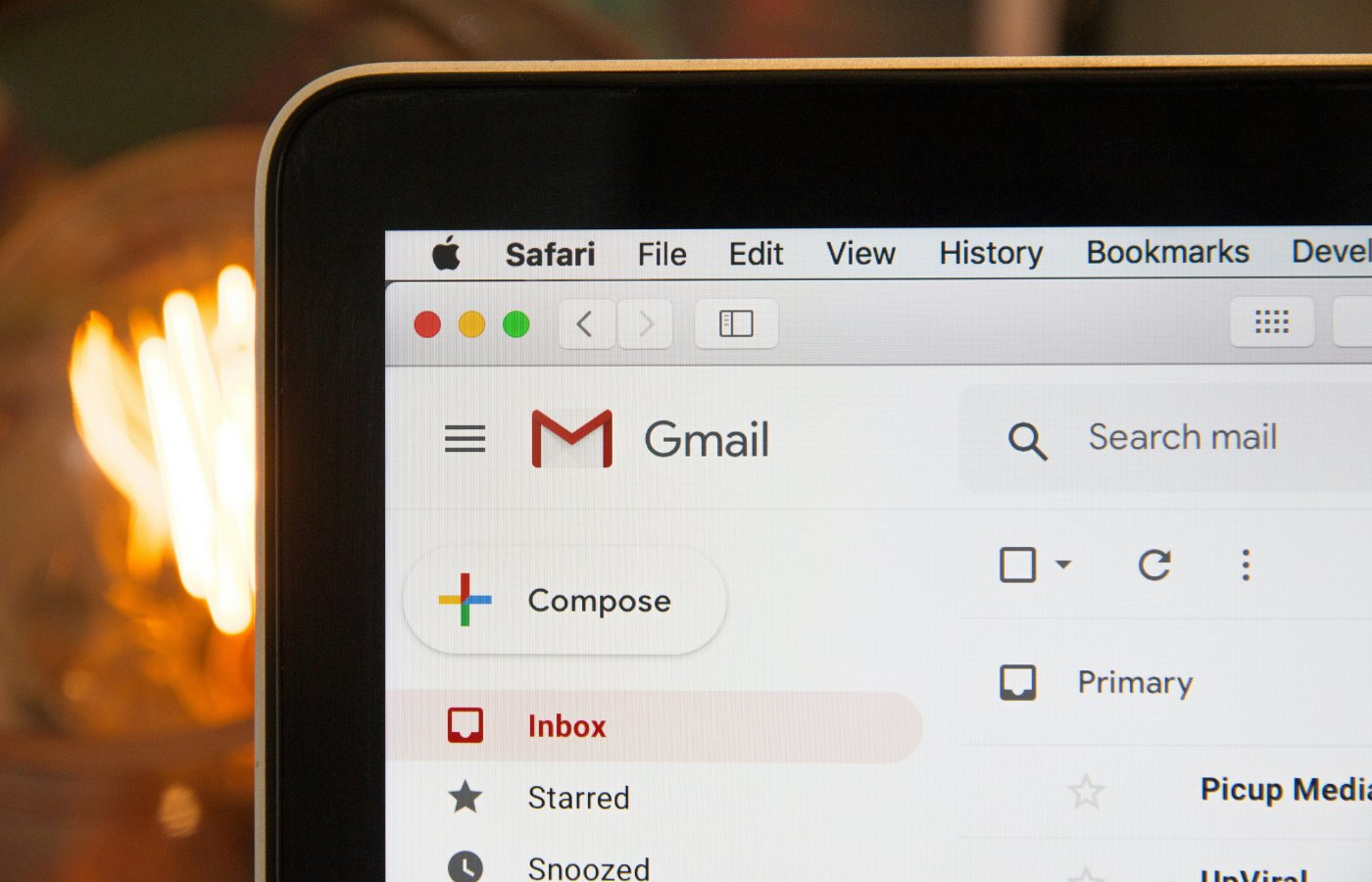

With over 3 billion people relying on Gmail, you’d think most users would have mastered every corner of their inbox by now. Not quite.
From tiny clock icons to obscure settings tabs, some of Gmail’s most powerful productivity tools are buried just deep enough that the average user never finds them.
Here’s a guided tour of nine features worth knowing about.
Confidential mode
Think of this as Gmail’s version of a classified document. When composing an email, tap the lock-and-clock icon at the bottom of the compose window. From there, you can set an expiration date, anywhere from one day to five years, after which the email content vanishes from the recipient’s inbox entirely.
You can also require the recipient to enter an SMS passcode just to open it. Forwarding, copying, printing, and downloading are all disabled on the receiving end.
Time your emails perfectly with Schedule send
One of Gmail’s simplest but most useful tools is Schedule send. Instead of firing off emails immediately, especially late at night or outside work hours, users can schedule messages to arrive at a specific time.
Instead of hitting the Send button, click the small arrow right next to it and select Schedule send. Pick your preferred date and time, and Gmail does the rest. You can always change or cancel the send from your Scheduled folder before it goes out.
Snooze: Make emails disappear (then come back)
Can’t deal with an email right now, but don’t want it buried? Snooze it. Hover over the message in your inbox, click the clock icon, and choose when you want it to reappear later today, tomorrow, next week, or a custom date and time.
At the scheduled moment, Gmail returns it to the top of your inbox as though it just arrived. You can snooze the same email as many times as you like.
Speed through your inbox via Auto-advance
Here’s one for people who process high volumes of email. By default, Gmail kicks you back to the inbox every time you archive or delete a message. Auto-advance skips that step entirely, loading the next message automatically.
To enable it: Settings > See all settings > Advanced tab > Auto-advance > Enable > Save Changes. Then head to the General tab to choose whether Gmail advances to the newer or older conversation next.
Extend your window of regret with Undo Send
You already know Gmail lets you undo a sent email, but the default five-second window is seldom enough. What most users don’t know is that you can extend it to 10, 20, or even 30 seconds. Go to Settings > See all settings > Undo Send, and use the dropdown to set your preferred cancellation period.
Those extra seconds have saved more than a few awkward conversations.
Map out a visual coding system with multiple stars
The standard yellow star is incredibly popular for flagging important messages, but relying on a single color quickly turns your starred folder into a confusing, disorganized mess of mixed priorities.
To add nuance to your flagging system, Gmail actually offers six star colors and six additional icons. To unlock them, go to Settings > See all settings > General > Stars and drag your preferred options into the “In use” row. Once enabled, clicking the star icon on any email cycles through your chosen options. You can even search for specific star types using has:blue-star or has:yellow-bang in the search bar.
Quick filters
Most Gmail users know filters exist, but never bother setting them up because the process feels clunky. There’s a faster way. Select one or more emails in your inbox, click the three vertical dots below the search bar, and choose Filter messages like these.
Gmail pre-populates the filter settings with the sender’s address. From there, you choose the action, such as send to a specific folder, archive automatically, or apply a label, and you’re done in a fraction of the time.
Gmail–Google Calendar integration for automatic event creation
Flight confirmations, doctor appointments, dinner reservations, and emails containing event details usually require a manual trip to Google Calendar. Gmail can handle that automatically. Open Google Calendar > Settings > Events settings and check the box marked “Show events automatically created by Gmail in my calendar.”
Once enabled, Gmail scans incoming messages and adds relevant event details to your calendar without you lifting a finger.
Help me write and Suggest Replies to speed up responses
Gmail is also improving how users write emails. The updated Help me write tool can draft or polish messages from scratch, while Suggested Replies now generate context-aware responses based on the conversation and your writing style.
There’s also a Proofread tool that checks tone, grammar, and clarity before sending, helping users avoid mistakes and sound more polished. These features are widely available, with Proofread limited to premium AI subscribers.
Also read: Google’s AI privacy settings let Gmail users manage how personal data informs the company’s latest AI personalization features.
Read the full article here