





Key takeaway: For my best AI project management tools, monday work management wins if you want to build custom AI automations without a developer. ClickUp works if you want an all-in-one AI workspace and need a smart assistant that understands your project data. Asana, meanwhile, fits organizations that need tighter control for AI rollouts.
As a tech-savvy project professional who has used AI for years, my expectations have grown past basic automation. With more platforms using AI, I now look for conversational agents, automated scheduling, and risk analysis before I consider a tool worth my time. Below, I share my hands-on experience with the best AI project management tools available right now and break down where each one performs best.
| Best for | Starting monthly fee | |
|---|---|---|
| monday work management | Best for customizable AI workflows | $9/user/mo |
| ClickUp | Best for context-aware project automation | $7/user/mo |
| Asana | Best for admin-controlled AI workflows | $10.99/user/mo |
| Wrike | Best for AI risk prediction | $10/user/mo |
| Notion | Best for knowledge-driven project automation | $10/user/mo |
| Motion | Best for automatic project scheduling | $19/user/mo |
| Miro | Best for AI visual planning | $8/user/mo |
Why you can trust TechRepublic
I’ve spent the past four years testing dozens of project management software, several of which became part of my own workflow. I’ve also used AI extensively for years, giving me a practical basis for judging whether these capabilities improve real project work. While testing each platform, I design my own scoring rubric to evaluate every provider against the same criteria.
Marianne Sison
Senior Staff Writer for Project Management
How I evaluated the best AI project management tools
I evaluated each platform as both a project management system and an AI product. I used official documentation to verify features and pricing, then relied on user sentiments and hands-on experience to assess usability and support.
- General features (25%): I scored how AI handles project work and breaks projects into tasks. I also reviewed summaries and knowledge retrieval. Core planning received its own score, while workflow automation and portfolio reporting were assessed separately.
- Pricing (20%): I compared free access to the monthly cost of a paid AI-enabled plan. Credit limits and add-ons contributed to the score, as did seat minimums and forced upgrades.
- Advanced and niche features (20%): I gave higher scores to predictive delivery risk and agents that could execute multi-step work. Enterprise context and AI-assisted capacity planning were scored separately. I also examined AI governance for international deployments.
- Ease of use (10%): I used recent customer feedback to evaluate onboarding and daily navigation. For enterprise buyers, I also considered the admin work required to configure AI workflows and standardize use across teams.
- Support (10%): I reviewed access to live support and dedicated account help. Community engagement and educational resources also influenced the results, while security and data governance received the highest subweight.
- Expert score (15%): I compared each platform’s verified feature set with the price required to access it. Recent G2 and Capterra sentiment informed the review score, while documentation clarity affected how confidently I could confirm each claim.
1. monday work management: Best for configurable AI workflows
My rating: 4.85 out of 5
Why I chose monday work management
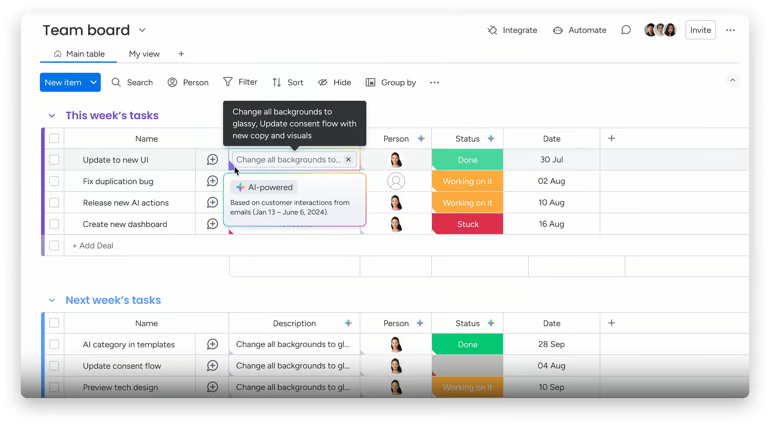
Most project tools force you into rigid, pre-set automations. monday lets you type out a process in plain English, and it will create the boards, forms, dashboards, and automations needed to run it. Instead of setting up an automation from scratch, you simply type “when a client submits a request, sort it by urgency and notify the right team,” and it builds the automation for you.
Once it’s built, you can plug in additional AI workflows mid-process, like having it summarize an update or translate a message, and each step automatically feeds into the next. Managers can also compare completion rates or cycle times across reporting periods. You can also control who can build or edit automations to ensure consistency as more departments create and use AI workflows.
The catch: This feature only comes with the Pro or Enterprise plan, so upgrading to a higher-tier plan is a must. If you want to test AI automation before spending more, ClickUp includes basic AI use on every paid plan.
| Pros | Cons |
|---|---|
| Automations send routine project updates | Advanced reports require higher-priced plans |
| AI creates workflows from written prompts | Strict automation limits may interrupt busy workflows |
| Dashboards compare progress across teams | Pricing requires a minimum seat count |
Pricing
AI pricing note: Credit-based AI is included from Basic. Plans receive 1,000 to 3,000 monthly credits, while Enterprise allowances are customized. Additional credits can be purchased.
- Free plan: Includes up to two seats, three boards, basic documents, and templates
- Free trial for paid plans: 14 days for Pro
- Basic: $9/user/mo. Includes unlimited items, viewers, and basic AI tools
- Standard: $12/user/mo. Includes Gantt charts, calendar planning, guest access, and limited automations
- Pro: $19/user/mo. Includes private boards, time tracking, advanced views, and more automation credits.
- Enterprise: Custom pricing. Includes portfolio management, resource planning, advanced reporting, and enterprise governance
Standout features
- monday magic: Build boards, dashboards, and forms from plain-language project requirements
- AI-powered columns: Categorize board items and summarize project information automatically
- AI Workflows: Route work using AI conditions described in plain language
- Historical trends in monday sidekick: Compare completion rates and cycle times across reporting periods
2. ClickUp: Best for context-aware project automation

My rating: 4.48 out of 5
Why I chose ClickUp
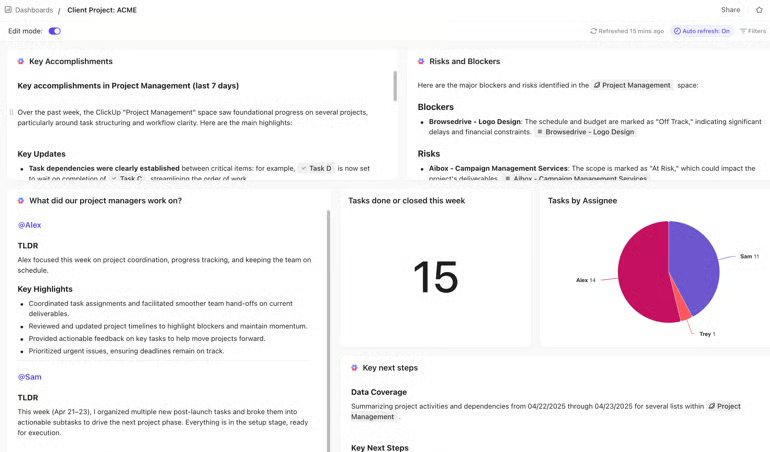
ClickUp suits teams that want AI to understand their existing project environment before it creates or updates work. Its built-in AI assistant, Brain, has access to tasks, documents, and team chats, so you can ask it a question like “what’s blocking the Q3 launch?” and get a complete answer based on existing workspace data.
As ClickUp’s native AI engine, Brain completes multi-step workflows on its own, such as drafting a status update, flagging a teammate who’s overloaded, or pulling action items from a meeting recording. It also remembers your preferences over time, so you’re not re-stating how you like things formatted every single week.
The limitation: ClickUp Brain only sees what’s happening inside the platform. If your team’s information is spread across Slack, Google Drive, and other tools, you’d need a higher-cost plan to connect those, or you might get more value from Notion, which pulls from outside apps by default.
| Pros | Cons |
|---|---|
| Custom fields support detailed project workflows | New users may find the platform too feature-dense |
| Time tracking supports workload reviews | Large workspaces may load slowly |
| Gantt baselines show schedule changes | Extensive customization can create inconsistent workflows |
Pricing
AI pricing note: Brain AI costs $9/user/mo. Everything AI costs $28/user/mo. Additional AI credits cost $10 per 10,000 credits
- Free plan: Includes unlimited tasks, collaborative documents, Kanban boards, and basic sprint management
- Unlimited: $7/user/mo. Includes Gantt charts, time tracking, portfolios, integrations, and resource management
- Business: $12/user/mo. Includes advanced dashboards, workload reporting, Google SSO, and 5,000 monthly automations
- Enterprise: Custom pricing. Includes advanced permissions, SCIM provisioning, audit logs, data residency, and large-scale automations
Standout features
- .AI-generated subtasks: Break task scopes into subtasks using existing task context
- AI project updates: Summarize task activity across selected projects, folders, or lists
- AI StandUps: Report team blockers, risks, and priorities from current task data
- AI Fields: Categorize and refresh task information as project work changes
3. Asana: Best for admin-controlled AI workflows

My rating: 4.46 out of 5
Why I chose Asana
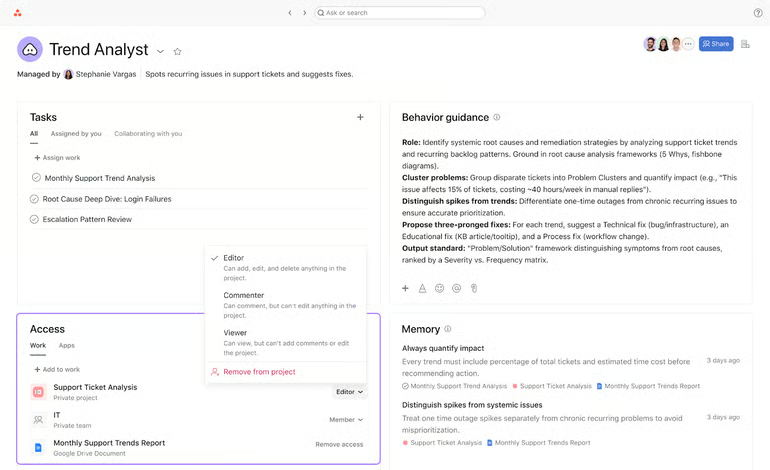
If you’re worried about turning on AI company-wide without oversight, Asana will handle it for you. A designated admin has to enable AI features before anyone can use them.
Asana lets you build automated workflows for intake or status reporting, but access to the more advanced AI features can be restricted to a named list of people. Every AI action accesses only the information the employee is already authorized to view, which preserves existing permission controls.
The tradeoff: In HIPAA-enabled Asana accounts, AI Studio cannot access information from the public web. Healthcare teams can still automate work using approved Asana data, but workflows cannot bring in outside web content. Wrike may be a better alternative for deadline-risk monitoring because its predictions rely on project data already stored in Wrike.
| Pros | Cons |
|---|---|
| AI automates multi-step project workflows | Relies on other apps for team communication |
| Portfolios connect projects with business goals | Scheduling rules offer limited flexibility |
| Permissions control access to AI agents | AI workflows require careful setup |
Pricing
AI pricing note: AI Studio Basic is included with monthly account credits.
- Free plan: Includes unlimited tasks and projects for two users, with list, board, and calendar views
- Starter: $10.99/user/mo. Includes 50,000 AI credits, Gantt scheduling, reporting dashboards, forms, and unlimited automations
- Advanced: $24.99/user/mo. Includes 75,000 AI credits, portfolios, goals, workload management, time tracking, and advanced reporting
- Enterprise: Custom pricing. Includes 200,000 AI credits, capacity planning, SAML, SCIM, service accounts, and workflow governance
- Enterprise+: Custom pricing. Includes additional compliance controls, audit logs, data residency, and managed workspaces
Standout features
- Smart projects: Generate tasks and project workflows from plain-language briefs
- Smart rule creator: Build routine workflow automations using natural-language instructions
- Smart status: Draft project or portfolio updates that expose roadblocks and open questions
- Smart chat: Answer project questions using current work stored in Asana
4. Wrike: Best for AI risk prediction

My rating: 4.31 out of 5
Why I chose Wrike
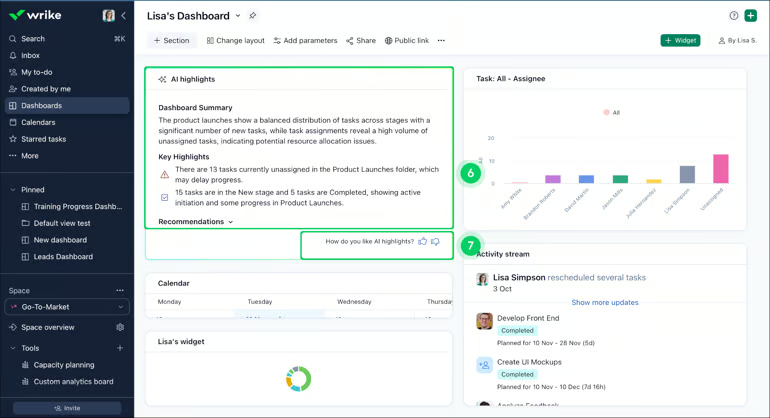
Wrike monitors active projects and assigns each a low, medium, or high risk score based on project complexity and the number of overdue tasks.
When a project is flagged as medium or high risk, Wrike tells you the specific reasons for that score, like a cluster of overdue tasks, so you know where to step in. It also sends a weekly email with risk scores across all projects, so you can quickly detect problems without logging in.
The catch: This feature is only available on the Business tier and above, and it stops working on projects that run longer than about a year and a half. For longer-running projects, ClickUp’s tracking can still flag stalled work even after Wrike’s system stops calculating.
| Pros | Cons |
|---|---|
| AI agents identify project risks early | Setup takes longer for large teams |
| Dashboards summarize health across multiple projects | The interface can feel crowded |
| Permissions control and record AI actions | AI features require higher-priced plans |
Pricing
AI pricing note: AI Essentials access is included on entry plans. Business and higher plans include a limited starter allocation of AI Elite actions. Additional action packs use custom pricing.
- Free plan: Includes basic project management, task tracking, board view, and table view
- Free trial for paid plans: 14 days
- Team: $10/user/mo. Includes AI Essentials, shareable dashboards, and interactive Gantt charts
- Business: $25/user/mo. Includes customizable workflows, standard integrations, templates, and AI Elite features
- Pinnacle: Custom pricing. Includes advanced capacity planning, budgeting, and business intelligence reporting
- Apex: Custom pricing. Includes enterprise AI workflows, whiteboards, integrations, and automation capabilities
Standout features
- AI Project Risk Prediction: Estimate deadline risk and expose contributing project issues early
- Wrike Copilot: Find project answers and generate summaries using plain-language questions
- AI Agents: Monitor projects, detect risks, and perform configured workflow actions
- Whiteboard AI Assistant: Convert selected brainstorm content into organised project items
5. Notion: Best for knowledge-driven project automation

My rating: 4.08 out of 5
Why I chose Notion
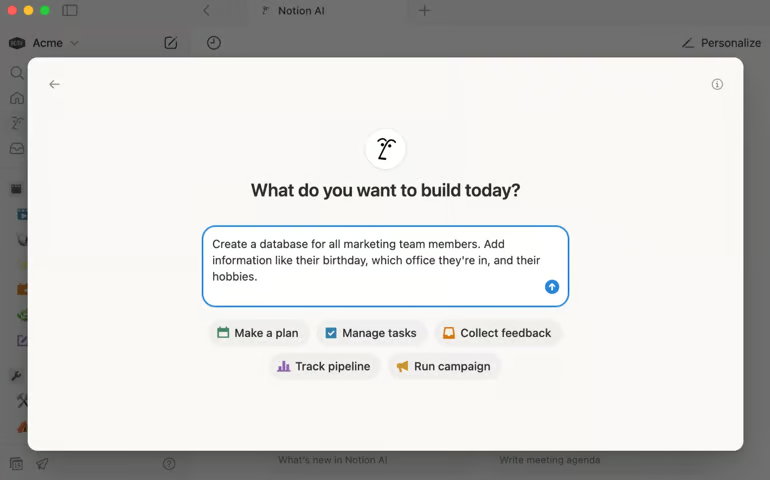
Notion works best for businesses whose projects depend heavily on documents and internal knowledge. Its native AI engine, Notion AI, can search your pages and connected tools such as Slack and Google Drive and find past decisions even when the conversation happened outside Notion.
It can also turn meeting notes into task entries by pulling out decisions or action items and dropping them straight into your project tracker. You can also set up AI agents that run on a schedule, handling recurring updates or task routing without anyone remembering to trigger them by hand.
The downside: Scheduled AI agents only come with Business or Enterprise plans, and they cost extra on top of your subscription. monday bundles similar automation costs into one flat plan, which makes budgeting easier if predictable cost matters to you.
| Pros | Cons |
|---|---|
| AI agents generate complete project plans | Flexible databases need clear usage rules |
| Project documents stay connected to tasks | Scheduling tools lack advanced controls |
| AI search finds workspace information quickly | Full AI access costs more |
Pricing
AI pricing note: Full Notion Agent access is included with Business and Enterprise. Custom Agents cost $10 per 1,000 monthly Notion credits
- Free plan: Includes project databases, subtasks, dependencies, basic forms, and a limited AI trial
- Plus: $10/user/mo. Includes unlimited collaborative content, charts, file uploads, and basic connections
- Business: $20/user/mo. Includes Notion Agent, meeting notes, enterprise search, SAML SSO, and granular database permissions
- Enterprise: Custom pricing. Includes SCIM provisioning, audit logs, advanced security, and zero-retention AI processing
Standout features
- Notion Agent: Create and update project databases using workspace context
- Custom Agents: File project requests and prepare recurring status reports automatically
- AI Meeting Notes: Transcribe meetings and identify project action items
- Notion AI Autofill: Generate summaries and action items inside project databases
6. Motion: Best for automatic project scheduling

My rating: 4.05 out of 5
Why I chose Motion
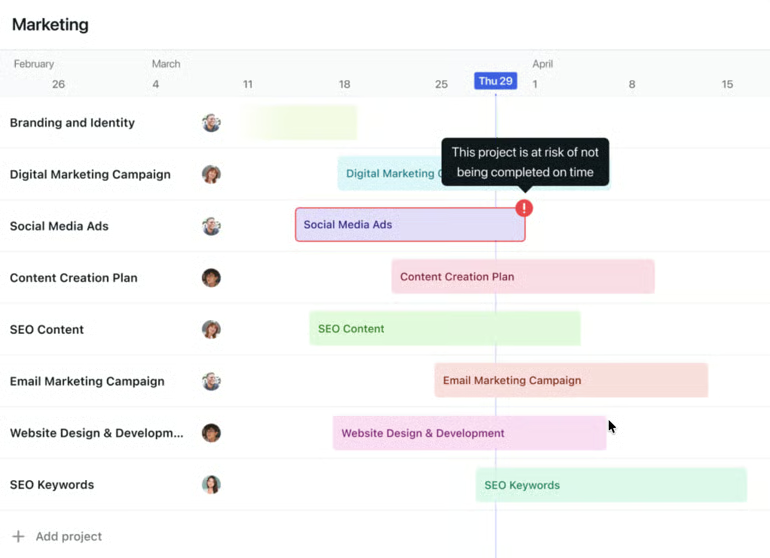
Motion isn’t really a project management tool in the traditional sense. It’s built to solve one problem: automatically fitting your tasks into your calendar based on deadlines and priorities.
The moment something changes, Motion detects the conflict and rearranges your entire day. If you have a meeting running long or a new urgent task popping up, Motion moves any lower-priority work to the next available slot before its deadline. This actually saves time and guesswork compared to reshuffling a to-do list or dragging everything around.
The limitation: It’s designed for individuals or very small teams, not larger programs with multiple dependencies across departments. For larger, more complex projects, Wrike offers project management AI tools for enterprise workflows.
| Pros | Cons |
|---|---|
| AI schedules tasks around existing meetings | No free plan is available |
| Missed tasks receive new schedule slots | Pricing is high for smaller teams |
| Calendar sync prevents scheduling conflicts | Few integrations support complex workflows |
Pricing
AI pricing note: Pro AI includes 7,500 monthly credits at $0.25 per 100 additional credits. Business AI includes 15,000 credits at $0.19 per 100 additional credits.
- Free trial: 7 days
- Pro AI – For AI task planner and workflow generator
- Individuals ($29/mo)
- Teams ($19/user/mo)
- Business AI – For Gantt charts, time tracking, and team capacity planning
- Individuals ($39/mo)
- Teams ($29/user/mo)
Standout features
- AI Task Planner: Prioritize and schedule team tasks using deadlines and dependencies
- AI Project Manager: Monitor project progress, flag risks, and suggest next steps based on deadlines, priorities, and team capacity
- AI Workflows Builder: Convert operating procedures into assigned and scheduled project workflows
- AI Meeting Assistant: Convert meeting discussions into assigned action items and shared summaries
7. Miro: Best for AI visual planning

My rating: 3.93 out of 5
Why I chose Miro
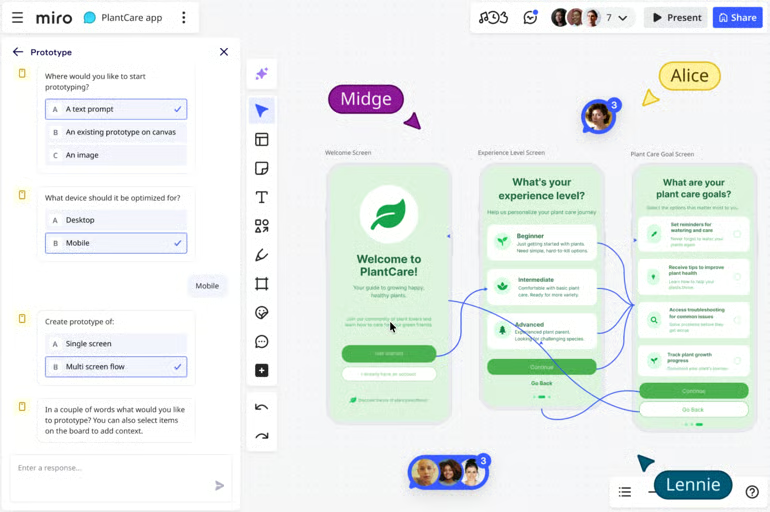
Miro is where messy brainstorms become organized project plans. It can group sticky notes by theme, then turn that cluster into a mind map, a table, or even a project timeline.
With a simple prompt, you can turn a process description into a flowchart or project timeline. Raw ideas and the resulting plan remain on one visual board instead of being scattered across separate documents.
You can describe a process in a simple prompt and get a flowchart or project timeline generated automatically, so the entire journey from raw ideas to a shareable plan stays on one visual board instead of spreading across separate documents. Once the plan takes shape, Miro can sync with Jira or Asana and send finalised tasks to the platform where your team manages daily work.
The catch: Miro AI primarily works with content displayed on the board. Information inside linked documents may not be included unless it is visible on the canvas. Notion handles that kind of document search, making it a better fit once you move from project planning into detailed documentation.
| Pros | Cons |
|---|---|
| Infinite canvas supports visual project discovery | Task tracking lacks advanced controls |
| AI turns ideas into project artifacts | Too many boards become difficult to manage |
| Real-time boards improve remote workshops | Reporting lacks detailed project metrics |
Pricing
- Free plan: Includes three editable boards, planning formats, templates, integrations, and limited AI
- Free trial for paid plans: 14 days for Business
- Starter: $8/user/mo. Includes 25 AI credits, unlimited private boards, project spaces, external editing, and facilitation tools
- Business: $20/user/mo. Includes 50 AI credits, AI workflows, project tables, unlimited guests, two-way integrations, and SSO
- Enterprise: Custom pricing from 30 users. Includes 2,500 pooled AI credits, centralized administration, regional hosting, AI controls, SCIM, and audit trails
Standout features
- Miro AI with Sticky Notes: Cluster feedback and summarize workshop output for project planning
- Miro AI with Diagrams: Generate editable diagrams and mind maps from prompts or sketches
- Flows: Transform canvas inputs through connected, multi-step AI processes
- Miro Prototypes: Generate interactive prototype screens from existing board context
How to choose the best AI project management tool
Every vendor in this guide uses the term “AI,” but that term encompasses very different capabilities across platforms. Before choosing a tool, identify the specific problem you need it to solve. Your answer will determine which platform is the right choice.
- Identify your biggest bottleneck first: Missed deadlines, scattered documentation, and messy calendars each point to a different tool. Don’t buy for “AI features” in general; buy for the specific problem costing you the most time or money right now.
- Check who controls the AI: If you’re in a regulated industry or a larger organization, ask whether an admin can approve, restrict, or shut off AI features before rollout. Some platforms build this in from the start; others treat it as an afterthought.
- Ask what data the AI can actually see: Some tools only read what’s inside their workspace. Others pull from connected apps like Slack, email, or Google Drive. If your team’s knowledge lives in five different places, a tool that only sees one of them will give you incomplete answers.
- Look for hidden costs in the AI plan: Many platforms gate their most useful automation behind a higher-tier plan, a credit system, or a paid add-on. A tool that looks affordable at the seat level can get expensive once you add the AI features you really need.
- Test it on a real, messy example: Before you commit, run the AI against an overdue project, a meeting recording, or your task backlog. AI tools tend to look impressive on curated examples and less impressive the moment your data has inconsistent formatting or conflicting information.
FAQs
What are AI project management tools?
AI project management tools use machine learning and natural language processing to automate repetitive work, such as project planning, scheduling, and reporting tasks. Instead of just tracking tasks, they can generate project plans, flag at-risk deadlines, and draft status updates from your current project data.
Can AI replace project managers?
No. AI-powered project management tools handle repetitive, data-heavy work such as status reporting, risk flagging, and task creation, but they are not capable of managing stakeholder relationships or team leadership. Most vendors position their AI as an assistant that reduces admin time, not a substitute for the PM role.
Is my project data safe with AI project management tools?
Most established vendors state that customer data isn’t used to train their AI models and that AI can only access what a user is already permitted to see. Policies differ by provider, so check each vendor’s trust or privacy page for specifics before rolling out AI company-wide.
Read the full article here