





When employees work changing shifts or move among job sites, recording a punch is only the first step. You also need to catch attendance exceptions, apply pay rules, approve timesheets, and move accurate hours into payroll without rebuilding the week from scattered records.
The best time and attendance software addresses the specific point where your process tends to break. Some businesses require tighter control over field punches. Others need schedules and attendance records to stay aligned when employees trade shifts.
For this time and attendance software buyer’s guide, I compared five platforms to help you identify the right one for your workforce.
| Deputy | ||
| OnTheClock | ||
| Connecteam | ||
| Homebase | ||
| QuickBooks Workforce |
*Pricing details are for Connecteam and Homebase’s paid tiers. Note that both also offer a free plan for very small businesses.
Top time and attendance software compared
The best time and attendance systems do more than capture punches. They help prevent missed breaks, incorrect hours, and unresolved exceptions from becoming payroll corrections. A lower-priced product may appeal to budget-conscious business owners, but it can cost more operationally if system administrators or managers still need to investigate exceptions, reconcile schedules with timesheets, or re-enter approved hours into payroll.
To find the right time tracking tool, start with the part of your process that creates the most rework, then check how each platform handles it. This will tell you more about its potential value than the subscription price alone.
The table below compares key features across my top five picks.
| Deputy | ||||
| OnTheClock | ||||
| Connecteam | ||||
| Homebase | ||||
| QuickBooks Workforce |
Deputy: Best overall time and attendance software
My rating: 4.08 out of 5
Deputy offers the strongest overall combination of time tracking, attendance management, scheduling, and workforce controls. Its demand-based scheduling adds operational depth beyond simply recording whether employees arrived for assigned shifts.
Businesses with changing coverage requirements will benefit most. Restaurants, retailers, healthcare providers, and hospitality companies can plan staffing around expected demand, monitor attendance as the day unfolds, and prepare approved hours for payroll inside one connected workflow.
Why I chose Deputy
Deputy addresses both sides of time and attendance: what the business expected employees to work and what they actually worked. Its demand forecasting can use sales, foot traffic, appointments, or delivery data to estimate staffing requirements. Auto-scheduling can then account for those forecasts alongside employee availability, labor budgets, and configured rules.
This gives managers a chance to prevent attendance and labor-cost problems before the shift starts. They can see who is working, late, or on break in real time and compare timesheets against the schedule without reconstructing events from separate systems.
Micro-scheduling adds another useful layer. Managers can divide one shift among different work areas or activities rather than treating several hours of work as a single block. Its kiosk can also use facial verification to deter buddy punching, while geofencing prevents employees from recording time outside approved areas.
That breadth earns Deputy the top position in this guide, but many of its most valuable capabilities do not come with the entry-level plan. Businesses choosing Deputy for demand forecasting, labor optimization, automatic scheduling, biometric clocking, or timesheet auto-approval will need to get its Core plan or higher.
Pricing
Deputy offers three plans:
- Lite: $5.50 per employee, per month. This covers basic scheduling, time clocking, timesheets, leave, shift swaps, reporting, messaging, and payroll or HR integrations.
- Core: $7.25 per employee, per month. Core adds advanced scheduling, demand forecasting, auto-scheduling, labor budgets, biometric clocking, micro-scheduling, and automatic timesheet approvals.
- Pro: $10 per employee, per month. You get additional features like advanced timesheets, custom access levels, location hierarchies, single sign-on, 24/7 live chat, and a sandbox environment. It also includes Analytics+ and Messaging+ modules, which are paid add-ons in other tiers.
Optional add-ons:
- Deputy Payroll enabled by Paycor: $49 monthly base fee plus $8 per employee (for annual Core and Pro plans)
- HR: $2 per employee, per month
- Messaging+: $1.95 per employee, per month
- Analytics+: $1.50 per employee, per month
Deputy also has a $30 minimum monthly spend for all plans. It offers a monthly billing scheme for those who prefer to pay month-to-month. There’s an annual subscription, which lets you save up to 10%, but you have to pay all fees upfront and in a lump sum.
Visit Deputy
Features
- Demand-led scheduling and timesheet automation
- Multiple clock-in methods via tablet, mobile, web, watch, and kiosk applications
- Deputy Kiosk app with voice commands for touchless clock ins/outs
- Geofencing and biometric verification
- Micro-scheduling
- Labor law controls for break scheduling and shift rules
- Leave and availability management
- Payroll and HR integrations
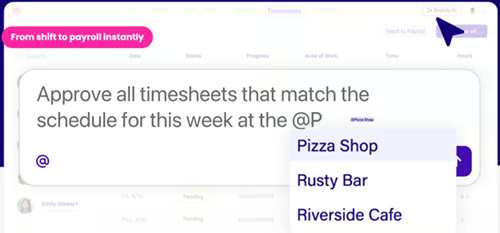
- AI tools for approving and checking employee timesheets
Pros and cons
|
|
OnTheClock: Best for distributed field crews

My rating: 3.64 out of 5
OnTheClock focuses on the practical mechanics of recording, verifying, and approving employee hours. It combines time tracking, employee scheduling, time off management, workforce controls, and reporting without dividing basic attendance functionality among several plans.
Punch control is where OnTheClock stands out. It lets you establish where punches are permitted and add identity or device controls when GPS alone is not enough. These features make it the best option for construction businesses, cleaning companies, home-service providers, landscapers, and other employers whose workers start their days at changing job sites.
Why I chose OnTheClock
Most products on my list of the best time and attendance software offer GPS or geofencing, but OnTheClock lets you layer those tools with IP address, Wi-Fi, device, and computer restrictions. GPS breadcrumb trails can show an employee’s route during work, while geofences establish approved clock-in areas around individual job sites.
Those controls address different risks. A geofence can confirm that a punch occurred near the correct location, but it cannot necessarily confirm who made it. OnTheClock can add fingerprint verification or limit employees to approved devices, giving you a second control point.
What OnTheClock does not provide is the same level of scheduling and smart timesheet automation as Deputy. It does not use demand forecasting to build schedules, and it lacks AI-assisted tools for surfacing timesheet exceptions or faster manager approvals.
Pricing
OnTheClock has two plans:
- Time Clock, Scheduling, and PTO: $5 base fee monthly plus $4 per employee, per month. This includes time tracking, employee scheduling, time-off management, location controls, overtime calculations, several punch methods, and payroll integrations.
- Enterprise: Call for a quote. This is for companies with more than 100 employees.
There’s an optional payroll add-on, which costs $40 per month plus $6 per employee monthly. However, this comes with a $250 onboarding and professional payroll migration fee.
Visit OnTheClock
Features
- Layered punch restrictions with GPS breadcrumb trails and optional fingerprint clock-ins
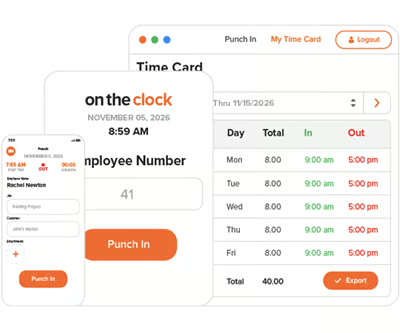
- Flexible time tracking via desktop browsers, mobile apps, mobile browsers, or shared kiosks
- Automatic breaks and punch rounding
- Overtime rules and alerts with overtime hour calculations
- Employee scheduling with recurring shifts
- Optional native payroll with unlimited pay runs, tax documents, and direct deposit
Pros and cons
|
|
Connecteam: Best for small teams needing free workforce tools

My rating: 3.58 out of 5
Connecteam gives businesses with up to 10 employees free access to time tracking and a broader set of workforce tools. Its Small Business plan includes all of its features, making it the most expansive free option in this guide for a team that needs more than a digital time clock.
This makes sense if you want to manage employee hours without immediately paying for separate scheduling, communication, task, document, and training tools. The Small Business plan comes with usage limits, but it gives a small business room to establish several workforce processes before moving to a paid subscription.
Why I chose Connecteam
Connecteam and Homebase are the only two providers on my list that offer free plans. What separates Connecteam’s package is the breadth of functionality included for up to 10 employees.
Homebase’s Basic tier focuses on core scheduling, time tracking, team messaging, and employee management for one location. Connecteam’s Small Business plan extends beyond those basics to checklists, tasks, documents, learning courses, messaging, company updates, and other tools across its Operations, Communications, and HR & Skills hubs.
The tradeoff appears after your team outgrows the free plan. Paid access is organized by Connecteam’s Operations, Communications, and HR & Skills hubs, so costs can climb if you need tools across several areas. Each paid plan also covers the first 30 users, with additional per-user charges once your team exceeds that threshold.
Pricing
Connecteam has one of the most flexible but also most complex pricing structures I’ve reviewed. It organizes its platform into three hubs, each covering a different area of workforce management:
- Operations: Includes the time clock, job scheduling, forms, and task management.
- Communication: Includes personal and group chats, company updates, surveys, a knowledge base, and a centralized company feed.
- HR & Skills: Includes time off and recognition features, as well as online courses and quizzes.
You can choose one, two, or all three hubs. Each hub has its own Basic, Advanced, Expert, and Enterprise plans, so you can select a different tier for each one based on the features you need.
For those with very small teams, Connecteam has a Small Business tier that includes free access to all of its hubs, provided you have no more than 10 employees. However, it comes with limits like one time clock and one job schedule.
Those with larger teams can choose from four paid plans:
- Basic: $35 monthly for the first 30 employees plus $0.60 per month for each additional user
- Advanced: $59 monthly for the first 30 employees plus $1.80 per month for each additional user
- Expert: $119 monthly for the first 30 employees plus $3.60 per month for each additional user
- Enterprise: Call for a quote
The main difference between the paid plans is access to customization options, automated tools, higher limits (e.g., 10 to unlimited geofence sites), and advanced levels of hub features.
The hub structure takes some time to understand, but it gives you more control over what to buy. For example, you can pick the Advanced plan for Operations, Basic for Communications, and Expert for HR & Skills. When the time comes that you need more or less of the advanced features of a hub, you can upgrade or downgrade the plan at any time.
Connecteam also offers month-to-month and annual subscriptions. Similar to Deputy, signing up for an annual package comes with discounted pricing but requires an upfront and lump-sum payment.
Visit Connecteam
Features
- Free access to three workforce hubs under its Small Business plan for up to 10 users
- Job-linked time tracking
- Multiple time clock options via computers, tablets, and mobile devices
- GPS and geofencing features
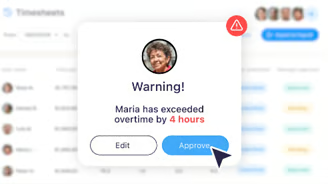
- Smart timesheets with alerts for missed breaks and overtime limits
- Quick task tools with digital forms and checklists
- Employee scheduling and communication tools
- Training, online quizzes, and document storage
Pros and cons
|
|
Homebase: Best for low-cost time tracking

My rating: 3.56 out of 5
Homebase combines time tracking, employee scheduling, onboarding, team communication, and payroll into one platform for hourly businesses. Its location-based pricing makes it a good fit for restaurants, retail shops, salons, and other employers that manage many employees from a single worksite.
I recommend Homebase if you expect your headcount to grow at one location. Instead of paying for every additional employee, your software cost stays tied to the location, making budgeting more predictable as your workforce expands.
Why I chose Homebase
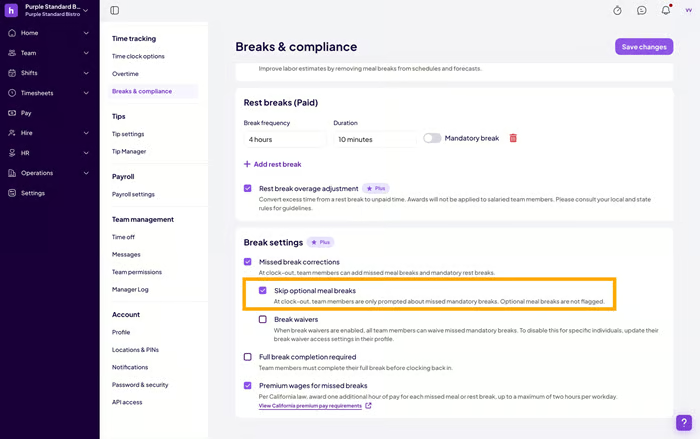
Homebase covers the essential time-tracking functions hourly teams need. It restricts mobile punches by location, captures employee photos at clock-in, applies custom break and overtime rules, sends automated reminders, and retains timesheets for more than four years.
Its pricing model is what separates it from the options in this guide. Homebase and Connecteam both performed well for affordability in my evaluation, but they reduce costs in different ways. Connecteam removes the initial expense for teams with up to 10 employees. Homebase also offers a free plan, but its paid tiers support unlimited employees at one location, which can lower the long-term cost for a larger hourly workforce.
For example, a 30-person restaurant can use the Homebase Essentials plan for one location without paying a separate software fee for each employee. This is unlike Deputy and OnTheClock, which continue adding user-based charges as the team grows.
The disadvantage appears when your business expands to multiple locations. Each worksite will require its own paid Homebase subscription, reducing much of the pricing advantage.
Pricing
Homebase has four plans:
- Basic: Free for one location and up to 10 employees. This includes basic scheduling, time tracking, and point-of-sale (POS) integrations.
- Essentials: $30 per location, per month for unlimited employees. This plan adds advanced scheduling and time tracking, as well as communication tools.
- Plus: $70 per location, per month for unlimited employees. Additional features include AI-assisted scheduling, PTO controls, and permissions.
- All-in-One: $120 per location, per month for unlimited employees. This plan adds employee onboarding, labor cost management, and HR compliance support.
For a monthly fee of $39 plus $6 per employee, you can add payroll tools to Homebase’s main platform. Other add-ons include:
- Tip Manager: $25 per location monthly
- Task Manager: $13 per location monthly
- Background checks: $30 each
- Hiring Assistant: Starts at $30 per job post
- Job post boosts: Starts at $70 per job post
Homebase also offers a month-to-month and annual subscription. If you have a big software budget, I recommend the annual option as it lets you save 20%, but you’ll have to pay all fees in advance and in a lump sum.
Visit Homebase
Features
- Clock in options via computers, tablets, smartphones, and POS devices
- Customizable overtime and break preferences
- Clock-ins with photo verification and location-based mobile punches
- Automated real-time reminders and notifications
- Employee scheduling and onboarding
- Team communication tools with custom messenger channels
- AI Assistant for building schedules, flagging payroll errors, and more
- Access to HR advisory services
- Native payroll with unlimited pay runs, direct deposit payments, automated tax filings and payments, and year-end tax forms
Pros and cons
|
|
QuickBooks Workforce: Best for QuickBooks users managing billable work

My rating: 3.50 out of 5
QuickBooks Workforce combines employee time tracking, scheduling, GPS-enabled clock-ins, and payroll-ready timesheets with the broader QuickBooks ecosystem. Instead of treating time records as standalone attendance data, it connects them to the accounting and payroll workflows many small businesses already use.
It’s great for businesses that already rely on QuickBooks Online, Intuit’s accounting module, and regularly track labor against customers, projects, or jobs. Rather than exporting timesheets into separate accounting software, approved hours can stay within the same financial workflow.
Why I chose QuickBooks Workforce
Most time and attendance software stops once employee hours are approved. QuickBooks Workforce continues that workflow by connecting those hours to invoices, payroll, project costs, and financial reporting.
That distinction matters for businesses that bill clients for labor or monitor project profitability. Managers can assign hours to customers or projects, compare estimated and actual labor, and use the same records for payroll and invoicing instead of maintaining separate systems. None of the other products in this guide ties employee time as closely to accounting workflows.
However, QuickBooks Workforce’s core platform is payroll. Many of its HR tools, time tracking included, are reserved for higher tiers. Businesses looking only for standalone time and attendance software will usually find more affordable options in Homebase, Connecteam, or OnTheClock. Deputy also provides stronger workforce planning through labor forecasting, schedule optimization, and attendance automation.
Pricing
QuickBooks Workforce has three plans:
- Workforce Payroll: $50 base fee monthly plus $7 per employee, per month. This comes with payroll features, federal and state tax filings, next-day direct deposit, employee information management, access to benefits plans, and a payroll accuracy guarantee.
- Workforce Premium: $88 base fee monthly plus $13 per employee, per month. Additional features include local payroll tax filings, same-day direct deposit, time off management, scheduling, time tracking, hiring and onboarding, benefits administration, and manager approvals.
- Workforce Elite: $134 base fee monthly plus $17 per employee, per month. This plan adds geofencing, mileage tracking, performance review, and a tax penalty protection program.
Visit QuickBooks Workforce
Features
- Easy integration between Intuit products
- Multiple time clock options via computer, mobile devices, and kiosk
- Clock-ins with photo captures to verify identity
- Customer, project, and job time allocation
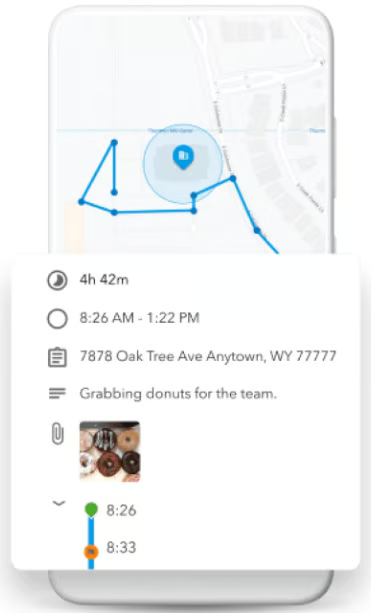
- Geofencing and GPS tools with clock-in alerts
- Mileage tracking
- Timesheet attachments and signatures
- Employee scheduling
- Recruiting, onboarding, and performance management
- AI tool that tracks down employee hours, flags anomalies, and gets payroll ready
Pros and cons
|
|
What are the key features of time and attendance software?
Most online time and attendance solutions cover basic clock-ins, but the following capabilities determine how effectively they prevent errors and prepare employee hours for payroll.
- Flexible clock-in methods let employees record time through devices that match where and how they work. Common options include physical time clocks, shared kiosks, and apps for web browsers and mobile devices that support PIN or biometric log ins/outs.
- Attendance exception tools identify late arrivals, early departures, missed punches, no-shows, and unscheduled work without requiring managers to compare records manually. The system should also give employees a controlled way to request corrections while preserving an audit trail of edits and approvals.
- Configurable timekeeping policies apply rules for overtime, meal periods, paid breaks, rounding, grace periods, and early punches. Businesses operating across several jurisdictions may need different policies by location, job, or employee group.
- Payroll-ready time calculations convert approved punches into regular, overtime, leave, and other payable hours. The software should identify unresolved exceptions before payroll and send approved data through a native connection, third-party integration, or a correctly formatted export.
- Location and identity controls help confirm where a punch occurred and who made it. GPS and geofencing address location, while photos, biometrics, unique PINs, network restrictions, and authorized-device rules can reduce buddy punching or unauthorized entries.
- Attendance and labor reporting turn punch data into information managers can use for payroll, staffing, and compliance decisions. Useful time and attendance tracking tools should cover worked hours, overtime, missed punches, absences, PTO, scheduled-versus-actual labor, job costs, and recurring attendance patterns.
How to choose the right time and attendance software
Ask yourself these questions when comparing time and attendance software:
Where does your current process create the most rework? Instead of looking for the software with the most impressive demo or feature list, start with your most expensive correction. If incomplete timesheets delay payroll, prioritize exception alerts, approval routing, and payroll connections. If unauthorized or offsite punches cause more problems, give location and identity controls greater weight.
Can the software handle a difficult pay period? Ask the vendor to show how it manages:
- An overnight shift
- Two jobs with different pay rates
- A missed meal break
- Approved PTO that overlaps a schedule
- An early clock-in that triggers overtime
These scenarios reveal more than a clean clock-in and timesheet approval demo.
What happens when the system or process fails? Check whether employees can record time without internet access, how delayed punches synchronize, who can edit timecards, and whether the audit trail preserves the original entries. Strong time tracking software should protect employee attendance data when something goes wrong.
How much work does the system require from employees and managers? Test how easily employees can clock in, correct a missed punch, and request time off. Then check how quickly managers can resolve exceptions, approve timesheets, and run reports.
What will the software cost for your actual workforce? Calculate the price using your employee count, number of locations, required features, and add-on fees. Also check whether the provider charges per employee, per location, or through a base fee.
What customer support will you receive? Confirm the available support channels, operating hours, expected response times, and whether implementation assistance costs extra. Support availability matters most when a timekeeping issue could delay payroll.
Methodology
To identify the best time and attendance software, I evaluated 10 platforms using a structured rubric and narrowed the list to five. I reviewed each provider’s current pricing, product capabilities, help documentation, and user feedback, alongside my over eight years of experience researching HR and workforce management software.
My evaluation covered:
- Time and attendance tools (25%): I assessed clock-in methods, timesheet management, scheduling, leave tracking, payroll-ready calculations, and offline time capture.
- Workforce controls (25%): I examined how well each platform applies break, overtime, rounding, and attendance rules while preventing offsite or unauthorized punches.
- Platform and interface (20%): I looked at ease of use, mobile access, workflow automation, permissions, customization, communication tools, and payroll or HR connections.
- Pricing (15%): I considered pricing transparency, contract requirements, available discounts, and affordability by looking at the estimated monthly cost for a business with 25 employees.
- Customer support (10%): I reviewed each provider’s support channels and hours, self-service resources, and availability of setup or implementation assistance.
- Reporting (5%): I considered the availability of standard and custom reports, attendance and labor insights, and options for exporting data.
Frequently asked questions (FAQs)
What is the difference between time tracking and time and attendance software?
Time tracking tools record how long someone works, while time and attendance software also manages schedules, absences, policy exceptions, approvals, and payroll-ready calculations. Basic tracking may suit project work, but hourly employers often need the broader attendance workflow.
How much does time and attendance software cost?
Time and attendance software can be free for a small team or cost more than $10 per employee per month. Sometimes, it comes with an additional base fee that ranges from $19 to $50 monthly. Providers may also charge extra for implementation support and tools like payroll, so calculate the overall cost using your actual headcount, locations, and required features.
Can a time and attendance system prevent buddy punching?
Time and attendance software can reduce buddy punching through photos, biometrics, PINs, device restrictions, GPS records, and geofences. Combining identity verification with location controls provides stronger protection than relying on one method.
Does time and attendance software integrate with payroll?
Most time and attendance software can send approved hours to payroll through a native connection, third-party integration, or formatted export. When comparing time and attendance systems with payroll integration, check whether overtime, PTO, job codes, pay rates, and corrected timecards transfer along with total hours.
Read the full article here