





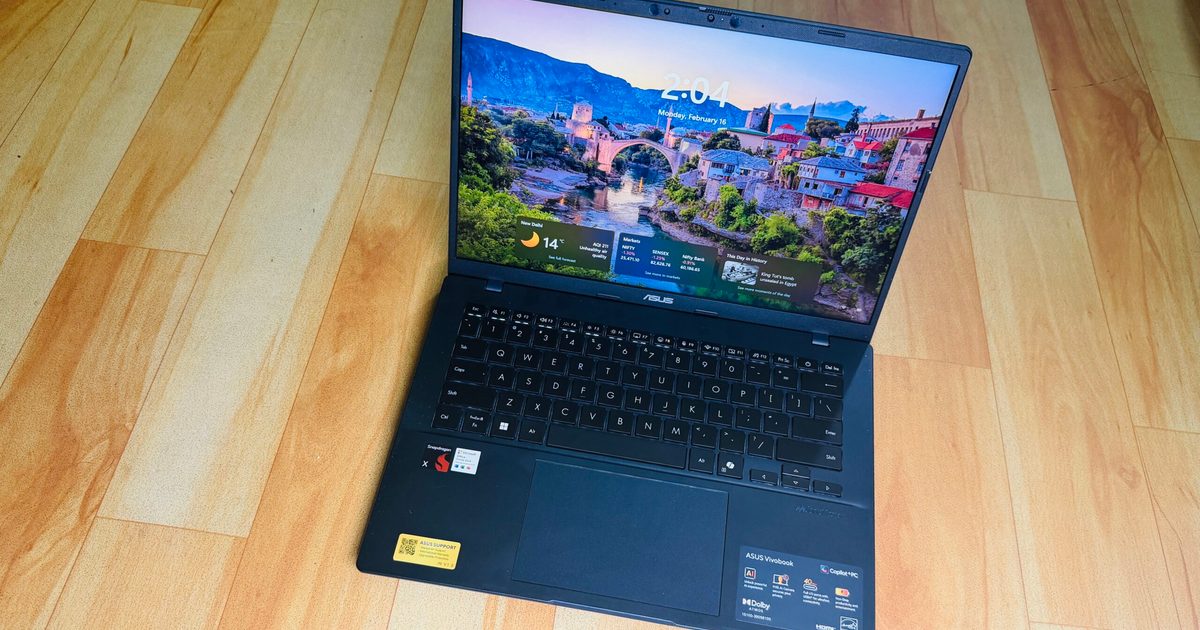

Asus Vivobook 14
MSRP $649.99
“Asus Vivobook 14 is a good template for serving the best of Windows 11 on an affordable and practically rewarding platter”
Pros
- Solid trackpad and decent keyboard
- Sufficient selection of ports
- Decent performance for the price
- Reliable battery with fast charging
- Generous memory for 2026
- Windows Hello for biometric lock
Cons
- Display could’ve been better
- Plastic flexes on lid and deck
- Fan can get noisy
- Random performance hiccups
What makes a good laptop? Well, I can give a pretty haphazard answer to that. But if I were to give a broad verdict, I would say any PC that gets the job done without nuking your wallet, heating like a pan, and lasting at least a full day without forcing you to hunt for a wall socket, takes the cake.
Apple has mastered that art with the MacBook Air, and to such an extent that shoppers have no qualms spending on two, or even three-generation-old, machines. Windows, thanks in no part to the extreme fragmentation, has struggled with the idea.
With Intel Evo-certified PCs, an attempt was made, but they just couldn’t hit the performance-efficiency levels of a MacBook. Then came Qualcomm with its Snapdragon silicon for Windows-on-Arm machines bearing the Copilot+ branding. The vision was squarely a Mac-killer machine at various price points.
Now that we are headed into the second generation of Qualcomm-powered laptops, I took a leap of faith away from my trusty M4 MacBook Air and fired up the cheapest Cipolot+ laptop I could find – the Asus Vivobook 14, which is currently going for $649 from the brand’s online marketplace, and often dips lower during sales events.
Did I regret it? Not exactly. On the contrary, I came out fairly impressed with the machine, though not without a few harsh learnings.
A quick look at the specs
| Color | Cool Silver, Quiet Blue |
| Operating System | Windows 11 Home (ASUS recommends Windows 11 Pro for business) |
| Processor | Snapdragon X (X1 26 100) (30MB Cache, up to 2.97GHz, 8 cores, 8 Threads) |
| Neural Processor | Qualcomm Hexagon NPU (up to 45TOPS) |
| Graphics | Qualcomm Adreno GPU |
| Display | 14.0-inch LED Backlit, 60Hz, 45% NTSC, Anti-glare (87% screen-to-body ratio) |
| Memory | 16GB LPDDR5X on board (Max 16GB) |
| Storage | 512GB M.2 NVMe PCIe 4.0 SSD |
| I/O Ports | 2x USB 3.2 Gen 1 Type-A; 2x USB 4.0 Gen 3 Type-C; 1x HDMI 2.1; 1x 3.5mm Jack |
| Camera | FHD camera with IR function (Windows Hello) and privacy shutter |
| Keyboard | Backlit Chiclet Keyboard, 1.7mm Key-travel, Precision touchpad |
| Audio | Smart Amp Technology, Built-in speaker, Built-in array microphone |
| Connectivity | Wi-Fi 6E (802.11ax) + Bluetooth 5.3 |
| Battery | 50WHrs, 3S1P, 3-cell Li-ion |
| Power Supply | 65W AC Adapter (Type-C) |
| Weight | 1.49 kg (3.28 lbs) |
| Dimensions | 31.52 x 22.34 x 1.79 ~ 1.99 cm |
What worked?
I will start with the value perspective first. Asus is more generous with the memory situation on the Vivobook 14 than Apple, matching the memory at 16GB, but offering a healthy 512GB storage on the base model. For anyone who wishes to use their PC for at least the next half a decade, this is the bare minimum.
I keep my media editing work restricted to the iPad Pro, and it’s a headache. Beyond the cumulative burden of OS updates, the gradual app installs fill up the storage sooner than I would like. Whether you need a machine for work, or college duties, Asus offers a better value for your money if you have an Apple comparison in mind.
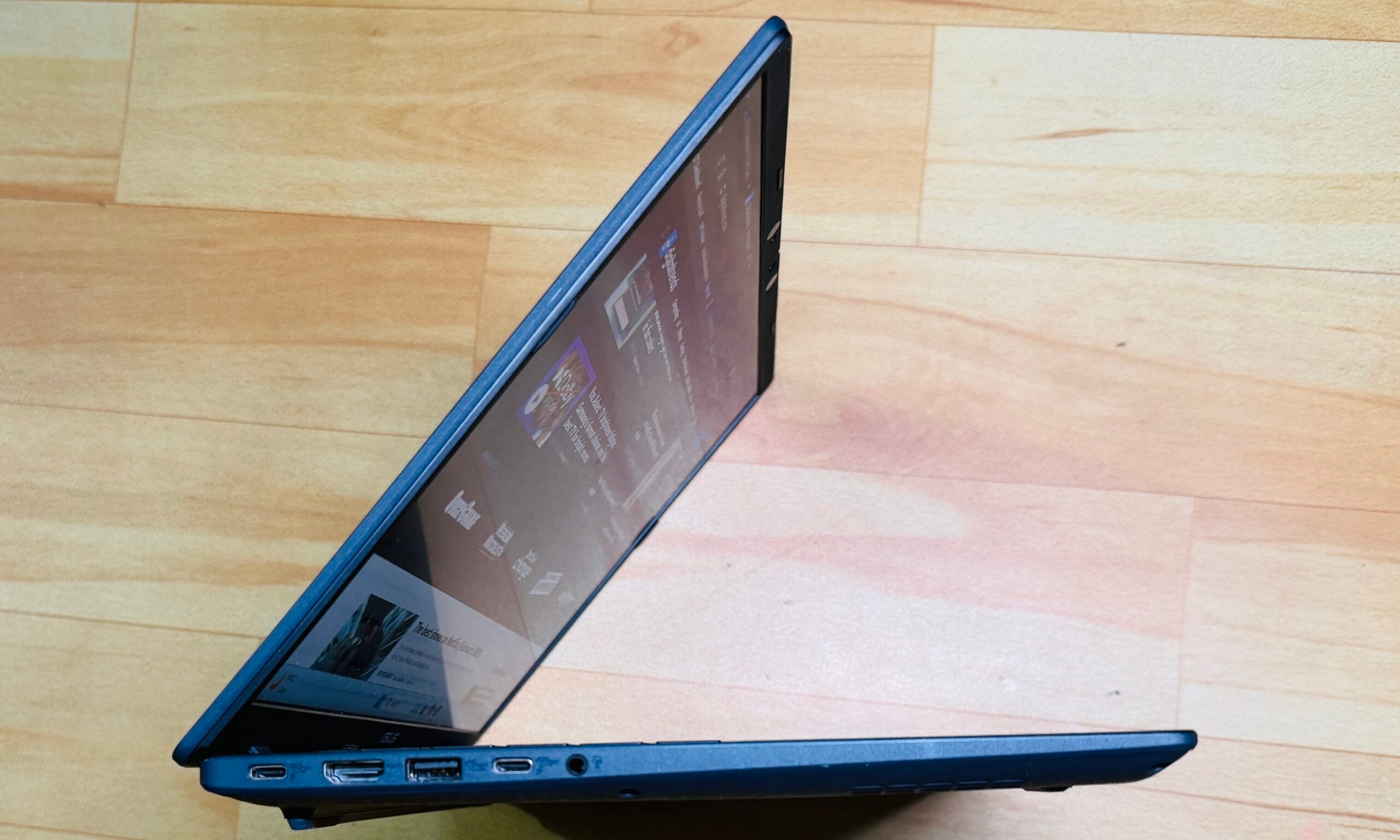
Then we have the port situation. Yes, the MacBook Air is sleek, but that comes at the cost of a terrible port selection. And the only way to survive the MacBook Air lifestyle is a dongle. Asus’ affordable laptop won’t outdo Apple’s laptop in the looks department, but it trades a svelte waistline for a reasonable diversity of ports.
You get a pair of USB-C and USB-A ports each, alongside an HDMI port and a 3.5mm combo jack. Now, you may not always use all the ports, but on the days when you are struggling with an external monitor, charger, storage device, and an input device, you really appreciate the I/O versatility at hand.
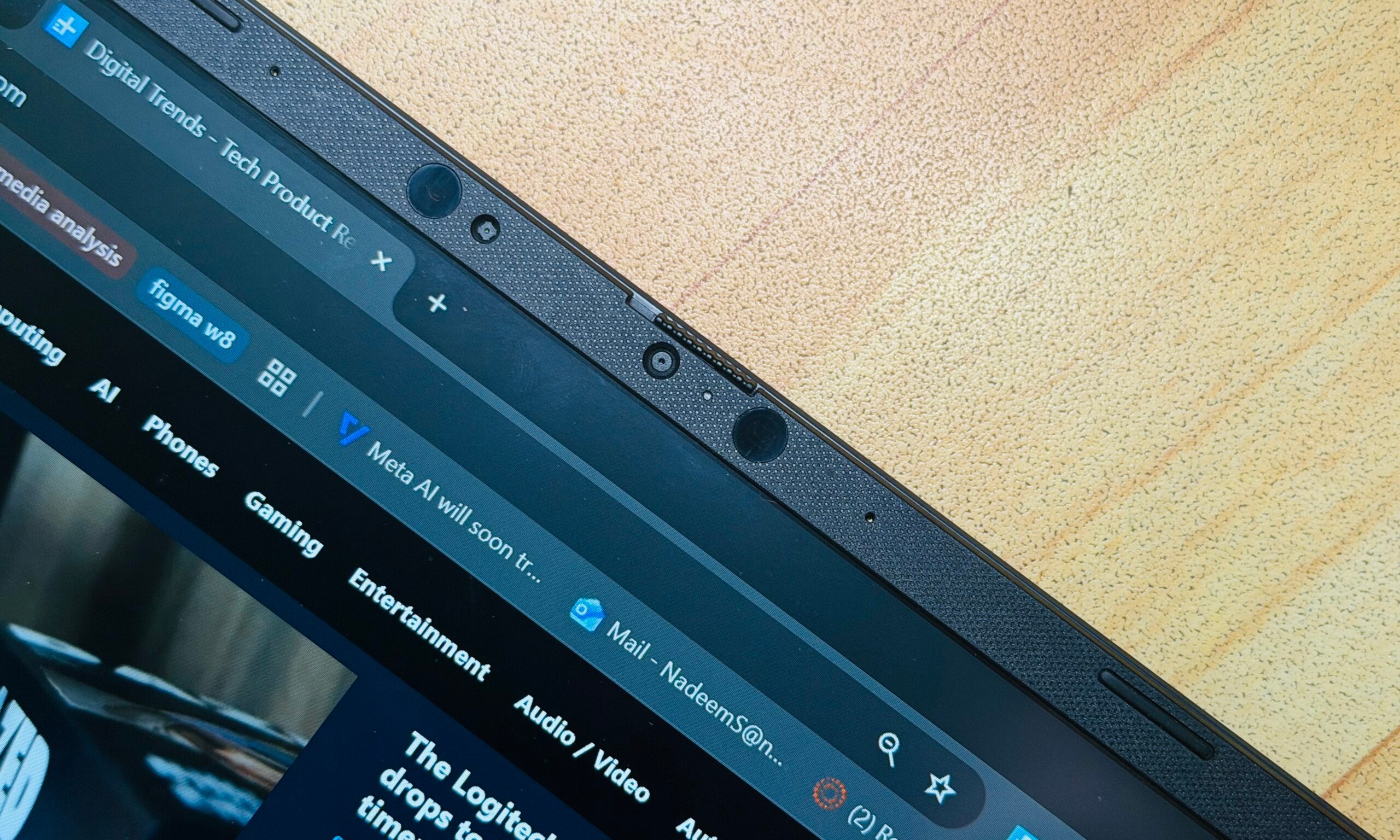
Another neat perk, and an expected one at the current asking price, is the IR camera kit for face unlock. On modern PCs, biometric unlock is an extremely underrated perk, especially in an age where passkeys are taking over conventional passwords for identity verification.
The keyboard isn’t bad either. There’s plenty of travel, the keycaps are spaced well, and despite the slight wobble, I actually loved typing on it more than my MacBook Air. The keys offer a springy feedback, and there’s a satisfying resistance, as well. There’s a bit of flex in the central portion of the deck, but not enough to hamper the typing experience.
The display is a mixed bag. The 14-inch panel offers a full-HD resolution, which is fairly standard for the price. But it doesn’t fare well in well-lit surroundings. I mostly work in a dark room, but every time I stepped out for a cafe work session, or the nearby park, I had to crank the brightness all the way up to the 100%, and still felt a tad underwhelmed.
Thankfully, it’s not a glossy panel, so reflection was never much of a problem. Out of the box, the display has an odd tint to it, and I had to manually adjust the temperature to make it look neutral. And yeah, the saturation could definitely be better. The Asus laptop, however, is hiding a cool trick.
In the MyAsus app, there’s an E-reading mode that gives a monochrome tint to the screen. All the content is rendered in black and white, and you can even adjust the grayscale level. You also get an eye-care mode, with five levels of blue light reduction. I often found myself juggling between these two modes as they tangibly reduced the eye strain, while the e-ink mode helped me with an extra dose of focus.
Another cool trick is hiding on the trackpad. It’s serviceable on its own, but I loved the edge gestures. Across the left and right edges, you can slide to adjust the volume and brightness levels, while the top edge helps with media playback. I love these thoughtful additions, which go beyond gimmicks and don’t burden you with a learning curve either.
Performance
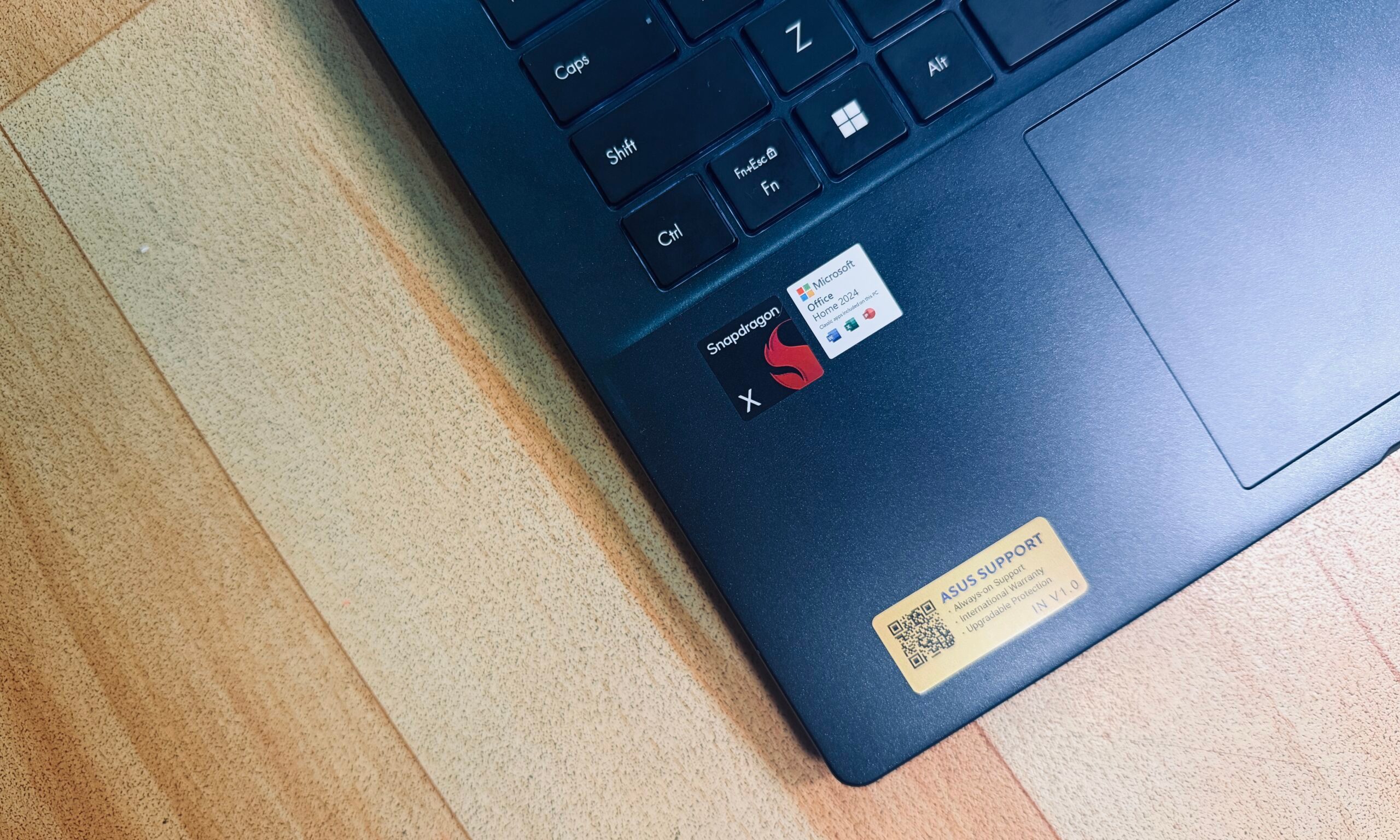
The Snapdragon X is a rather odd processor, which is both good and bad news. For example, it fares almost as well as the MacBook Air… with the three-generation-old M2 chip on Cinebench at multi-core output, but the Oryon core can’t quite drive ahead of the single-core performance.
That’s both good and bad news. Apple’s M-series silicon is terrific, and I have friends and family members still holding on tightly to their M1-powered machines. On the Windows side of the ecosystem, the Vivobook 14 raced ahead of Intel’s Core Ultra 5 226V, and the equivalent Intel Core 12th Gen processor at Geekbench runs
Paired with 16 gigs of RAM and speedy SSDs, the Asus laptop fared pretty well at my day-to-day tasks. It handled Slack, Teams, Chrome with two dozen tabs, and Copoilt with ease. For academic use and basic corporate work restricted to Workspace and Office suites, there’s enough firepower available here.
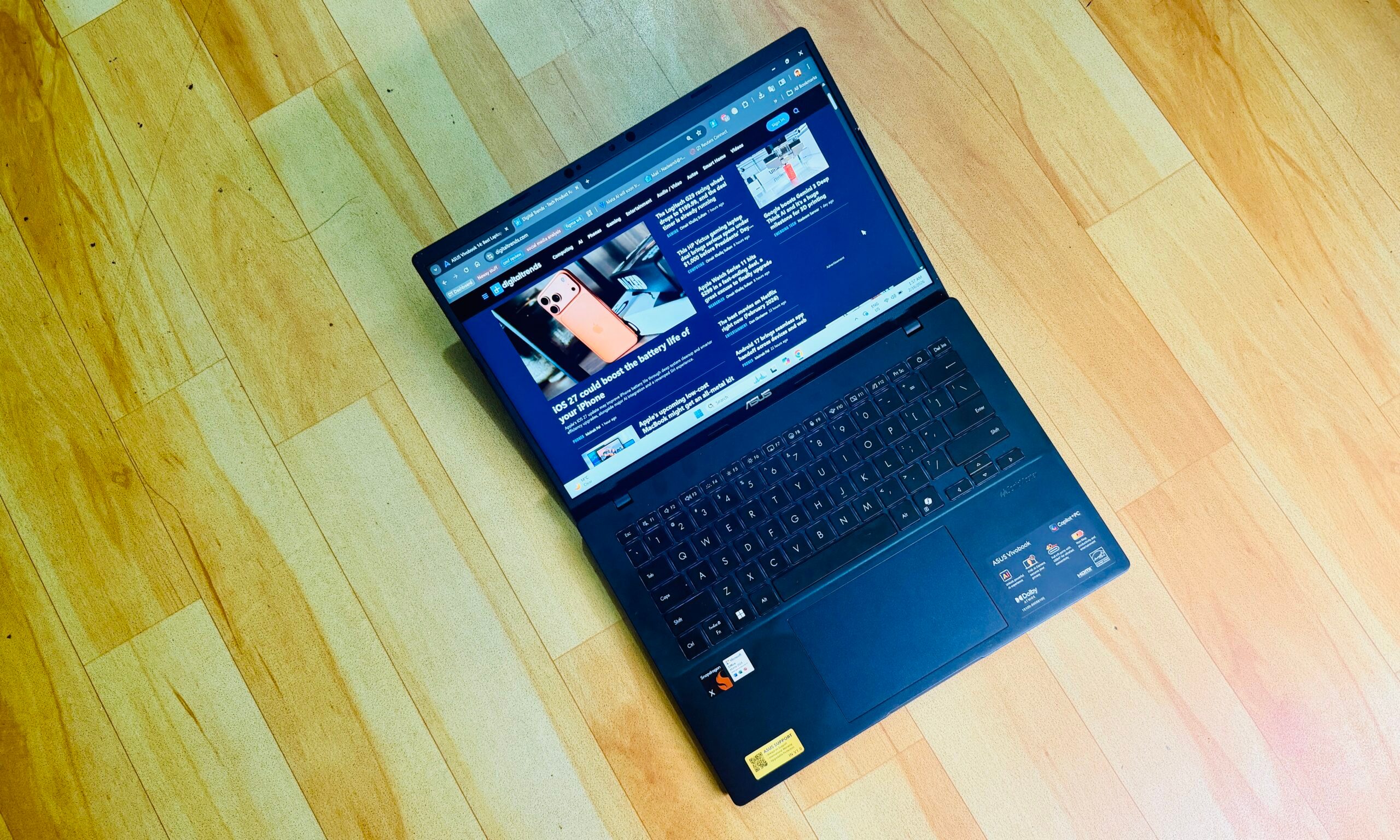
But what holds this machine back — and nearly every Windows on Arm machine that I have tested so far – is the inconsistency. On days, the Asus laptop felt buttery smooth. And then there were occasions where it randomly crashed under the stress of a few Chrome windows. Another recurring problem is the update situation, which often left me staring at a blank screen and required a force restart.
Where Qualcomm needs to work, especially when compared against Intel’s Arc and AMD’s Radeon graphics architecture, is the integrated Adreno GPU. On 3DMark Steel Nomad, I got an average tally of around 9fps after three test runs, while an in-game benchmark only reached 18fps. Needless to say, gaming is a distant pipedream, and your only hope is cloud services such as Xbox or GeForce Now.
I wish the fans were a tad less noisy. Even under the stress of web-based work, you can hear them whirring. Thankfully, I didn’t notice any overt heating or scenarios where the laptop became too hot to keep on the lap. Whisper mode offers some respite from the fan house, but to avoid the heat build-up and throttling, I preferred working with the fan profile set to Full-Speed mode. Thankfully, my earbuds helped deal with the noise.
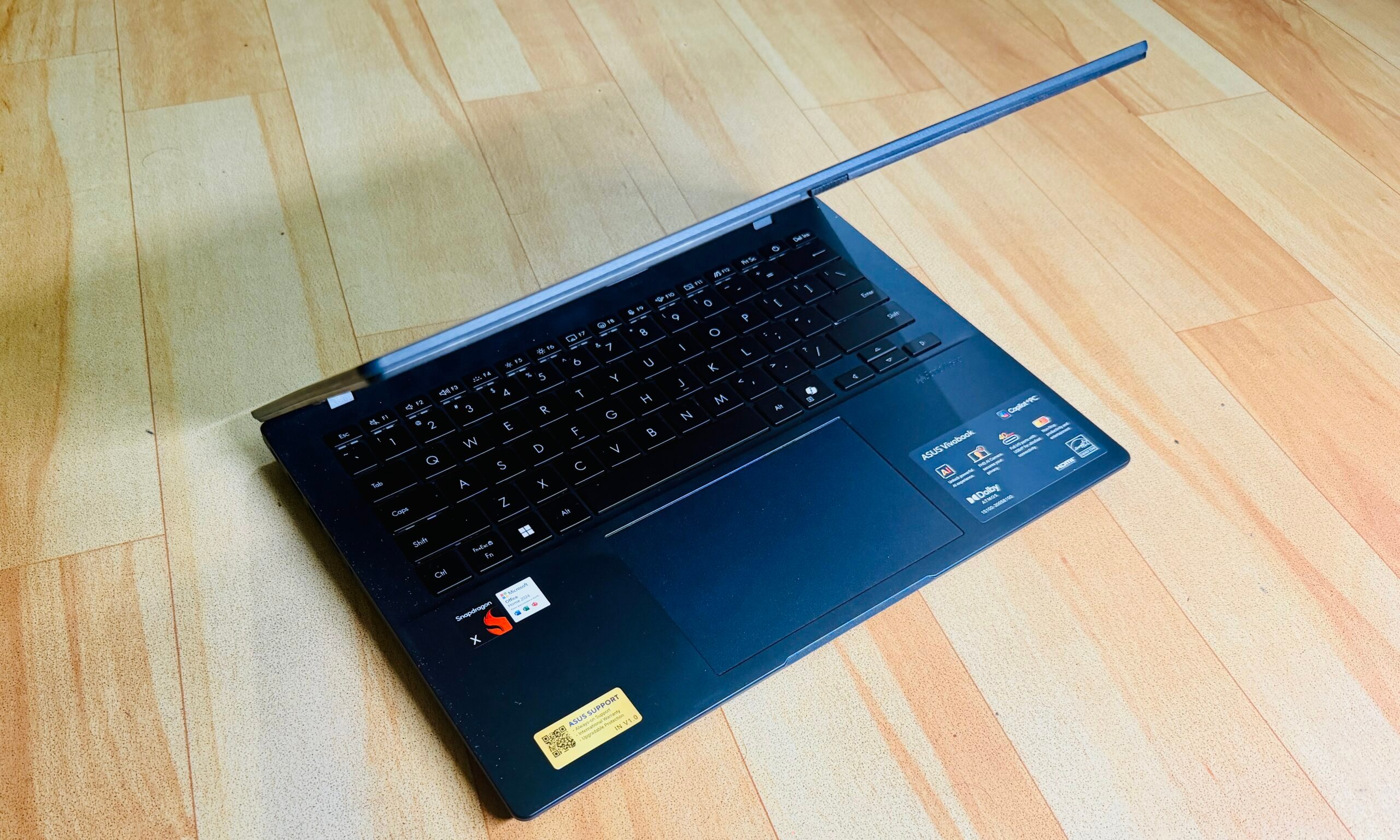
But when I pushed it while editing videos in Filmora, the upper area of the keyboard deck ran noticeably hotter. What bothered me more was the resource allocation. Between two windows and a total of eight apps in total, the system was using 80% of the memory, which is way too much, while the CPU load remained comfortably under the 18% range.
Battery life
This is one aspect where the Asus Vivobook 14 really surprised me. I was expecting it to be a mediocre performer, but it actually proved to be a workhorse. With Power Mode set to balanced, the laptop managed around 11 hours of work in my most recent run, with the screen brightness set close to the 60% mark.
Dialing up to the high-performance mode, the device still managed around eight to nine hours of consistent work before I saw the first low-battery alert. It’s evident that the entry-level Snapdragon X silicon is focusing more on efficiency, instead of raw performance. This approach, I believe, works well for a machine like the Vivobook 14.
I’ve tested over a dozen Windows machines in as many months, but this Asus machine offered the best mileage in the Snapdragon pool for its size, and fared better than Intel machines from rival brands. If your budget is strictly close to the $700 mark, you already have a certain performance expectation in mind.
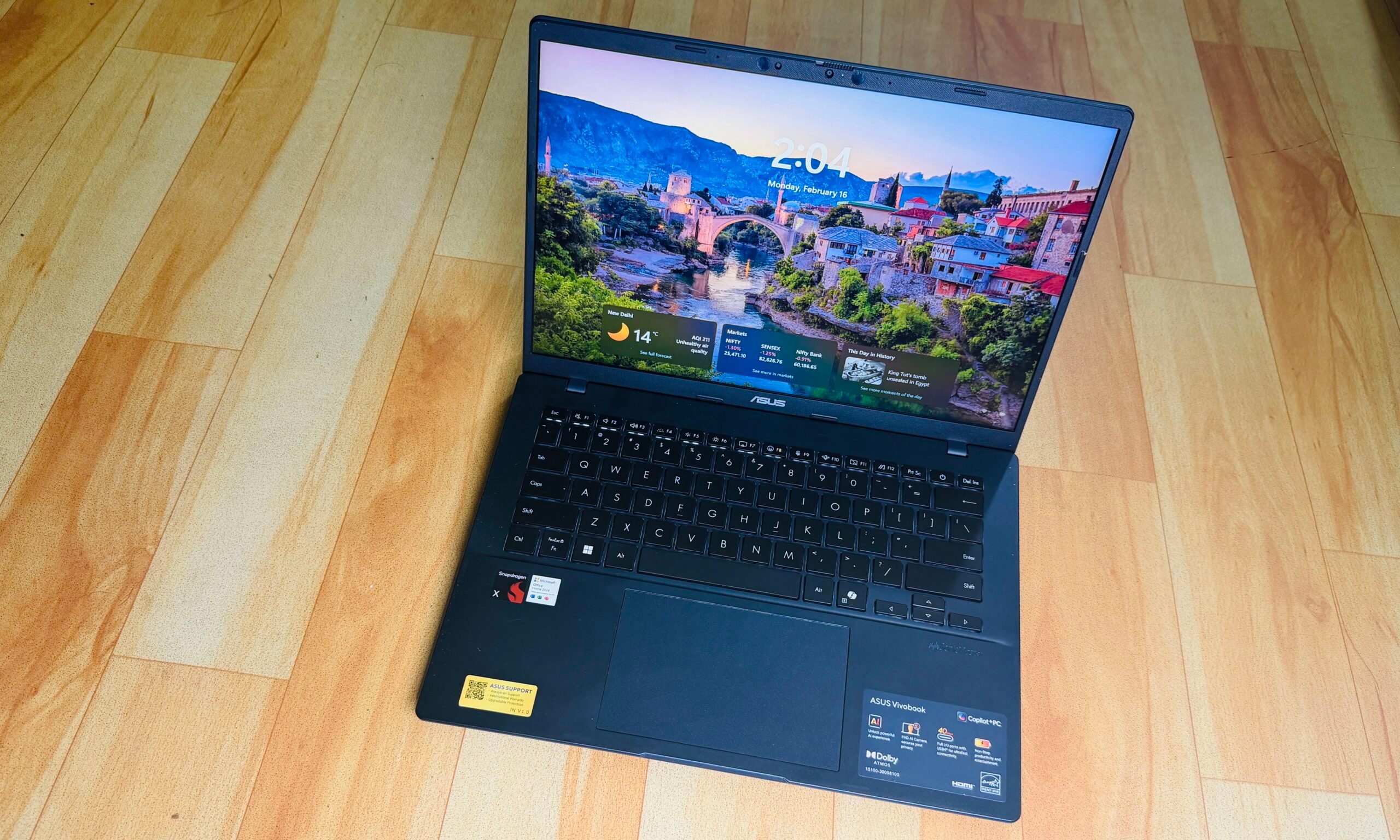
The Asus Vivobook 14 isn’t exactly blowing past those expectations, but it delivers solid results with battery efficiency. The hiccup was the edge scenarios, where I needed the machine to focus more on creative workflows at high performance levels, and the drop in battery levels was haphazardly aggressive.
On the bright side, the laptop offers a few meaningful tricks within the MyAsus app. There’s a dedicated battery care mode that limits peak charging to the 80% mark, similar to iPhones, in order to preserve its longevity. But for scenarios where you want the full juice for on-the-go work sessions, you can temporarily bypass it for 24-hours and get the full 100% juice.
Verdict
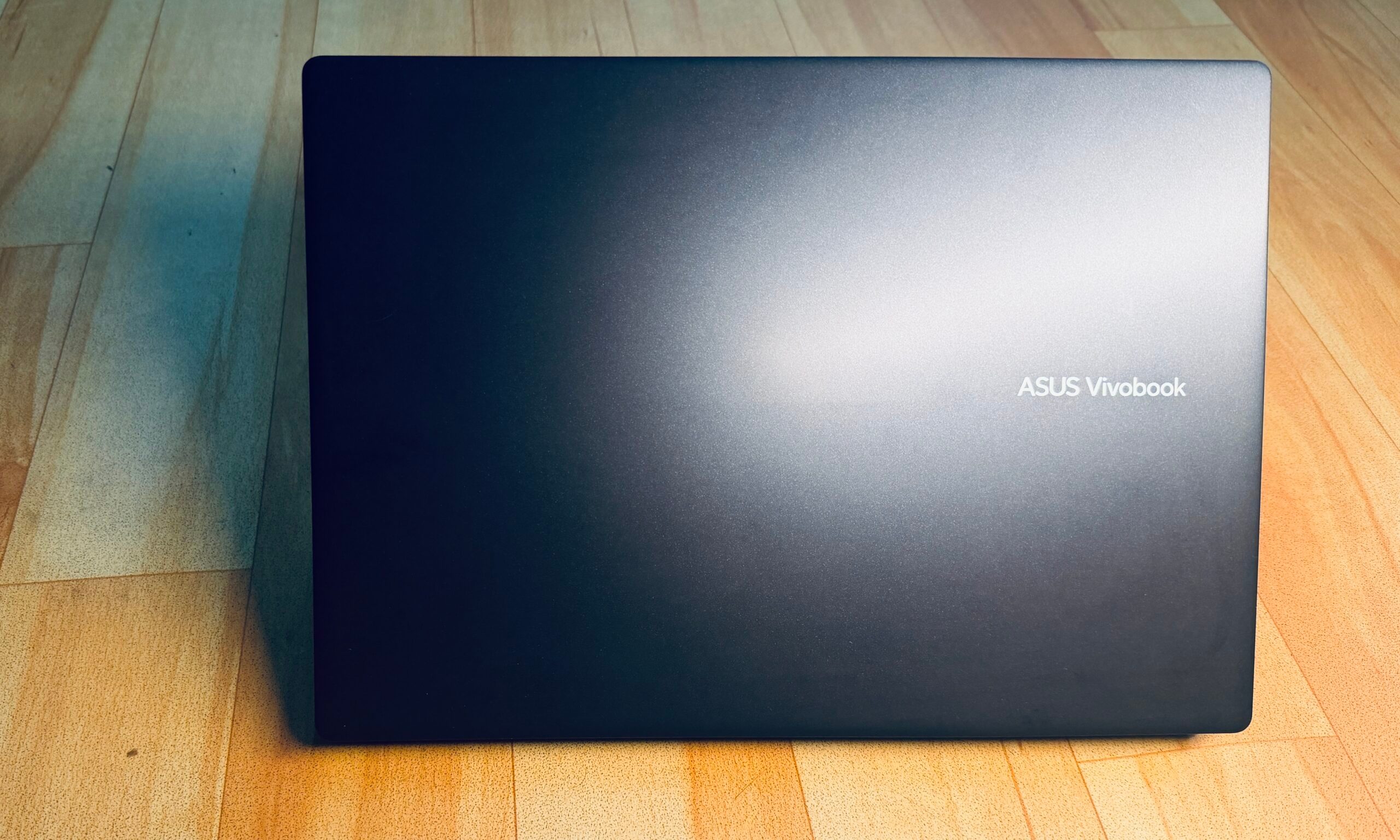
The Asus Vivobook 14 is a laptop that cuts some expected corners, but delivers in a few unexpected ways. It’s got a kit that’s easy on the eyes, but raises the bar with a military-grade (MIL-STD 810H) build. For students and workers who commute daily, this is an underrated perk that can save you hundreds of dollars in accidental repairs and servicing.
On to the topic of battery life, this laptop does a fine job, and support for fast charging (an hour of plugged-in time for a full tank) is just the cherry on top. Now, I don’t know many souls out there who want a laptop specifically for native Copilot AI perks, but if you’re one of those souls, this Asus laptop is a bargain deal that qualifies for all the Copilot+ AI perks, such as on-device translations, AI-powered image editing, and Windows Recall.
The performance is enough for the asking price, though not exactly an Earth-scorcher. As a sweet bargain for not setting the benchmark tables on fire, you get plenty of ports (with ample diversity), a large trackpad with practical tricks, convenient biometric unlock with a physical privacy shutter, and a decent set of speakers that get the job done, but won’t exactly wow your ear canals.
At an asking price of $649 (and even lower, if you’re a good deal-hunter), the Asus Vivobook 14 is a lovely laptop for its target audience. And at a time when the industry is staring at rising PC prices owing to an unprecedented memory crisis, this laptop feels like a bargain in stormy days for market.
Read the full article here