






Asana has earned its reputation in project management through its user-friendly interface and robust reporting suite. But scaling comes with trade-offs, particularly around workflow customization and what you get relative to the cost. Like any user who eventually outgrew it, I looked for Asana alternatives that deliver more in terms of pricing, features, and overall value, and what I found might surprise you.
Best Asana alternatives compared
| monday | Best for customization | ||
| ClickUp | Best native AI features | ||
| Jira | Best for IT service operations | ||
| Teamwork.com | Best for profit tracking | ||
| Smartsheet | Best for data-heavy projects | ||
| Wrike | Best for enterprise use | ||
| Notion | Best for building company wikis | ||
| Trello | Best for visual thinkers |
| Why you can trust TechRepublic |
| I’ve spent the past four years testing nearly 20 project management platforms, and some of them have become part of my workflow. Writing dozens of PM software guides for businesses of all sizes taught me what individuals and teams need from these tools beyond the marketing pitch. I also build custom scoring rubrics for each review to ensure fairness and that selected platforms get evaluated on the same criteria.
Marianne Sison |

1. monday work management: Best for customization
My rating: 4.93 / 5
Visit monday
Why I chose monday Work Management
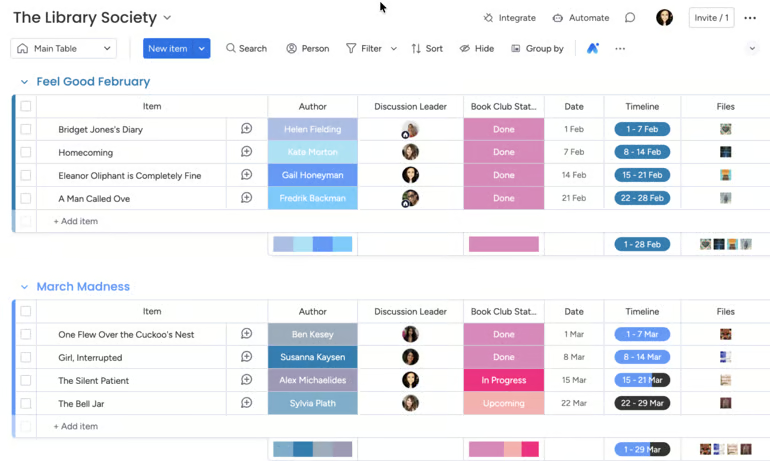
I consider monday one of the strongest Asana alternatives for customization, as nearly every part of the workspace can be configured to your unique workflows.
monday.com is a visual work management solution that lets teams tailor each board for a specific workflow. The platform is customizable enough to handle various use cases, including client projects, financials, HR processes, or content calendars. Instead of starting with a fixed board format, teams choose the board elements they need and decide how information should appear.
Much of this customization lies on monday’s color-coded columns. A Status column can represent a workflow stage or priority, while Date and Person columns handle deadlines and ownership. The Column Center offers more than 20 options, including formulas and location fields. Teams that do not want to start from scratch can choose an industry-specific template and modify the board from there.
For teams on a budget, note that access to certain customization features requires a higher-tier plan. Formula columns are limited to Pro and Enterprise, while Free includes only eight column types. ClickUp provides formula-based customization at a lower price point because its Formula custom field is available with every paid plan.
| Pros | Cons |
| ✅Colorful grid-style boards | ❌Freeform setup overwhelming for first-time users |
| ✅No-code automation recipes cover the most common workflows | ❌Action limits hit quickly on lower-tier plans |
| ✅Highly flexible column types and board structures | ❌Seat-block pricing model can lead to empty seats |
monday pricing
- Free: Up to 2 users — Includes 3 boards, task tracking, basic column types
- Basic: $9/user/month — Adds unlimited boards and items, unlimited viewers, dashboard, file storage
- Standard: $12/user/month — Adds timeline and Gantt views, calendar view, basic automation, integrations
- Pro: $19/user/month — Adds time tracking, private boards for task control, advanced automation limits, formula columns
- Enterprise: Custom pricing — Adds advanced permissions, enterprise-scale task dashboards, audit logs, higher automation and integration limits
Standout features
- Have the same information in columns reflected across multiple boards, with changes syncing automatically.
- Let an AI assistant perform tasks on your behalf, such as tagging teammates, analyzing board data, and highlighting project trends.
- Track and manage multiple file versions in one place to view the latest updates and review previous changes.
- See upcoming and overdue tasks at a glance with color-coded columns.

2. ClickUp: Best native AI features
My rating: 4.66 / 5
Visit ClickUp
Why I chose ClickUp
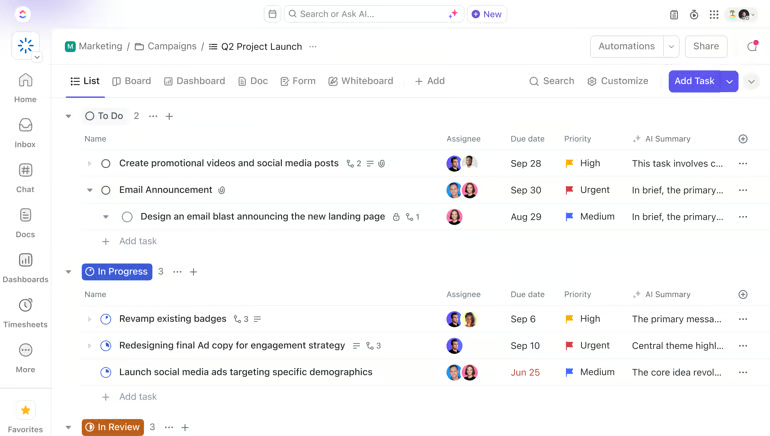
Among Asana competitors, ClickUp makes the strongest case for native AI by building its own model into the platform.
ClickUp Brain uses information from workspace tasks, Docs, and Chat to answer questions or create content based on existing project data. It can generate deliverables such as slide decks and dashboards, while its memory retains details about a user’s role and preferences across sessions.
Its model selection and reusable Skills lets you control over how your team use AI. Users can switch between GPT, Claude, and Gemini during a conversation, with ClickUp retaining the workspace context. Teams can also save recurring workflows as Skills. For example, a weekly status report format can be created once and reused on command rather than entered as a new prompt each week.
Cost, however, becomes harder to forecast as AI usage increases. Chat is included with paid plans, while Super Agents and AI automations consume a shared allowance of 1,500 credits per month. As an alternative, I recommend monday.com because it includes AI assistance within subscription plans, which can make monthly costs easier to anticipate.
| Pros | Cons |
| ✅Over 15 views: list, board, Gantt, calendar, and more | ❌ClickUp AI is charged separately |
| ✅1600+ pre-built templates across industries | ❌Overwhelming feature density for new users |
| ✅Super Agents automate board setup from plain language | ❌Nested menus and settings are difficult to navigate |
ClickUp pricing
- Free Forever: — Includes unlimited tasks, multiple task views (list, board), basic task statuses, task comments, mentions
- Unlimited: $7/user/month — Adds Gantt charts, time tracking, custom fields, resource management
- Business: $12/user/month — Adds sprint points, advanced automation, workload management, time tracking, task dependencies
- Enterprise: Custom pricing — Adds advanced permissions, custom roles, enterprise-scale task management controls
Standout features
- Create dedicated team channels or chat with teammates in real-time without leaving ClickUp
- Record your screen with video or audio clips from your entire screen, a specific window, or your current browser tab.
- Set personal time off to prevent scheduling tasks on your teammate’s non-working days.
- Receive a warning before closing task dependencies to help prevent missed work.

3. Jira: Best for IT service operations
My rating: 4.64 / 5
Visit Jira
Why I chose Jira
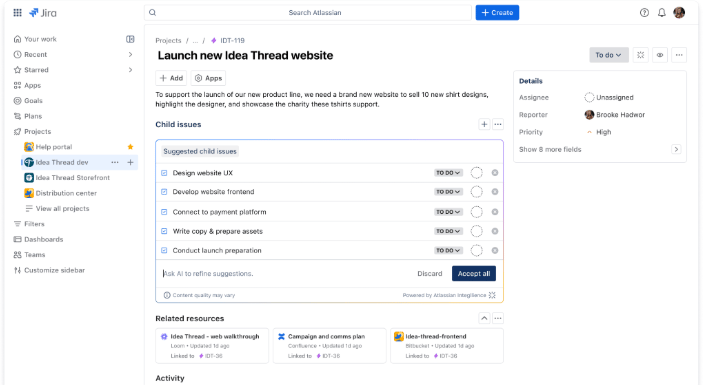
Jira is built specifically for IT and software teams, which makes it a strong choice for managing agile workflows. Teams can handle issue tracking alongside backlog management, then coordinate release planning from the same platform. Dependencies between tickets expose blockers that could delay upcoming work, while templates support Scrum and Kanban workflows.
For development and IT operations, Jira connects with source control and CI/CD tools to monitor changes from code commit through deployment. Reports track metrics such as deployment frequency and cycle time, allowing IT teams to investigate slowdowns. Teams can narrow the view further with JQL filters that retrieve issues based on specific criteria.
One thing to note is that Jira relies on other Atlassian products to support advanced IT workflows. For instance, Jira Service Management supports incident and change management capabilities, so teams may need to administer both products. Wrike consolidates request intake and approvals with workflow templates, which may be ideal for teams that want service requests and project work managed from the same platform.
| Pros | Cons |
| ✅Scrum and Kanban boards are industry-standard for devs | ❌Agile terminology alienates marketing, HR, ops teams |
| ✅Fully customizable workflows, statuses, and issue types | ❌2 to 4 week ramp-up typical; JQL knowledge often required |
| ✅Sprint burndown, velocity, and release notes auto-generated | ❌Interface not intuitive for non-technical users |
Jira pricing
- Free: Up to 10 users — Includes unlimited tasks, board/backlog/timeline views, reporting dashboards
- Standard: $9.05/user/month — Adds user roles, guest access, and AI features
- Premium: $18.30/user/month — Adds cross-team roadmaps, dependencies, custom issue hierarchy, and unlimited storage
- Enterprise: Contact sales — Adds unlimited automation rule runs, up to 150 sites, and analytics
Standout features
- Generate Scrum reports, such as velocity chart, epic burndown, and cumulative flow diagram.
- Plan work across multiple teams with Advanced Roadmaps that map dependencies and manage capacity.
- Automate workflows with rule-based triggers, conditions, and actions.
- Create Scrum or Kanban boards with custom workflows, issue statuses, swimlanes, and backlog prioritization tools.

Why I chose Teamwork.com
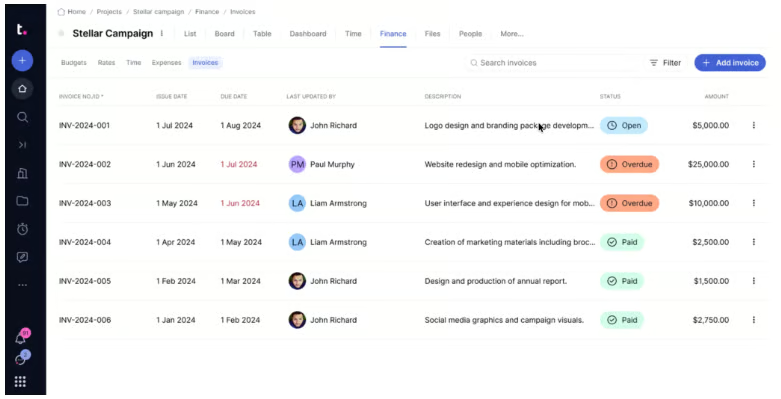
Among the tools in this roundup, Teamwork.com is the only one built specifically for tracking profitability in client services. Teams can create fixed-fee, retainer, or time-and-materials budgets, then set a target profit margin for each one. Budget alerts notify users when spending reaches a threshold, while task budget breakdowns make it easier to monitor costs within larger projects.
As work progresses, Teamwork.com compares billable rates and internal costs against actual hours and expenses. Profitability reports show which clients or projects generate the highest returns, and the AI profitability forecaster estimates where current spending may lead. Xero and QuickBooks integrations also connect invoicing with project financial data.
This approach is most relevant to agencies and service businesses that bill clients directly. Internal teams that do not use hourly rates, retainers, or client margin targets may find fewer advantages in the same setup. Smartsheet support budget tracking through project sheets and dashboards, so it can serve internal operations teams as well as client-facing groups.
| Pros | Cons |
| ✅Clean layout praised for quick adoption | ❌Interface feels functional but dated |
| ✅Custom expense categories and role-based billing rates | ❌AI feature set is limited compared to Jira or ClickUp |
| ✅Live support earns consistent praise for its response speed and technical knowledge | ❌Active project limits cause billing surprises at scale |
Teamwork.com pricing
- Free: Five users, time log, and basic project management features.
- Basics: $9.99 per user for intake requests, project health & planned vs actuals, and time report
- Accelerate: $24.99 per user for time budgets, retainers, and AI-powered capacity and utilization overview
- Optimize: Custom pricing for profitability forecasting, financial tracking, multi-currency budgets, revenue, cost and profitablity insights
- Enterprise: Custom pricing for advanced security and priority support
Standout features
- Plan project timelines with Gantt charts that support task dependencies, drag-and-drop scheduling, and milestone tracking.
- Manage team capacity with workload and resource planning tools.
- Track billable and non-billable hours with time tracking, timesheets, and budget monitoring tools.
- Collaborate on project work with task comments, @mentions, client permissions, and file management tools.

5. Smartsheet: Best for data-heavy projects
My rating: 4.49 / 5
Visit Smartsheet
Why I chose Smartsheet
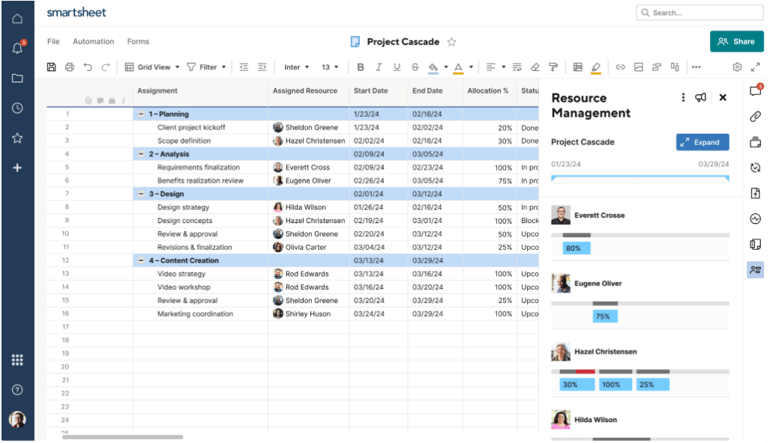
Where most Asana alternatives lean on visual boards, this next Asana alternative is known for its spreadsheet-style structure for working with large, complex datasets. Smartsheet combines familiar spreadsheet formulas with project data that can be organized across parent and child rows. Standard functions such as SUM, AVG and IF handle common calculations, while hierarchy functions such as CHILDREN roll subtask values into a parent row. For recurring calculations, column formulas apply the same formula across the entire column and extend it automatically as new rows are added.
When data comes from other systems, Data Shuttle schedule imports and exports between Smartsheet and sources such as ERPs, CRMs, or databases. It works with CSV, XLSX, and Google Sheets files, which makes it useful for recurring data transfers that would otherwise require manual imports.
Data Shuttle comes with an additional cost since it is part of Advanced Work Management, not a standard Smartsheet feature. It also transfers file-based data instead of maintaining a live connection with the source system. monday.com may be more cost-effective for teams that need native two-way integrations with common business apps and prefer not to purchase a separate data-transfer module.
| Pros | Cons |
| ✅Control Center scales portfolio-wide templates | ❌Performance degrades on large sheets |
| ✅Customizable dashboards with live widgets | ❌Resource management is sold as an add-on |
| ✅Low learning curve for Excel users | ❌Hidden costs escalate at scale |
Smartsheet pricing
- Pro: $9/user/month — Includes rich formulas, Gantt/board/calendar views, unlimited sheets and reports
- Business: $19/user/month — Adds timeline view, workload tracking, unlimited automations
- Enterprise: Custom pricing — Adds scenario planning, AI formulas and charts, project portfolios
- Advanced Work Management: Custom pricing — Adds Control Center for portfolio scaling, Dynamic View for granular sharing, Data Shuttle sync
Standout features
- Combine data from multiple sheets into centralized reports that filter, summarize, and export project information.
- Configure formulas and functions to calculate metrics and link cross-sheet data.
- Build no-code workflows with automated triggers, approval requests, and row updates.
- Capture project requests with custom forms that support conditional logic

6. Wrike: Best for enterprise use
My rating: 4.44 / 5
Visit Wrike
Why I chose Wrike
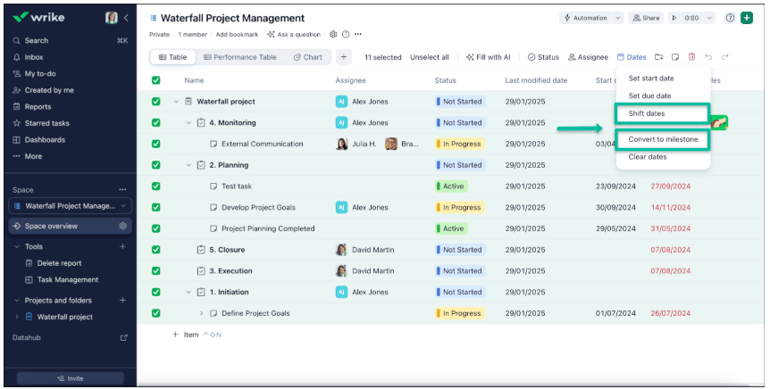
Wrike’s enterprise project platform provides large organizations extensive control over workspace administration and access. It includes customizable user types and locked Spaces for confidential work, plus two-factor authentication and SSO through providers such as Azure, Google, or Okta. Its governance tools provide a central view of forms, workflows, and custom fields across the account, where admins can review usage and remove configurations that are no longer needed.
For project delivery, Wrike supports unlimited folders, projects, and tasks alongside resource planning capabilities. Workload charts help managers review capacity, while budgeting and time tracking provide additional oversight of project resources. Cross-tagging displays the same task in multiple locations, and approval workflows route items through pre-assigned reviewers.
Wrike requires more administrative work as permission settings and workspace configurations become more complex. For teams with limited admin resources, monday.com offers enterprise permissions and advanced automations through a more visual interface that may be easier to configure.
| Pros | Cons |
| ✅Cross-tagging lets tasks appear in multiple projects simultaneously | ❌Integrate, Sync, Whiteboard, Datahub are sold separately |
| ✅Dynamic request forms auto-route work to correct teams | ❌Setup takes longer than most comparable tools |
| ✅Work Intelligence® predicts project risks and delays | ❌Feature density overwhelming for new and non-technical users |
Wrike pricing
- Free: Unlimited users — Includes task management, folder hierarchy, board/table view, custom views
- Team: $10/user/month — Adds Gantt charts, dashboards, basic AI features
- Business: $25/user/month — Adds resource management, AI agents, forms, workflow automation
- Pinnacle: Custom pricing — Adds budgeting, advanced security
- Apex: Custom pricing — Adds bi-directional integrations, Wrike Sync, enterprise-scale automations with Wrike Integrate
Standout features
- Collaborate on creative assets with proofing and approval tools.
- Create custom request forms with conditional logic, dynamic fields, and automated task creation.
- Generate advanced analytics reports with custom charts and project filters.
- Track project updates with real-time activity streams that log status changes, comments, approvals, and file uploads.

7. Notion: Best for building company wikis
My rating: 4.25 / 5
Visit Notion
Why I chose Notion
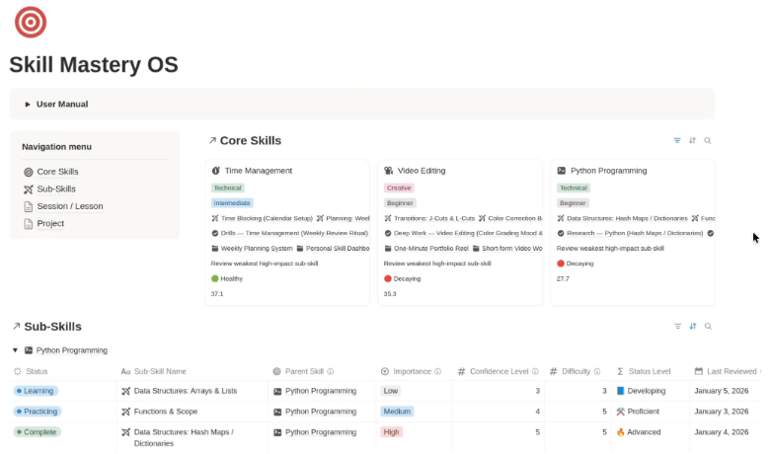
Notion approaches project organization differently by building the workspace around linked pages and shared documentation. I can organize large workspaces through the sidebar hierarchy, link pages with @mentions, and rearrange content via drag-and-drop editing.
For larger knowledge bases, Verification identifies pages that have been reviewed and are still current, which helps employees distinguish approved information from content that may need an update. Enterprise adds usage analytics and more granular permissions, along with SAML SSO and SCIM provisioning. Integrations with Slack, Figma, GitHub, and Jira can also surface related information within the workspace.
As the workspace grows, teams may find it harder to keep project documentation connected to the tasks and projects it supports. ClickUp provides a more direct connection between the two because Docs can link to tasks and sit alongside project timelines or dashboards in the same workspace.
| Pros | Cons |
| ✅Highly flexible block-based page builder | ❌Limited charts and data visualizations |
| ✅Clean, minimal UI with low visual noise | ❌No native Gantt chart or timeline view |
| ✅Large template library for quick starts | ❌Native time tracking and resource management are not supported |
Notion pricing
- Free: Includes databases (subtasks, dependencies, custom properties), Notion Calendar, 7-day page history, basic forms
- Plus: $10/user/month — Adds unlimited collaborative blocks, unlimited file uploads, 30-day page history, unlimited charts
- Business: $20/user/month — Adds AI features, database permissions, private teamspaces, 90-day page history, SAML SSO
- Enterprise: Custom pricing — Adds user provisioning (SCIM), advanced security and controls, audit logs, unlimited page history
Standout features
- Create linked databases with custom properties, linked views, and relational fields.
- Embed code snippets, PDFs, Figma files, and third-party apps directly into workspace pages.
- Generate AI-powered summaries, content drafts, meeting notes, and database autofill entries inside documents
- Publish pages to the web with custom domains and searchable navigation.

8. Trello: Best for visual thinkers
My rating: 4.14 / 5
Visit Trello
Why I chose Trello
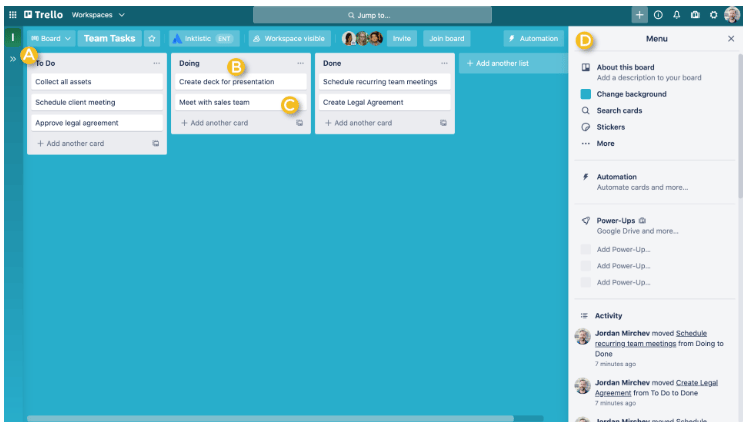
Trello is primarily built around a Kanban-style board, where cards move between lists as work progresses. This visual format provides a straightforward alternative to spreadsheets or traditional task lists. For example, Advanced checklists add more detail within each card, with options to assign members and due dates to checklist items. Labels provide quick visual cues for priority or other categories, and board filters can narrow the view to cards with a specific label.
For deadline tracking, Calendar View arranges cards by due date and displays details such as labels, members, and checklists. Trello also offers Card Aging, which gradually fades cards with no recent activity. This gives teams a visual indicator of work that may need attention before they review individual cards.
Trello provides fewer planning tools for scheduling and resource management, including time tracking. Alternatively, ClickUp provides a broader set of visual planning tools, including Gantt charts, workload views ,and mind maps.
| Pros | Cons |
| ✅Near-zero learning curve; same-day adoption | ❌Reporting and analytics remain very basic |
| ✅Mirror cards sync tasks across multiple boards | ❌AI features are weaker than Notion, Monday, and ClickUp |
| ✅Affordable paid plans | ❌No native time tracking |
Trello pricing
- Free: Includes unlimited cards, unlimited Power-Ups per board, assignees, due dates,
- Standard: $5/user/month — Adds unlimited boards, advanced checklists, custom fields, card mirroring
- Premium: $10/user/month — Adds timeline/calendar/table/map views, AI features, board collections
- Enterprise: $17.50/user/month — Adds org-wide permissions and multi-board guests
Standout features
- Organize project tasks with drag-and-drop Kanban boards that move cards across workflows.
- Automate repetitive actions with Butler rules that trigger card updates.
- Attach files and link cloud storage content directly to cards with support for cloud storage platforms
- Extend board functionality with Power-Ups that add reporting, time tracking, approvals, and third-party app connections.
More project management coverage
My methodology
To find the best Asana alternative, I built a scoring rubric to rank each software. From there, I added my expert judgment to make sure the final recommendations hold up in real-world project environments.
General features (25%): I scored each tool on task management capabilities, available views, collaboration options, workflow automation, and project templates. The focus was on how flexible and fully developed these features are, not just whether they’re present.
Pricing (20%): I evaluated feature inclusions across free and paid plans, whether AI tools come bundled or require an upgrade, and the real cost of ownership beyond the base price. Tools that offer transparent pricing with minimal required add-ons scored highest.
Advanced and niche features (20%): I evaluated AI task automation, resource and workload management, reporting and analytics, portfolio tracking, and integrations. Higher scores went to tools that handle these at an enterprise level without requiring workarounds.
Expert score (15%): I factored in my expert score to measure overall value beyond the raw feature checklist. This category factored in scalability, third-party review sentiment, and how well each platform could replace or outperform Asana for growing teams. This is where close calls between tools are resolved based on market context and long-term fit.
Support (10%): I assessed the availability of support channels, community engagement, security and data governance, and educational resources.
Ease of use (10%): I looked at how well each tool balances customization with usability, how intuitive the navigation is based on user feedback, and the technical skill required.
How to choose the best Asana alternative
When switching to a new project management software, I recommend starting with the issues you currently experience in Asana. Some teams need stronger automation or reporting, while others care more about pricing, resource management, or collaboration across teams. Here’s what I always tell project managers to look at before making the switch.
- Workflow complexity: Not every tool can handle complex projects, dependencies, and cross-team coordination equally well. Before committing, map out your most intricate workflow and check if the platform can support it without requiring constant workarounds.
- Pricing transparency: Some tools look affordable upfront, but lock key features like reporting, automations, or guest access behind higher tiers. I always calculate the true per-seat cost based on my feature requirements, not just what the base plan advertises.
- Customization options: A good Asana alternative should bend to your workflow, not the other way around. Look for tools that let you configure custom fields, statuses, and views without needing a developer or a dedicated admin to set everything up.
- Automation and AI capabilities: We can no longer ignore how much heavy lifting smart automation does for modern project management. Look for an alternative that uses built-in intelligence to predict project risks or draft status updates.
- Integration library: It’s worth checking which integrations are native and which ones depend on a third-party connector like Zapier, as native connections tend to be more stable and require less maintenance. A tool that connects directly to your CRM, communication stack, and file storage will save your team hours of manual syncing.
FAQs
Is there a free Asana alternative?
Yes. ClickUp, monday.com, and Trello each offer permanent free plans that include core project management features. Among these options, ClickUp provides the most generous free tier because it supports unlimited users and includes access to select premium features through usage-based credits.
Is monday.com better than Asana?
For workflow management, customization, and automation, most independent reviewers rank monday.com ahead of Asana. Asana holds an edge in task hierarchies and ease of use. The better choice depends on whether your team prioritizes custom workflows or usability.
Which Asana alternative is best for agencies?
Teamwork.com is consistently ranked high for agencies due to its built-in time tracking, billable rate management, client portal, and profitability reporting. These are features Asana doesn’t offer natively at any subscription plan.
Read the full article here