




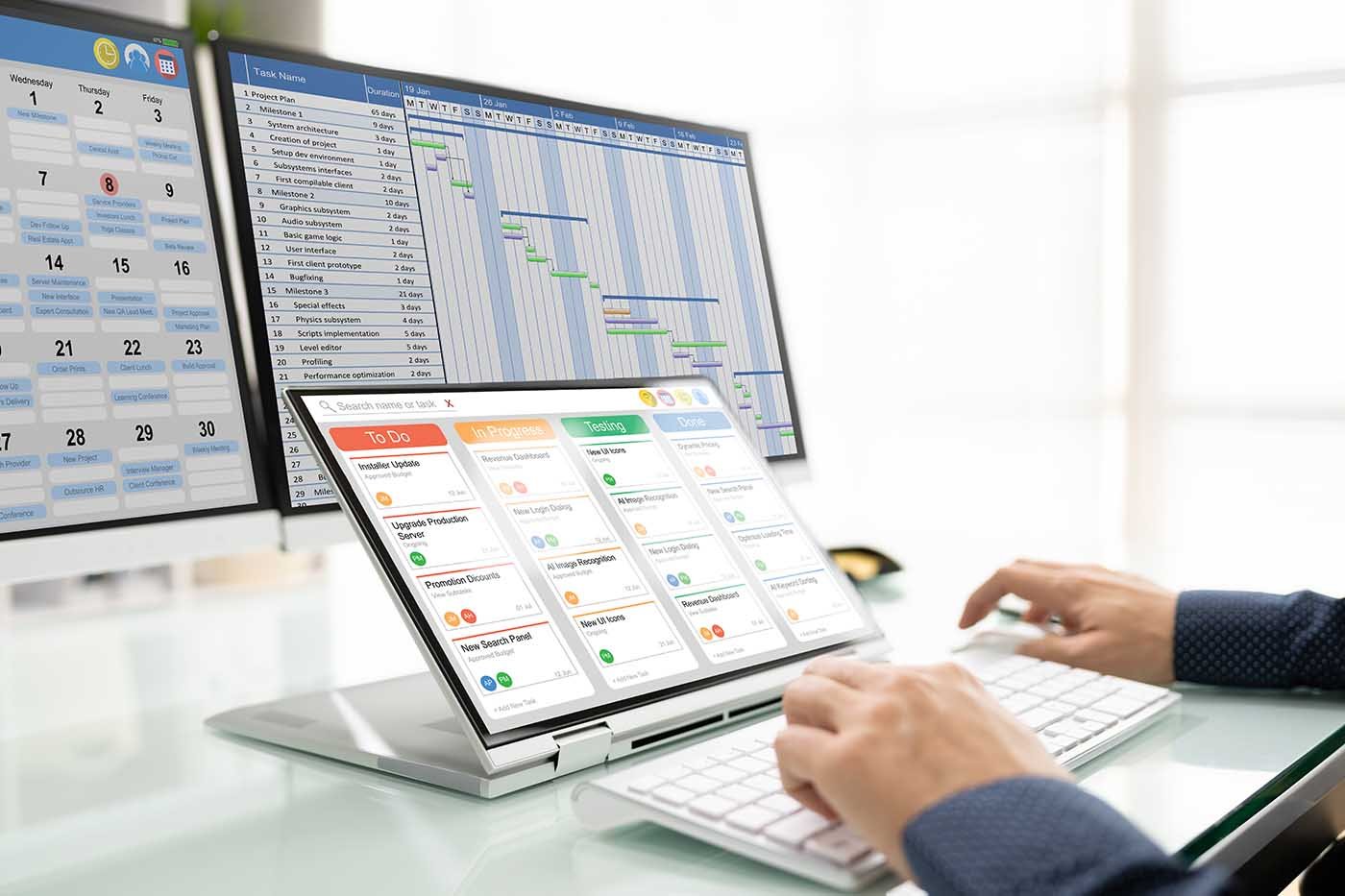

Key takeaway: monday work management is my top pick for simple project management software because its clean layout and color-coded elements make it easy to track tasks, especially for beginners. ClickUp comes next for its customizability, followed by Asana for supporting projects involving multiple teams.
Project management software can support many different workflows, but not every team needs a feature-heavy platform. For small teams, freelancers, or beginners, too many views, settings, and automations can make basic task tracking feel harder than it should. That said, I rounded up a few simple project management software programs I’ve personally used without forcing you through features you do not need.
Best simple project management software compared
| monday | Best for visual work tracking | ||
| ClickUp | Best for customizable task workflows | ||
| Asana | Best for cross-functional project coordination | ||
| Trello | Best for basic Kanban boards | ||
| Notion | Best for knowledge management | ||
| Todoist | Best for personal task planning | ||
| Microsoft Planner | Best for Microsoft 365 users | ||
| Basecamp | Best for client collaboration |
| Why you can trust TechRepublic |
| I’ve spent the past four years testing nearly 20 project management platforms, and some of them have become part of my workflow. Writing dozens of PM software guides for businesses of all sizes taught me what individuals and teams need from these tools beyond the marketing pitch. I also build custom scoring rubrics for each review to ensure fairness and that selected platforms get evaluated on the same criteria.
Marianne Sison |

1. monday work management: Best for visual work tracking
My rating: 4.87 out of 5
Visit monday
Why I chose monday work management
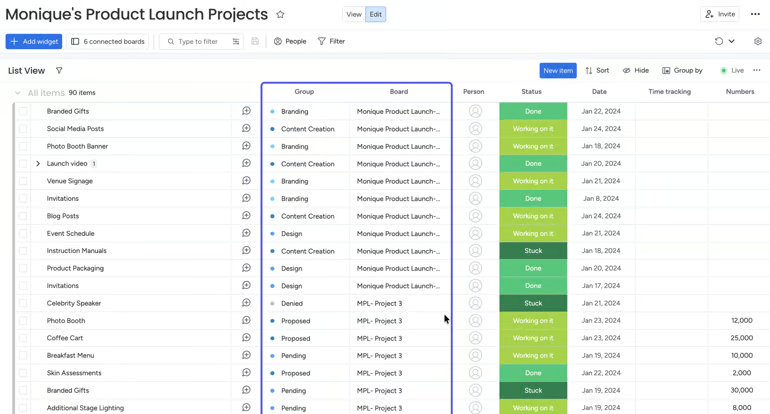
Beyond its popular name, monday stands out for its visual approach to work tracking. Its colorful grid-style structure makes project status easy to read without forcing teams into a project management method.
The My Work view brings assigned tasks into one place, even when those tasks are from separate boards or workspaces. This helps team members see what is due without checking each project separately.
In day-to-day project work, monday works best when teams need to see task progress, deadlines, and workloads in one place. Workload balancing shows who has too much assigned, milestone tracking keeps key dates visible, and project health tools help project managers quickly spot risks.
The tradeoff is depth. monday is easy to adopt, but teams that need detailed task hierarchies or highly customized workflows may find ClickUp a better choice.
| Pros | Cons |
| ✅Visual boards make work easy to track | ❌Large boards can get cluttered |
| ✅ Dashboard widgets show project status quickly | ❌Reporting involves complex configuration |
| ✅Fairly ease to set up and use | ❌Seat bucket pricing can lead to unused seats |
Pricing
- Free: Up to 2 users — Includes 3 boards, task tracking, basic column types
- Basic: $9/user/month — Adds unlimited boards and items, unlimited viewers, dashboard, file storage
- Standard: $12/user/month — Adds timeline and Gantt views, calendar view, basic automation, integrations
- Pro: $19/user/month — Adds time tracking, private boards for task control, advanced automation limits, formula columns
- Enterprise: Custom pricing — Adds advanced permissions, enterprise-scale task dashboards, audit logs, higher automation and integration limits
Standout features
- Standardized templates roll out across the organization so teams can adapt best practices with no-code customization.
- My Work view gathers every task assigned to you across all boards and workspaces in one place.
- Dashboards can pull data from multiple boards so teams can filter project information and track status in one place; portfolio management is available on Enterprise plans.

2. ClickUp: Best for customizable task workflows
My rating: 4.74 out of 5
Visit ClickUp
Why I chose ClickUp
If you’re seeking more control over how projects are organized, ClickUp offers more room to build a unique process.
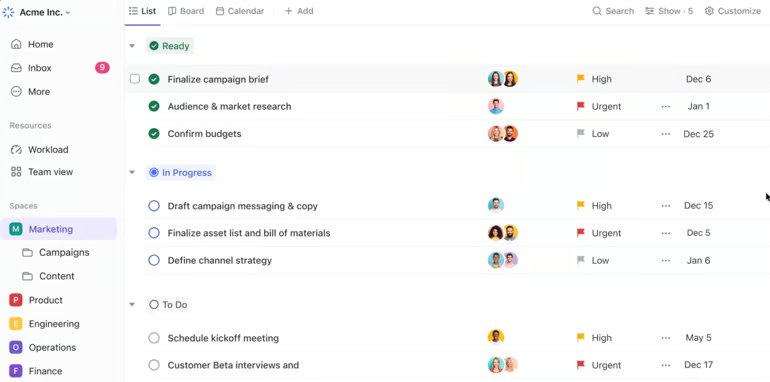
With over 15 project views, such as List, Kanban, Gantt, and Calendar, a user can view the same project data in their preferred format. For example, a project manager can use Gantt to track timelines, while a contributor can use Board or List view to focus on daily tasks.
Within each view, I use custom fields to convert tasks into project records, such as budget, status, client name, or priority. Custom roles and permissions help me control who manages a task, while the critical path shows which tasks could affect the project schedule.
The tradeoff is that ClickUp takes time to learn, especially for teams that lack a clear workflow. For teams that need a simpler alternative, Trello is a better choice because its Kanban-centric design requires much less setup.
| Pros | Cons |
| ✅Views support many project styles | ❌New users may feel overwhelmed |
| ✅Docs connect project details to tasks | ❌Setup takes time to refine |
| ✅AI add-on summarizes tasks and updates | ❌Mobile experience can feel crowded |
Pricing
- Free Forever: — Includes unlimited tasks, multiple task views (list, board), basic task statuses, task comments, mentions
- Unlimited: $7/user/month — Adds Gantt charts, time tracking, custom fields, and resource management
- Business: $12/user/month — Adds sprint points, advanced automation, workload management, time tracking, task dependencies
- Enterprise: Custom pricing — Adds advanced permissions, custom roles, enterprise-scale task management controls
Standout features
- Over 15 project views let you switch between List, Board, Gantt, and Calendar so each person works in their desired format.
- Dependencies and a critical path calculation forecast bottlenecks, letting you reschedule tasks by simply dragging them.
- Workload view uses sprint points or time estimates to show who’s over or under capacity.

Asana: Best for simplified task management
My rating: 4.62 out of 5
Visit Asana
Why I chose Asana
My reason for choosing Asana comes down to how it links task-level work with broader project priorities. For cross-functional teams, that means fewer missed handoffs because owners, deadlines, dependencies, and goals live in the same workspace.
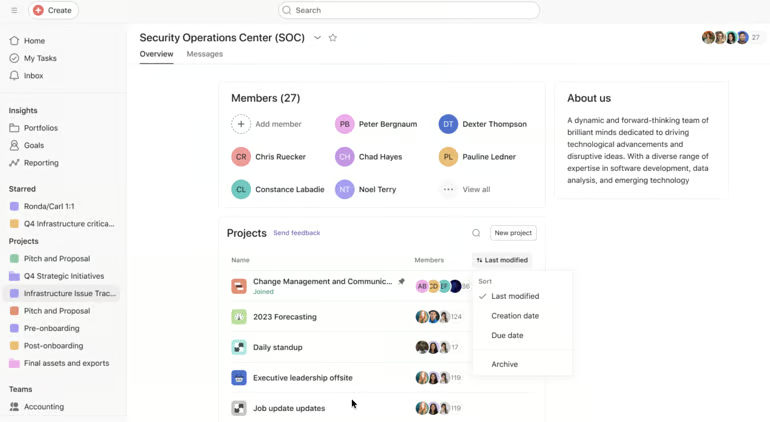
Portfolios give me a single view to track several projects at once, while custom field roll-ups summarize details such as budget, time spent, and status. I also use the timeline view to see how tasks connect across dates and teams, which works best when several departments share the same project.
Dependencies appear on the Gantt chart, so I can see which team is waiting on another team’s deliverable. If an upstream task changes, Asana can notify the right owner, while the Workflow Builder automates handoffs by assigning the next owner or routing requests after a task is complete.
The main drawback is that Timeline and Portfolios are not available on Asana’s free plan. monday is a better alternative for budget-conscious teams that want simpler visual tracking and faster setup.
| Pros | Cons |
| ✅Rules automate task handoffs | ❌Advanced reporting requires a plan upgrade |
| ✅Goals connect tasks to priorities | ❌Doesn’t support multiple assignees per task |
| ✅A dedicated AI studio for building complex workflows | ❌Time tracking is limited |
Pricing
- Free: Up to two users — Includes list, board, and calendar views
- Starter: $10.99/user/month — Adds forms, templates, Gantt view, AI studio, automations, and dashboards
- Advanced: $24.99/user/month — Adds goals, proofing approvals, and time tracking
- Enterprise: Custom – Adds resource management and admin controls
Standout features
- Portfolios combine project budgets and timelines to show overall progress and emerging issues.
- Timeline view lays out tasks in a Gantt-style bar chart with dependencies.
- Workflow Builder maps out multi-step processes, triggering rules like automatic task assignment when a status changes.

4. Trello: Best for basic Kanban boards
My rating: 4.15 out of 5
Visit Trello
Why I chose Trello
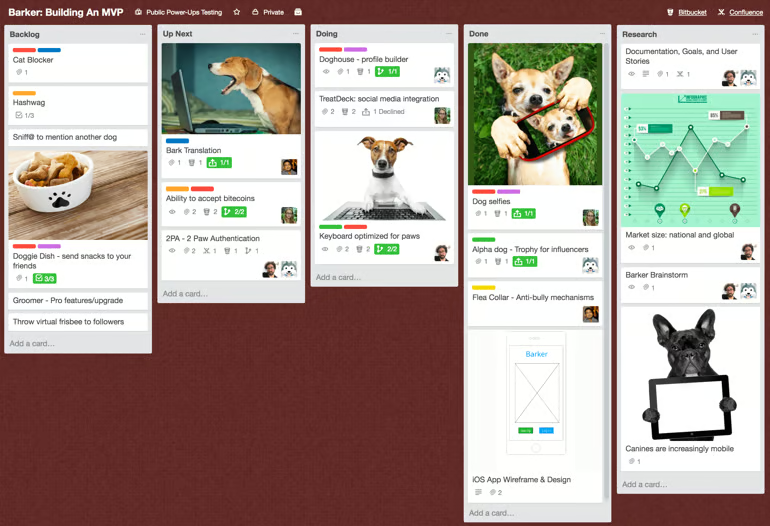
If monday or Asana feels too feature-heavy for your workflow, Trello works best for straightforward projects that do not need real-time reporting or task dependencies. The platform follows a Kanban-style approach, an Agile framework for moving tasks through each stage of work.
Cards represent individual tasks and can hold due dates, attachments, checklists, and custom fields. As work progresses, I move the card through the board lists or stages (e.g., To Do, Doing, Done) until it is complete.
Power-Ups and Butler automation help Trello handle recurring task updates, due dates, assignments, and integrations. Butler updates cards automatically when preset conditions are met, while Power-Ups connect boards with tools like Slack, Jira, and GitHub.
The limitation is that Trello becomes harder to manage as projects grow more complex. ClickUp is a better option for teams that need dependencies, reporting, and workload visibility.
| Pros | Cons |
| ✅Boards make tasks easy to follow | ❌Dependencies need manual workarounds |
| ✅Cards organize simple project details | ❌Large boards become hard to manage |
| ✅Power-Ups add extra functionality | ❌Advanced automation costs more |
Pricing
- Free: Includes unlimited cards, unlimited Power-Ups per board, assignees, due dates,
- Standard: $5/user/month — Adds unlimited boards, advanced checklists, custom fields, card mirroring
- Premium: $10/user/month — Adds timeline/calendar/table/map views, AI features, board collections
- Enterprise: $17.50/user/month — Adds org-wide permissions and multi-board guests
Standout features
- Checklists break larger tasks into smaller action items inside each card, making it easier to track subtasks without creating a separate board.
- Each Kanban card holds custom Fields containing key project information, such as priority, task type, budget, or client name, so teams can track more information
- Power-Ups connect Trello with productivity tools to extend Kanban board functionality.

5. Notion: Best for project knowledge management
My rating: 3.99 out of 5
Visit Notion
Why I chose Notion
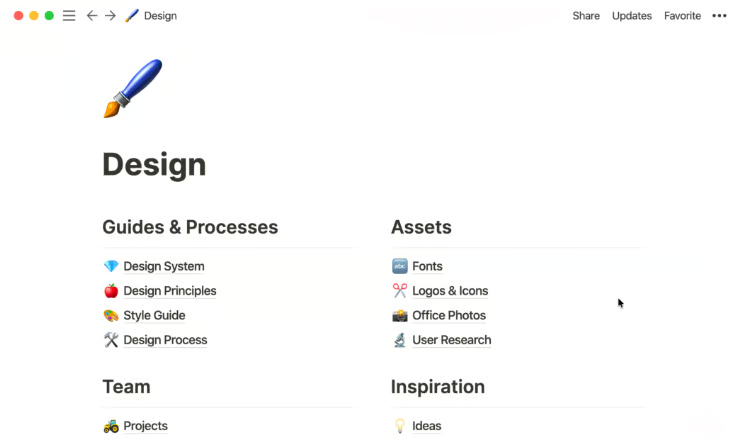
As someone who constantly refers back to briefs while managing projects, Notion makes it easier for me to manage tasks without losing project context.
Teams can use databases, wikis, pages, and custom properties to organize project work alongside documentation. Databases make the setup more flexible, since the same task list can appear as a table for data entry, a board for status tracking, or a timeline for scheduling.
Wikis keep briefs, meeting notes, decisions, and process docs in the same workspace, while relations and rollups connect tasks to larger projects so I can show task counts, progress, or related work on the project page.
Notion lacks dashboards and time tracking, so teams may either build reports manually or use third-party integrations. Alternatively, Asana offers native dashboards and portfolios, making it a better fit for presenting status updates.
| Pros | Cons |
| ✅Create flexible project trackers with databases | ❌Project setup is mostly manual |
| ✅Broad library of user-created templates | ❌Scheduling tools are limited |
| ✅AI search finds project information quickly | ❌Dependencies are hard to manage |
Pricing
- Free: Includes databases (subtasks, dependencies, custom properties), Notion Calendar, 7-day page history, basic forms
- Plus: $10/user/month — Adds unlimited collaborative blocks, unlimited file uploads, 30-day page history, unlimited charts
- Business: $20/user/month — Adds AI features, database permissions, private teamspaces, 90-day page history, SAML SSO
- Enterprise: Custom pricing — Adds user provisioning (SCIM), advanced security and controls, audit logs, unlimited page history
Standout features
- Databases let you view the same tasks as a table, board, calendar, or timeline.
- Relations connect tasks to projects, while rollups display metrics like task counts and progress on the project page.
- Page permissions automatically limit access based on project roles, so each team member sees only the pages relevant to them.

6. Todoist: Best for personal task planning
My rating: 3.70 out of 5
Visit Todoist
Why I chose Todoist
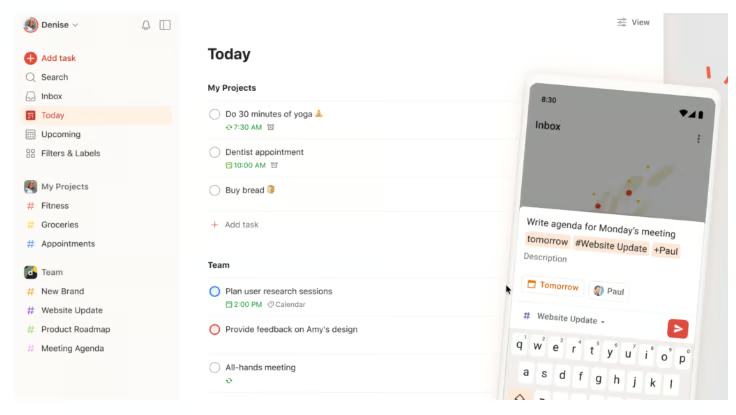
Todoist keeps task management simple for solo users. It works best when I need to record tasks on the go, organize my own workload, and stay focused without using a complex workspace.
Projects and sections help me organize work into phases, while natural language input lets me add tasks using plain sentences. For example, typing “Submit article draft tomorrow at 3 PM” creates the task and sets the deadline automatically. Ramble also captures tasks by turning spoken notes into to-do lists with dates and priorities.
Filters help me organize my growing task lists. I can save views for tasks due today or work tied to a specific project, so I can focus on my priorities without reorganizing my main lists.
Todoist does not use shared boards and task statuses, so tracking ownership across a team takes more manual setup. Microsoft Planner is a better choice when several people need to work on the same task board.
| Pros | Cons |
| ✅AI assistant helps break down tasks | ❌Reporting is very limited |
| ✅Natural language speeds up task entry | ❌No built-in Gantt view |
| ✅Labels make similar tasks easier to group and find | ❌No native timeline planning |
Pricing
- Beginner: Includes 5 personal projects, task reminders, flexible list and board layouts, three filter views
- Pro: $5/user/month — Adds calendar layout, task duration, custom task reminders, unlimited AI assistance
- Business: $8/user/month — Adds shared team workspace, activity logs, shared templates
Standout features
- Ramble converts spoken notes into tasks by recognizing project names, dates, priorities, and deadlines as you speak.
- Task Assist breaks large tasks into smaller subtasks and recommends what to do next.
- Filter Assist creates custom task filters from plain-language requests, so you don’t need to write filter queries.

Why I chose Microsoft Planner
Microsoft Planner makes the most sense for teams already using Microsoft 365 tools, including Teams, Outlook, and SharePoint.
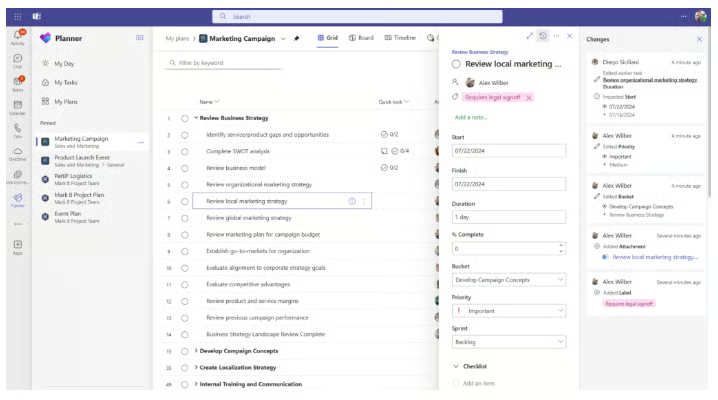
Within a Teams channel, the Planner tab enables users to view task updates and discuss work within the same screen. This keeps project updates close to daily conversations instead of sending people to a separate project management tool.
Planner also connects tasks to Microsoft files, calendars, and personal task lists. When a team attaches files to a Planner task, those files are stored in SharePoint. Deadlines can appear in Outlook, while assigned tasks can show up in Microsoft To Do. Together, these connections give team members a single Microsoft workflow for tracking documents, deadlines, and assigned work.
Teams that rely on different tools for communication, files, or calendars may not get as much value from Planner. ClickUp is a better choice for teams that need stronger integrations across non-Microsoft apps.
| Pros | Cons |
| ✅Microsoft 365 integration is straightforward | ❌Customization options are limited |
| ✅Copilot helps create project plans | ❌AI access depends on Microsoft licensing |
| ✅Teams integration supports collaboration | ❌Works best inside Microsoft 365 |
Pricing
- Free plan: Planner is included with eligible Microsoft 365 subscriptions.
- Planner Plan 1: $10/user/mo. Includes task management, basic project planning, timeline view, dependencies, and Microsoft 365 integration.
- Planner and Project Plan 3: $30/user/mo. Includes advanced scheduling, resource planning, portfolio views, reporting, and project roadmaps.
Standout features
- View the same project as a grid, board, schedule, or chart. Timeline and Goals views are available on premium plans.
- Buckets organize tasks into project phases or categories so each stage is easier to manage.
- Portfolios combine multiple projects into one view, making it easier to monitor progress across teams.

8. Basecamp: Best for client collaboration
My rating: 3.37 out of 5
Visit Basecamp
Why I chose Basecamp
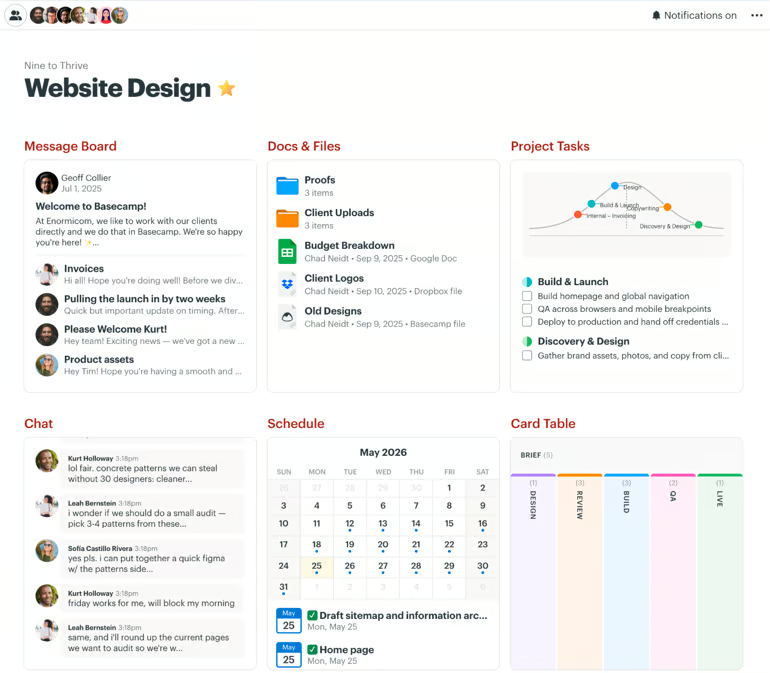
Basecamp is ideal for client-facing teams that want to keep project communication and deliverables in a shared space. Its message board displays project announcements and discussions as posts, which is helpful when a client joins later and needs to review the project history.
To-do lists simplify task tracking by showing what needs to be done, who owns it, and when it is due. Basecamp also offers Hill Charts, a unique alternative to Gantt charts that shows whether work is still uncertain or close to completion. This gives clients a clearer progress update than a vague percentage.
The tradeoff is that Basecamp does not include task dependencies or built-in reporting. Projects with strict timelines may need another tool for scheduling and dependency tracking. monday is a better choice when a client project needs connected timelines, visual dashboards, and progress reporting.
| Pros | Cons |
| ✅Client access is easy to manage | ❌Automation options are limited |
| ✅Flat pricing supports larger teams | ❌No native AI features |
| ✅Simple layout shortens onboarding time | ❌Reporting is very basic |
Pricing
- Free plan: Includes one project, 1 GB storage, and up to 20 users.
- Pro: $15/user/mo. Includes unlimited projects, 500GB storage, client access, and core collaboration tools.
- Pro Unlimited: $299/mo. flat. Includes unlimited users, unlimited projects, 5TB storage, admin controls, timesheets, onboarding, and priority support.
Standout features
- Hill Charts show whether work is still being figured out or is ready for execution.
- Message boards keep project announcements and discussions in one place, reducing long email threads.
- Everything Views display all files, comments, or other content types from every project on a single page.
How to choose simple project management software
Whether you’re switching from spreadsheets or setting up a project management tool for the first time, these tips can help you choose a simple project management software that fits your workflow.
- Start with the way your team already works. If your team thinks visually, a Kanban-based tool like Trello may be enough. If you need more ways to see tasks, look for software with lists, boards, calendars, or timelines. The right tool should support your workflow without making you rebuild it from scratch.
- Check how easy it is to track ownership and deadlines. A simple tool still needs clear assignees, due dates, statuses, priorities, and reminders. If team members cannot quickly see what they own and what is due next, the tool will make task tracking more complex.
- Choose features your team will actually use. Many project management platforms include advanced automation, dashboards, resource planning, and portfolio features. Those are useful for growing teams, but they can distract smaller teams that only need task tracking, file sharing, and basic collaboration.
- Test how fast a new user can understand the workspace. I pay close attention to how quickly someone can open a project, find their tasks, update progress, and leave a comment. A simple project management software should feel usable on the first day, even if advanced features like automation, reporting, or workload planning take more time to learn.
- Check how the tool handles project comments, files, and updates. Some teams need a tool that connects with Microsoft 365, Slack, Google Drive, or client communication channels. Others need built-in docs, message boards, or wikis. The best choice keeps project context close to the tasks, so updates do not get buried across different apps.
FAQs
What is simple project management software?
Simple project management software helps teams assign tasks, track progress, and meet deadlines without the setup time or steep learning curve of enterprise platforms. It focuses on core features like task lists, boards, and basic collaboration instead of advanced automation or complex reporting.
What is the easiest project management software to use?
The easiest project management software depends on your workflow. monday work management is ideal for visual thinkers, Trello is best for Kanban workflows, and Todoist works well for personal task tracking.
Is free project management software enough for small teams?
Free project management software can be enough for basic task tracking, especially for small teams with simple workflows. Paid plans are usually better when you need automation, timelines, dashboards, permissions, integrations, or larger team limits.
Read the full article here