







This guide is for Windows users who prefer open-source solutions and want a clear, practical overview of the best open-source password managers available in 2026.
In 2026, most password managers fall into three categories: closed-source, hybrid, and open-source. Closed-source tools keep their code private, while open-source password managers make their code publicly available, allowing a global community to review, improve, and enhance it over time. For users who value transparency, security, and customization, that distinction matters.
If you’re an open-source enthusiast running Windows on your PC or desktop, this guide will help you identify trustworthy, well-supported options that align with your security needs and technical preferences.
Here’s a quick look at the top open-source password managers for Windows in 2026:
ManageEngine ADSelfService Plus
Employees per Company Size
Micro (0-49), Small (50-249), Medium (250-999), Large (1,000-4,999), Enterprise (5,000+)
Any Company Size
Any Company Size
Features
Access Management, Compliance Management, Credential Management, and more
Top open-source password managers for Windows comparison table
The table below summarizes the key features that can be found on each open-source password manager for Windows.
| Software | Hosting | Encryption type | Password sharing | Free version | Starting price |
|---|---|---|---|---|---|
| Bitwarden | Self-hosted, Cloud-based | AES-CBC 256-bit, PBKDF2 SHA-256 or Argon2. | Yes | Yes | Starts at $0 or less than $1/month for paid version. |
| Padloc | Cloud-hosted, self-hosted | AES cipher in GCM mode | Yes | Yes | Starts at $0/month for personal users and $3.49/month for business users. |
| Teampass | Self-hosted | Defuse PHP Encryption library | Yes | Yes | Free |
| Proton Pass | Self-hosted | 256-bit AES-GCM, Argon2, OpenPGP, Elliptic-Curve Cryptography (ECC Curve25519) | Yes | Yes | Free version or $2.49/month for its base paid plan. |
| KeePass | Self-hosted | AES-256, ChaCha20 and Twofish | No | Yes | Completely free. |
| Passbolt | Self-hosted, Cloud-hosted | OpenPGP | Yes | Yes | Starts $0 or $49/month for Business plan. |
Bitwarden: Best overall
For my best overall pick in 2026, I have Bitwarden. It remains one of the most well-known and widely trusted open-source password managers available today. Its depth of features and consistent updates continue to make it a top choice.
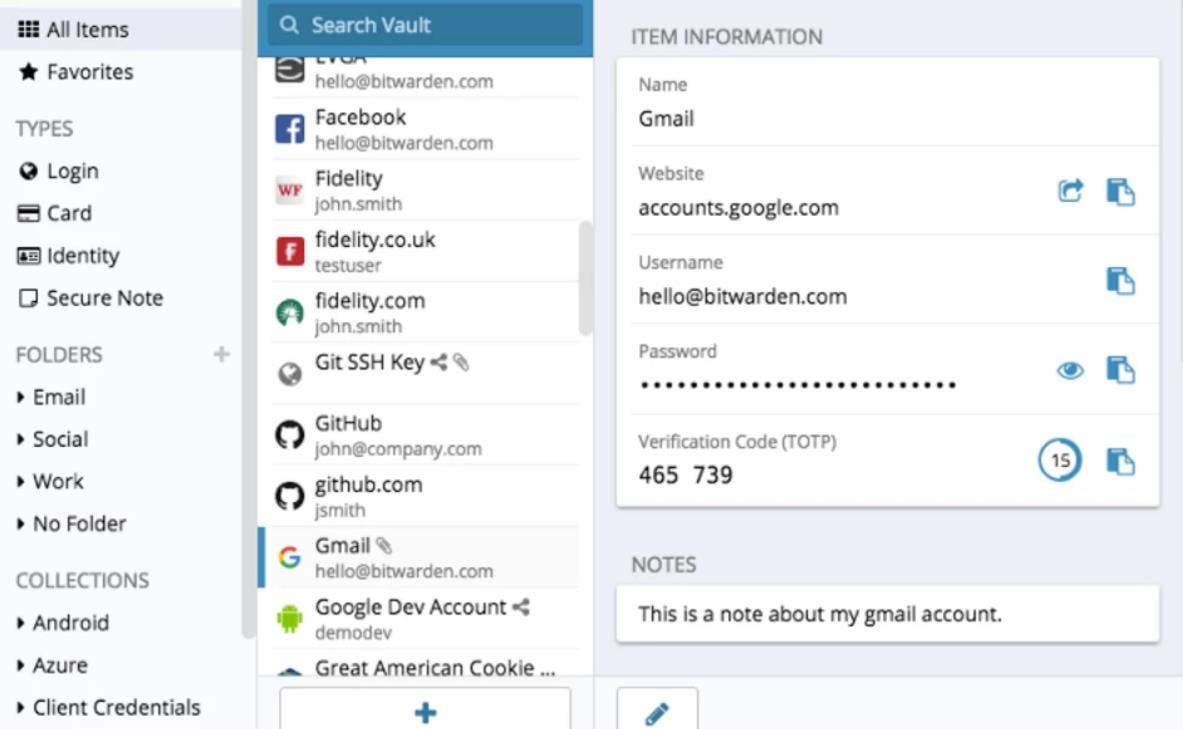
The Bitwarden Windows app integrates easily with single sign-on providers like Microsoft Entra ID (formerly Azure AD) and Okta. It also delivers a full vault experience, allowing you to sync and access credentials seamlessly between your browser and Windows environment. You can manage multiple accounts at once, making it simple to switch between personal and work use. Another standout feature is “unlock with biometrics,” which enables quick access using Windows Hello with PIN, facial recognition, or supported biometric hardware.
Why I chose Bitwarden
Bitwarden earned its place as my top choice open-source password manager for Windows users due to its ability to offer most password management functions while still remaining cost-effective. Personally, I like how Bitwarden can be self-hosted or run in the cloud, making it a good perk for individual or enterprise usage.
Pricing
Bitwarden has two pricing options: Personal and Business.
The personal plan has three packages:
- Free: $0.
- Premium: Less than $1/month.
- Families: $3.33/month.
The business plan has two packages:
- Teams: $4/month/user.
- Enterprise: $6/month/user.
Features
- Open-source security.
- Secure password sharing.
- Passwordless SSO.
- Zero-knowledge encryption.
- Advanced two-step login.
- Email alias integrations.
Pros and cons
| Pros | Cons |
|---|---|
|
|
For more information, read our full Bitwarden review.
Padloc: Best for ease of use

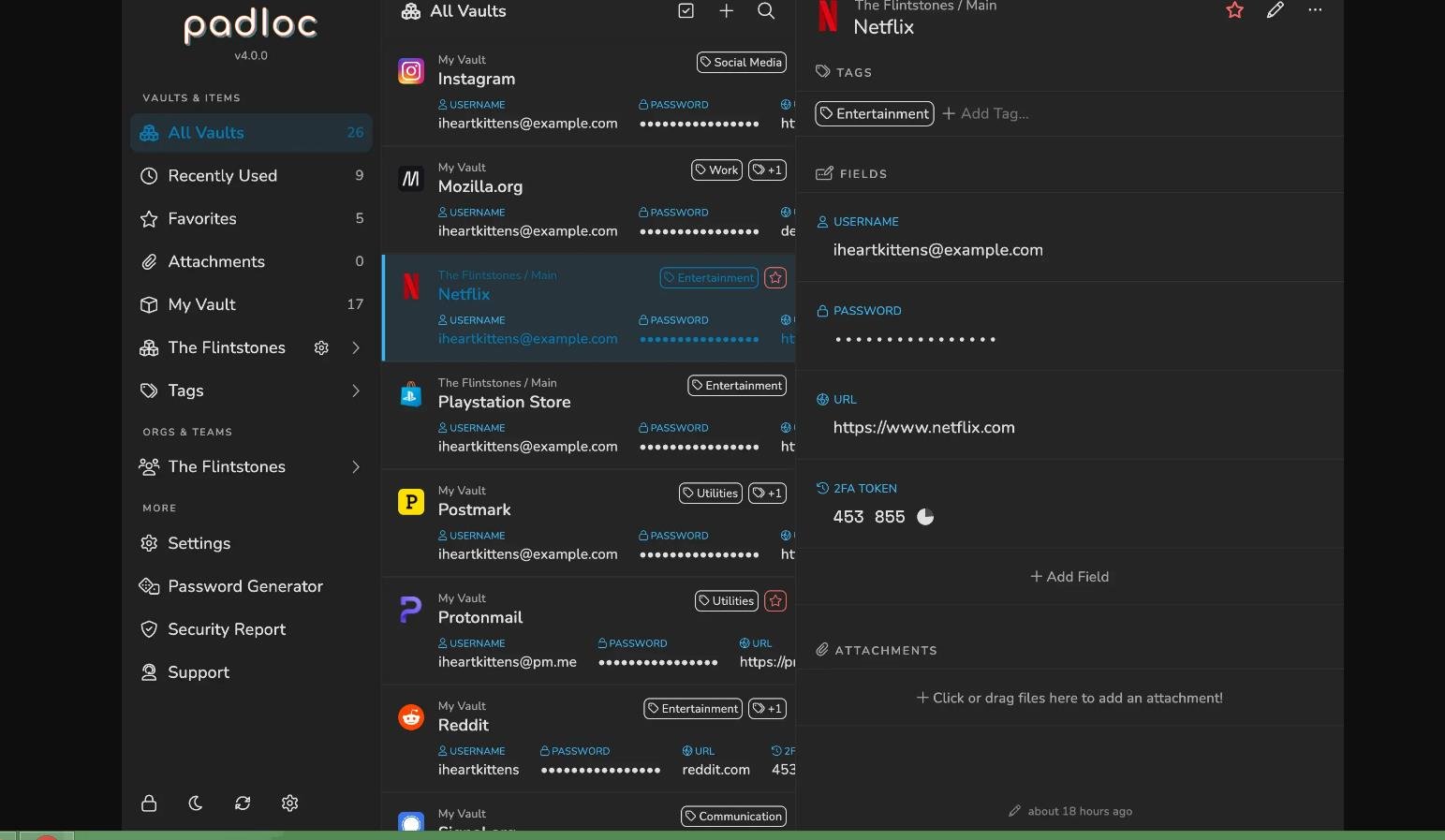
If having an intuitive, modern interface is your top priority in 2026, I recommend Padloc. Padloc is an open-source password manager designed to store passwords, credit cards, documents, and notes in one secure, easy-to-use platform. Like Bitwarden, it offers a solid range of features suitable for personal, business, and even small team use.
Its free version includes unlimited vault items and unlimited device connections, making it a strong option for individuals. The premium version adds features like multi-factor authentication, security reports, and a built-in authenticator for one-time passwords. While the free plan is capable, teams and organizations may get more value from Padloc’s Family and Business plans, which include shared vaults for multiple users and collaboration-friendly features.
Why I chose Padloc
I was fairly impressed with Padloc’s Family and Business plan and its general ease of use.
Pricing
Padloc has two pricing packages: Personal and Business.
The Personal package offers three plans:
- Free: $0/month.
- Premium: $3.49/month or $34.90/year.
- Family: $5.95/month or $59.50/year.
The Business package offers three plans:
- Teams: $3.49/user/month or $34.90/user/year.
- Business: $6.99/user/month or $69.90/user/year.
- Enterprise: This requires you to contact the sales for price requests.
Note that all Padloc paid plans come with a 30-day free trial excluding the enterprise plan.
Features
- Unlimited vault items.
- Multi-factor authentication.
- Encrypted file storage.
- Security report.
- Built-in authenticator/one-time passwords.
- Directory sync/automatic provisioning.
Pros and cons
| Pros | Cons |
|---|---|
|
|
Teampass: Best privileges management

If you need more flexibility in managing access and user permissions, I recommend TeamPass — especially for Windows environments. TeamPass stands out for its structured approach to organizing passwords and controlling access, allowing administrators to define user rights at a granular level. It’s a strong option for teams that need more control than traditional password managers typically offer.
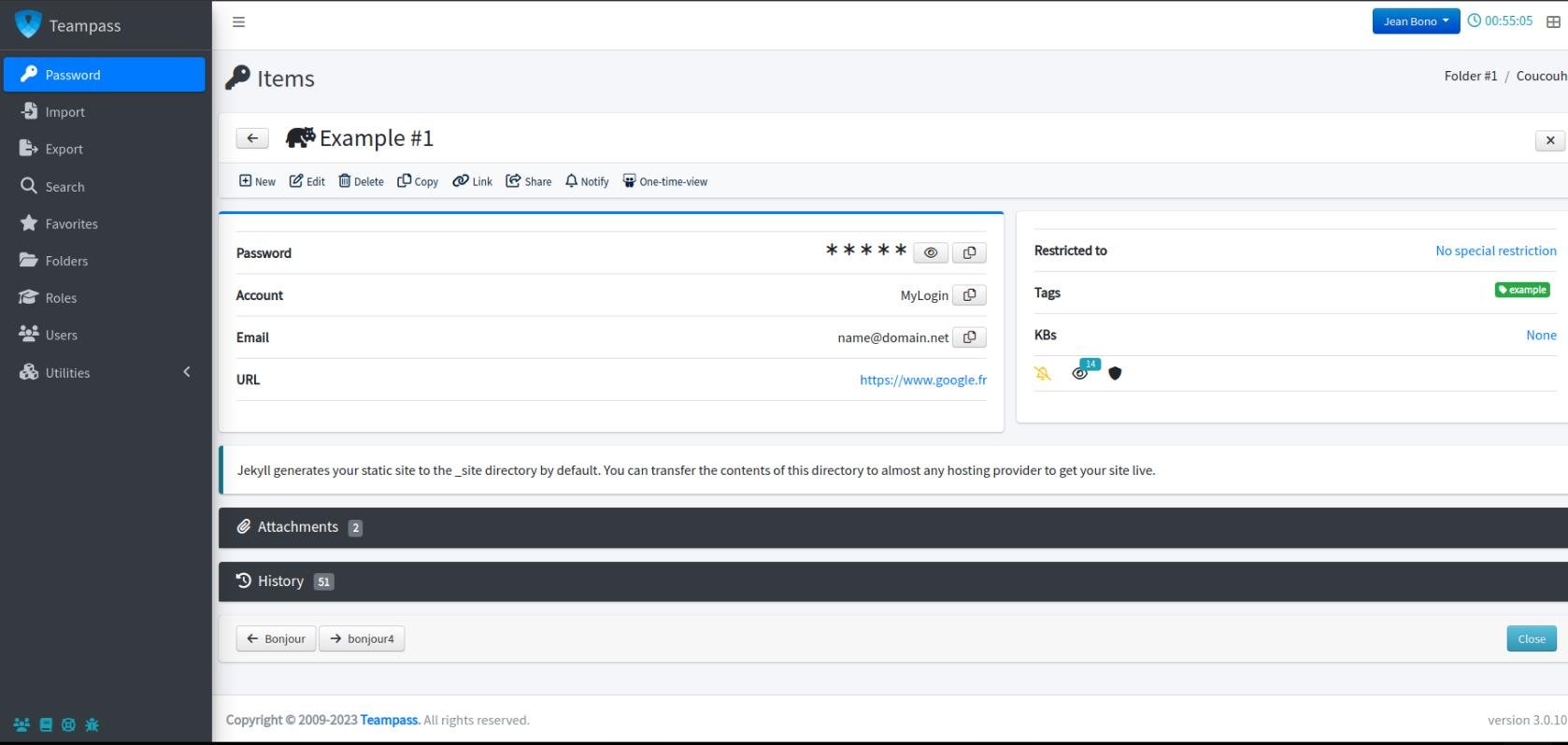
TeamPass secures data using the Defuse PHP encryption library, providing a reliable cryptographic foundation. Users can create personal folders and store items protected with individual keys, adding another layer of security. On Windows, the interface includes a tree-style folder structure, making it easy to organize credentials and assign role-based access. Each item can also include custom fields and attachments, giving teams the flexibility to manage sensitive information in a way that fits their workflows.
Why I chose Teampass
I picked Teampass as the best password manager for assigning privileges because the tool can allow you to fine-tune users’ access rights to existing items. Depending on your local policies, Teampass can help you allow only people with access to expected data.
Pricing
Teampass is free.
Features
- Secured access.
- Personal folders.
- Offline mode.
- Tree structure.
- User privileges.
Pros and cons
| Pros | Cons |
|---|---|
|
|
Proton Pass: Best for password storage

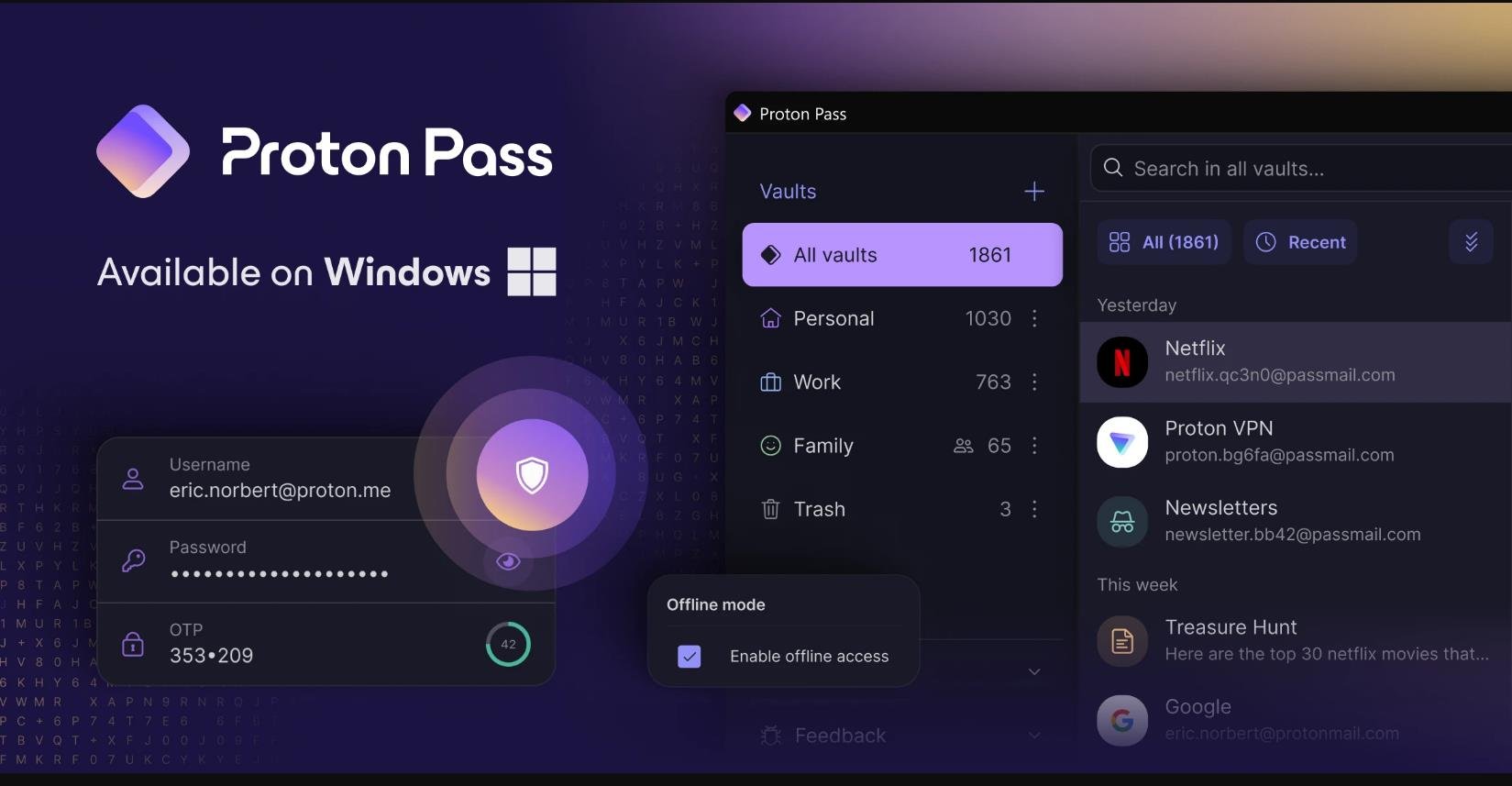
Proton Pass is an open-source password manager that supports offline access, ensuring you can reach your vault even without an internet connection—an important advantage for reliability and control.
Proton Pass continues to stand out for its clean, user-friendly experience and tight integration within the Proton ecosystem on Windows. It connects seamlessly with Proton Mail, allowing you to create email aliases for online accounts and protect your real inbox. The free plan is also generous, offering unlimited password storage across unlimited devices.
One standout security feature is Sentinel, available in paid plans, which helps protect your vault even if an attacker has your correct password. Combined with its privacy-first design and smooth Windows performance, Proton Pass is a strong choice for users who value both usability and advanced security.
Why I chose Proton Pass
I have Proton Pass on this list because of its unlimited password storage and the ability to protect user data via its Sentinel feature.
Pricing
Proton Pass has an Individual and Business tier, each offering different plan options.
The Individuals tier offers four plans:
- Free: Costs $0 and is free forever.
- Pass Plus: $2.49/month.
- Pass Family: $4.99/month; six Pass Plus accounts.
- Proton Unlimited: $9.99/month; with other Proton services bundled in.
Meanwhile, the Business tier has three plans:
- Pass Essentials: $1.99/user/month.
- Pass Professional: $4.49/user/month.
- Proton Business Suite: $12.99/user/month.
Features
- Integrated 2FA authenticator.
- Secure Sharing.
- Hide-my-email aliases.
- Proton Sentinel.
- Passkeys.
- OpenPGP with ECC.
Pros and cons
| Pros | Cons |
|---|---|
|
|
KeePass: Best free Windows password manager
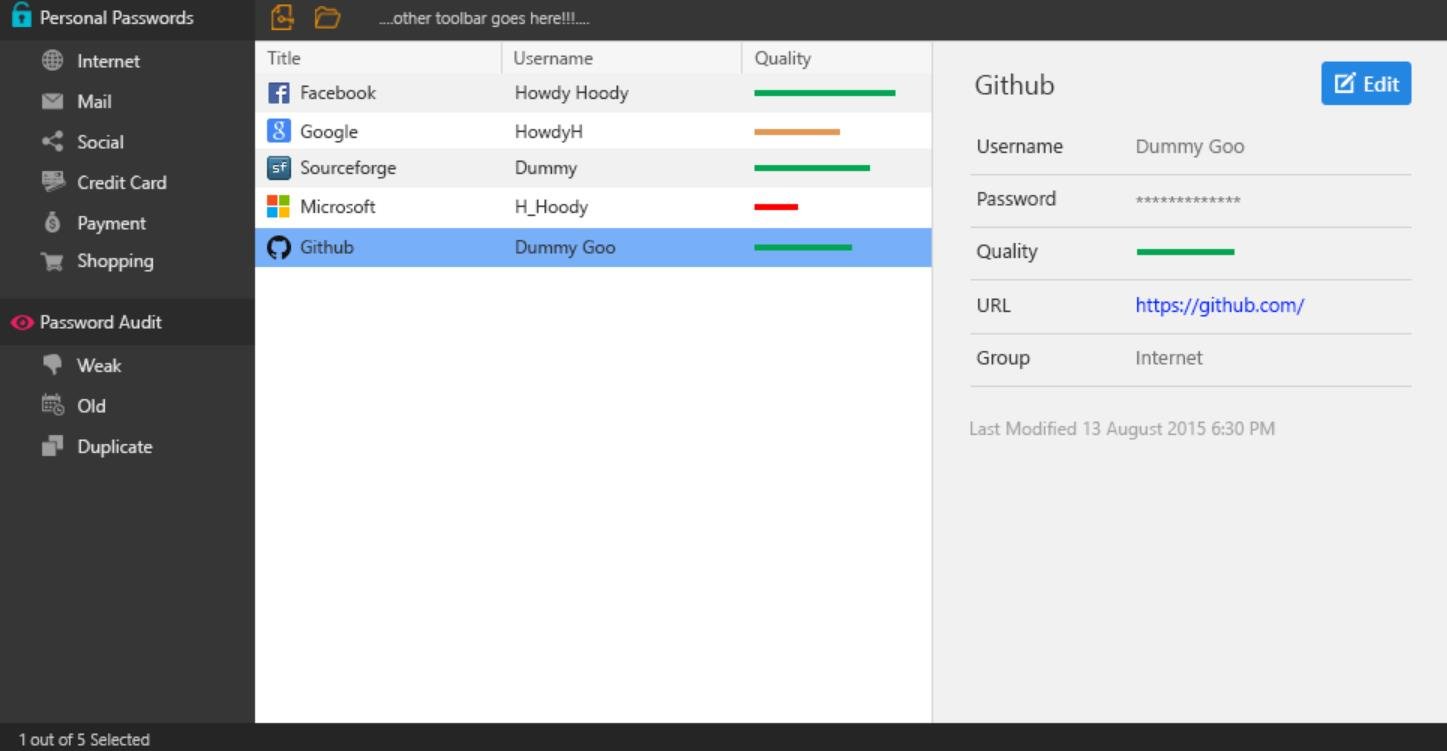
For users looking for a free password manager in 2026, KeePass remains my top choice. While it doesn’t include as many built-in features as some other alternatives, its open-source foundation makes it highly customizable through a large ecosystem of plugins and extensions. This flexibility allows users to add functionality like autofill or even tailor the interface to their preferences.
One of KeePass’s most unique advantages is its portability — you can run it directly from a USB drive without needing to install it on a Windows system. This makes it a great option for users who want full control over where their data is stored and accessed. I also appreciate how the Windows interface lets you easily create, organize, and manage groups, making it simple to keep passwords structured and accessible.
Why I chose KeePass
KeePass made this list due to its affordability for any Windows user. Most of its open-source competitors, like Bitwarden and Proton Pass, that have free versions are not completely free — their free plans are limited in features compared to their paid counterparts. With KeePass, I appreciate how all its functionality is available completely free.
Pricing
KeePass is completely free, with no paid tiers or subscriptions. However, most password management features that can make you have a good Windows experience aren’t included by default. But, due to KeePass’s open-source nature, you can customize your KeePass client features via downloadable plugins from the KeePass site.
Features
- Password groups.
- Plugin architecture.
- Auto-type.
- Multiple user keys.
- Windows clipboard handling.
- Password generator.
- Searching and sorting.
- Time fields and entry attachments.
Pros and cons
| Pros | Cons |
|---|---|
|
|
For more information, read the full KeePass review.
SEE: Cybersecurity: Benefits and Best Practices (TechRepublic Premium)
Passbolt: Best Windows password manager for team collaboration

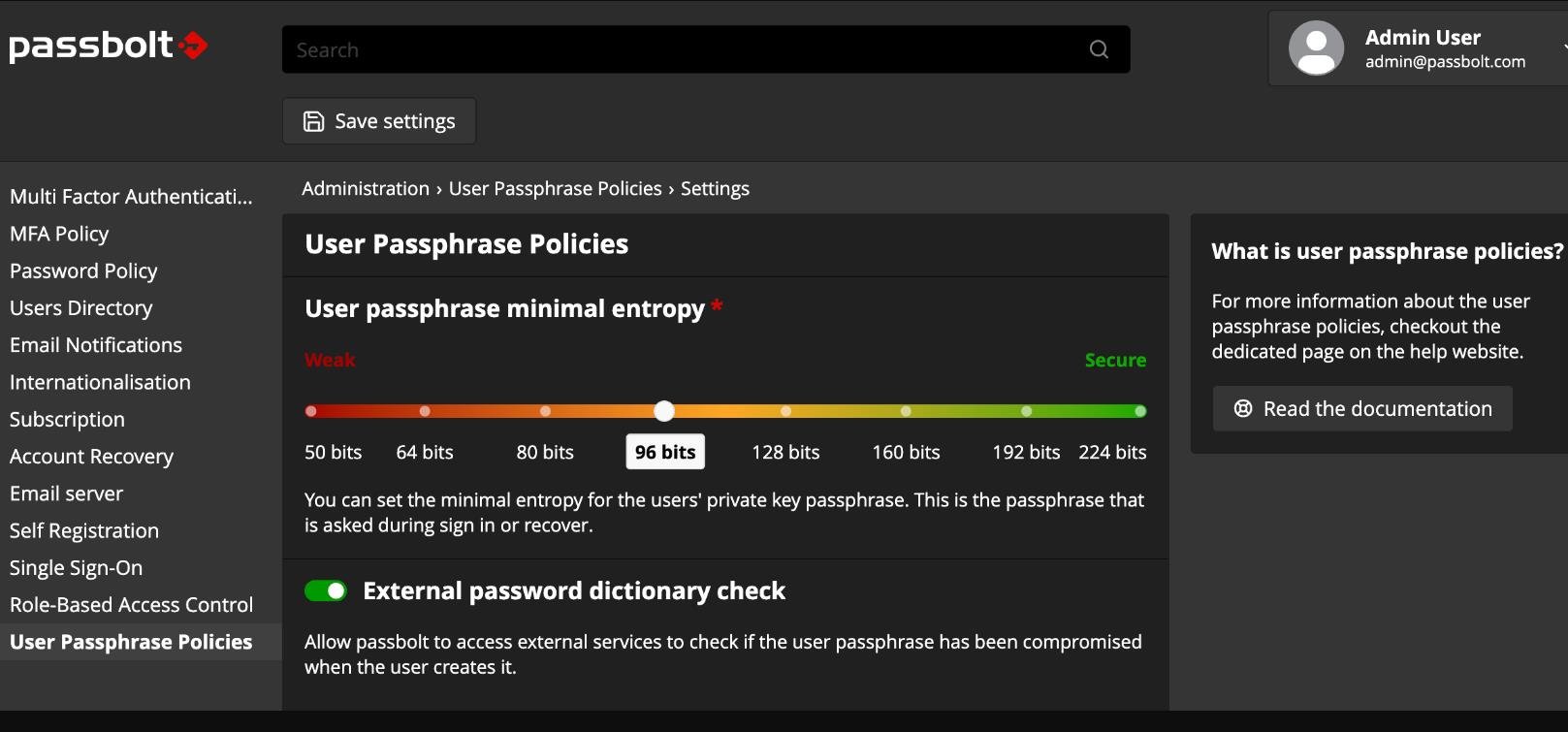
For users who prioritize team collaboration in 2026, Passbolt is my go-to open-source password manager. Built specifically for teams, it offers secure password sharing, role-based access control, and granular permissions for managing shared credentials. It’s a strong fit for organizations that need both transparency and control over who can access what.
Passbolt also provides a robust API, allowing teams to retrieve, store, and share credentials programmatically within their workflows. On the management side, it includes features like user provisioning, policy enforcement, and the ability to easily add or remove users. Its support for SSO, detailed activity logs, and account recovery options make it especially well-suited for business environments that need accountability and scalability.
Why I chose Passbolt
I selected Passbolt for this roundup because of its scalable password collaboration among team members — plus its self-hosted, API-centric, privacy-focused, and developer-first approach.
Pricing
Passbolt pricing is based on either cloud or self-hosted.
Both cloud and self-hosted pricing offer similar packages, except the self-hosted option offers a free plan that supports unlimited users.
- Community: $0 and free forever. Unlimited users.
- Business: $49/month. 10 users.
- Enterprise: Requires a custom quote.
Features
- Password management and sharing.
- Password expiry.
- Single sign-on with Microsoft, Google and OpenID.
- Tags management.
- LDAP provisioning (AD / OpenLDAP).
- Activity log.
- Secret key authentication.
Pros and cons
| Pros | Cons |
|---|---|
|
|
How do I choose the best open-source password manager for my business?
In 2026, choosing the right open-source password manager comes down to aligning features with your specific business needs. While transparency is a key advantage of open-source tools, their capabilities, integrations, and ideal use cases can vary widely.
Start by identifying your priorities. If you need strong zero-trust and zero-knowledge security with broad usability, Bitwarden is a solid choice. If your focus is team collaboration, shared credentials, and access control, Passbolt is likely a better fit. The key is matching the tool to how your team actually works.
You should also evaluate whether the password manager integrates well with your existing tech stack and supports the features you need—such as SSO, role-based access, or secure sharing. For Windows users, it’s important to confirm compatibility with your OS version and ensure the desktop experience meets your expectations.
Review methodology
To build this list, I conducted a detailed evaluation of each open-source password manager, focusing on security features, usability, collaboration capabilities, customization, and community support. I also considered how well each solution fits into real-world business environments.
I performed hands-on testing with Bitwarden and Passbolt on a Windows system, reviewing setup, interface, password management workflows, hosting options, and SSO integrations. In addition, I analyzed product documentation, vendor resources, and video demos to better understand each tool’s capabilities.
Finally, I reviewed third-party feedback and user experiences to validate performance, reliability, and overall satisfaction across different use cases.
Bottom Line For 2026
The best open-source password manager for your business isn’t about picking the most popular option—it’s about choosing the one that aligns with your security needs, team workflows, and technical environment. Whether you prioritize customization, collaboration, or ease of use, there are strong open-source options available in 2026 that can deliver both transparency and protection. Take the time to evaluate your requirements and test what fits best—then dive deeper by reading our full guide on how to choose the best password manager for your business.
This article was originally published in April 2024. The article was updated by Ken Underhill in March 2026.
Read the full article here