





Keeping track of our online passwords has become a challenge in today’s world. Our work and personal lives increasingly rely on online services, which means that we have dozens of important passwords we need to remember.
Password managers are a great solution for this. They’re software specifically designed to encrypt, store, and manage numerous passwords all at once. While there are a number of password managers to choose from, some solutions do require a monthly subscription to use their services.
Fortunately, there are decent free password managers out there that can help you secure your passwords without shelling out a monthly fee. In this article, we give you a rundown of the best free password managers available today.
NordPass
Employees per Company Size
Micro (0-49), Small (50-249), Medium (250-999), Large (1,000-4,999), Enterprise (5,000+)
Micro (0-49 Employees), Small (50-249 Employees), Medium (250-999 Employees), Large (1,000-4,999 Employees), Enterprise (5,000+ Employees)
Micro, Small, Medium, Large, Enterprise
Features
Activity Log, Business Admin Panel for user management, Company-wide settings, and more
Top free password managers: Comparison
With free password managers, I want to manage expectations in terms of features and included functionality. Security capabilities like data breach scanning and emergency access are usually reserved for password managers with paid subscriptions.
Since we’re looking at free solutions, our main priority is to look at how many passwords we can store and what type of security we’re getting. Below are a few essential password manager features to consider:
| Bitwarden Free | |||||
| KeePass | |||||
| Enpass Free | |||||
| NordPass Free | |||||
| Zoho Vault Free | |||||
| Proton Pass Free | |||||
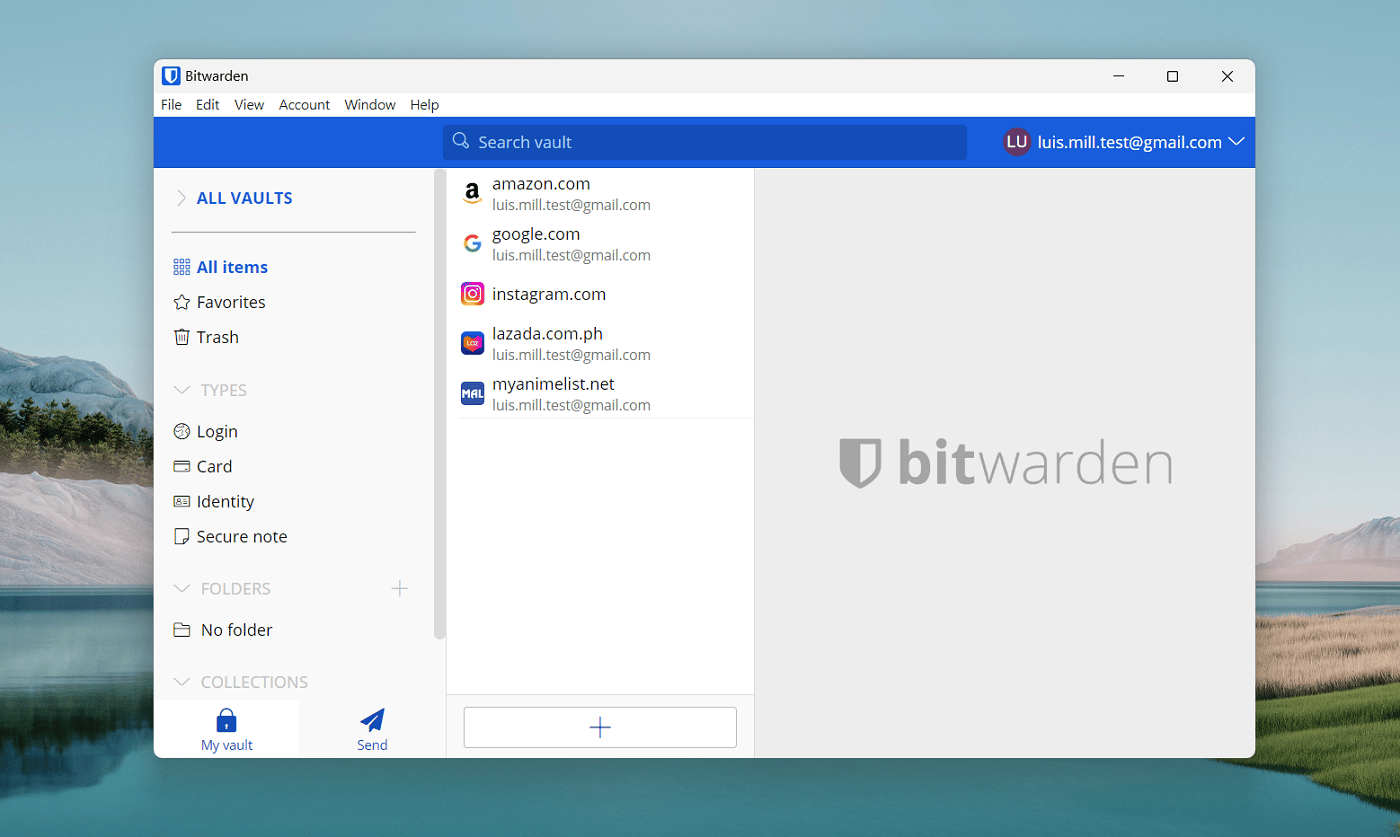
Bitwarden: Best overall free password manager
For my best overall free password manager, I have Bitwarden. Bitwarden’s free version is a popular pick for users looking for a fully free password manager for the long term. It uses top-tier AES 256 encryption, lets you store an unlimited number of passwords, and provides access to your vaults on an unlimited number of devices. On this list, only Bitwarden, Zoho Vault, and Proton Pass provide users access to an unlimited number of devices.
I particularly appreciate Bitwarden for being open source. This means that its source code is publicly available to security experts and community members for possible vulnerabilities. To me, this type of additional security and peace of mind is what we want for software that handles sensitive data like our passwords.
Why I chose Bitwarden
I picked Bitwarden for being an almost complete password management solution, despite being free. Specifically, I like it for its unlimited password storage and unlimited device support.
Features
- Open-source software.
- AES-256 encryption.
- Unlimited password storage.
- Supports unlimited devices.
Pros and cons
|
|
For more information, read our full Bitwarden review.
KeePass: Best for customizability
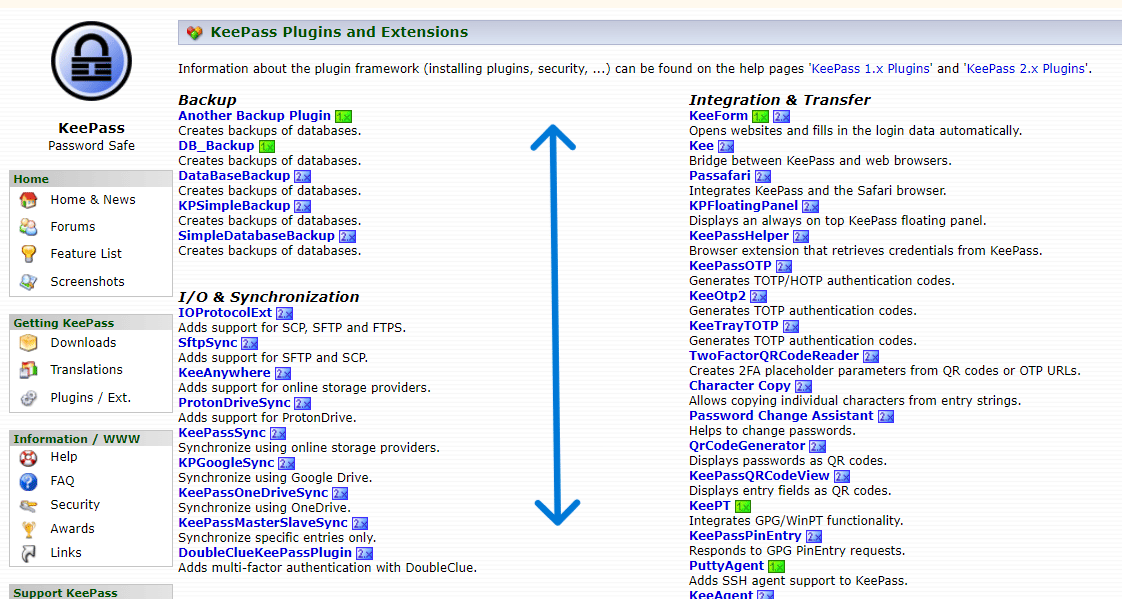
For power users, I suggest taking a look at KeePass.KeePass has been a go-to option for privacy enthusiasts who prioritize customization and tunability. With KeePass, you have access to dozens of downloadable plugins and extensions that add more features or modify existing functionality.
Right now, you can choose from around 180 downloadable plugins on the KeePass website. As someone who likes to customize my own software, I appreciate KeePass for making its password manager so versatile and user-friendly.
Another standout feature of KeePass is that it’s a completely local password management system. This means that you won’t have to worry about data breaches and leaked information like you might with a cloud-based password manager. I envision KeePass to be a good match for businesses that already have a secure local data solution in place.
Why I chose KeePass
I have KeePass on this list for its extensive suite of downloadable plugins, making it an ideal choice for tinkerers and tech-savvy users who want a fully customizable password manager.
Features
- Downloadable user-generated plugins.
- Automated login typing feature.
- Local-device password management.
Pros and cons
|
|
For more information, read our full KeePass review.
Enpass: Best for integration with third-party cloud services
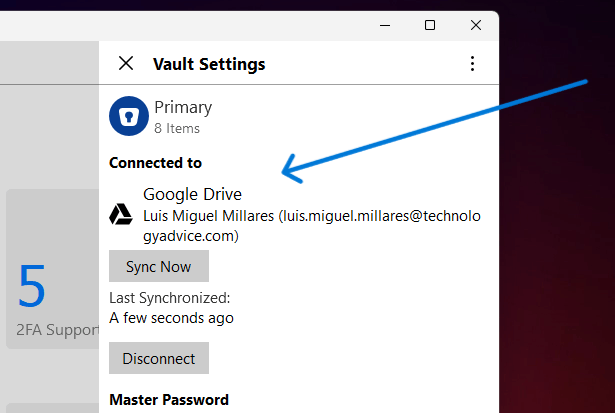
Like KeePass, Enpass is another offline-based password manager I recommend. However, Enpass is unique in that it lets users choose a third-party cloud service as the preferred location of their password data. Enpass can store and sync your passwords on iCloud, Google Drive, and OneDrive, to name a few.
To me, knowing that your data isn’t in any Enpass data center and is stored at your location of choice is a meaningful value-add. I have to mention, however, that Enpass’ free version is only available for desktop users on Windows, macOS, and Linux. If you need a free password manager that works on more than one device, check out either Bitwarden or Zoho Vault.
Why I chose Enpass
I selected Enpass for its unique feature of allowing users to store their data on popular third-party cloud services like Dropbox and Google Drive. If you’re already heavily invested in one of these services, I think Enpass can be a smart choice as an accompanying password management service.
Features
- Offline password.
- AES-256 encryption.
- Independently audited.
- Cloud storage service integration.
Pros and cons
|
|
For more information, read our full Enpass review.
NordPass: Best for future-proof encryption
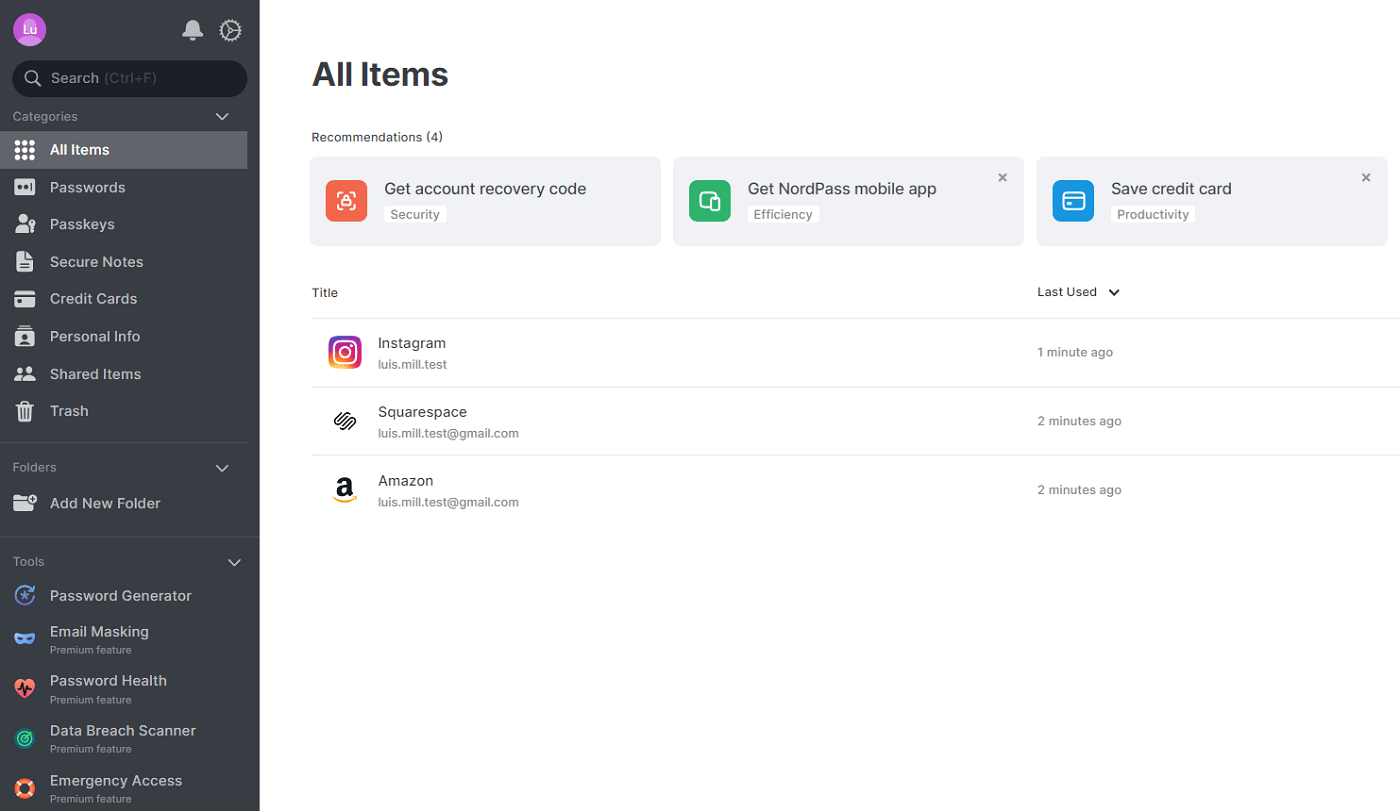
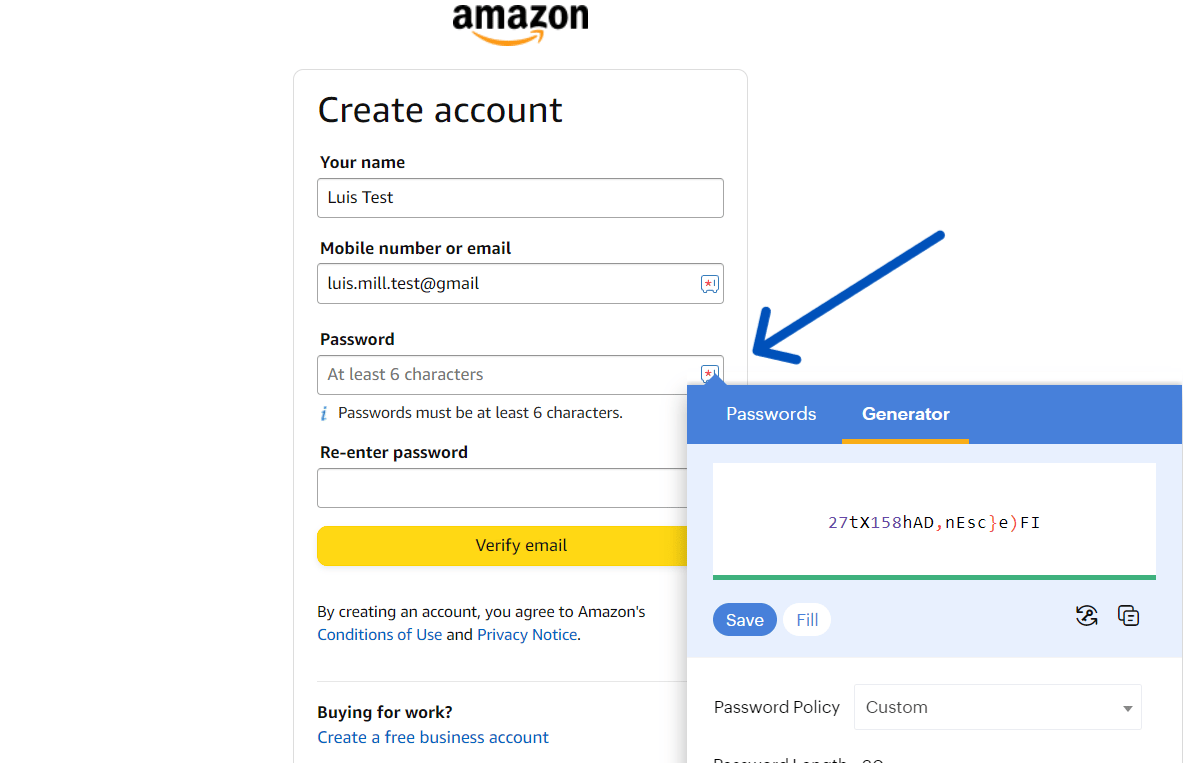
If you’re a fan of Nord Security and NordVPN, I suggest you consider NordPass. NordPass’ free version comes with unlimited password storage and auto-filling password capabilities. What I like about NordPass, however, is its encryption algorithm. While many password managers on this list use military-grade AES-256, NordPass utilizes XChaCha20 encryption.
XChaCha20 is a newer algorithm that NordPass says is less crackable compared to the industry standard AES encryption. In theory, this means your passwords will have the advantage of a more modern encryption algorithm that’s less likely to be exploited by malicious hackers. Personally, I commend Nord Security for pushing innovation and utilizing a different encryption algorithm than what most of the competition carries.
NordPass also implements XChaCha20 with a zero-knowledge architecture, which means that none of your log-in credentials will ever be available to NordPass or other third parties.
Why I chose NordPass
NordPass made my list for utilizing the newer XChaCha20 encryption algorithm, giving users a future-proof option amongst other password managers that use AES-256.
Features
- Unlimited password storage.
- XChaCha20 encryption.
- Multi-factor authentication available.
- Vault unlocking with biometrics.
Pros and cons
|
|
For more information, read the full NordPass review.
SEE: Intrusion Detection Policy (TechRepublic Premium)
Zoho Vault: Best for multi-factor authentication

If multi-factor authentication is your main priority, I recommend Zoho Vault. Many free password managers limit the number of multi-factor authentication (MFA) options available in their free versions. That’s not the case with Zoho Vault. With Zoho Vault’s free plan, you get passwordless logins like YubiKey, Passkeys, Windows Hello, and Touch ID. In addition, it also offers SMS, voice calls, and time-based OTPs as second factors.
This suite of MFA options rivals those that we get from a paid Keeper subscription, for example — which I find pretty impressive given that this is Zoho Vault’s free plan. In addition, Zoho Vault also lets you store an unlimited number of passwords with access through an unlimited number of devices. Like Bitwarden, this feature combo helps Zoho Vault stand as one of my top recommendations for a long-term, free password manager.
Why I chose Zoho Vault
I selected Zoho Vault for its generous amount of MFA options, covering passwordless logins, SMS, OTPs, and others — all on its free version.
Features
- Unlimited password storage.
- Unlimited devices.
- AES-256 encryption.
Pros and cons
|
|
For more information, read our full Zoho Vault review.
Proton Pass: Best for extra features
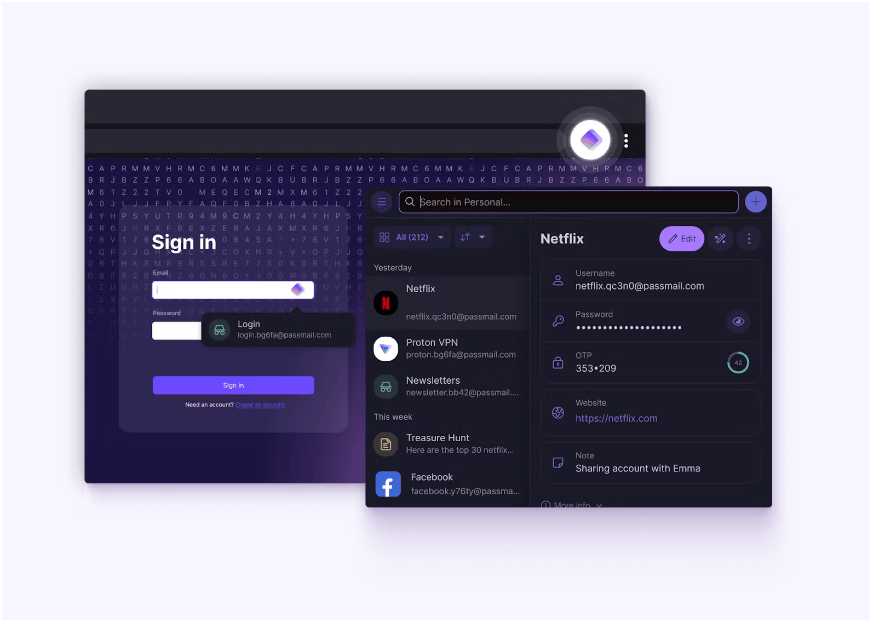
For users who want bells and whistles on top of the main password management service, I recommend looking at Proton Pass. From the creators of Proton VPN, I found Proton Pass’ Free version brings interesting features like hide-my-email aliases, unlimited password storage, an integrated two-factor authentication authenticator, and unlimited device support.
A standout for me is the fact that Proton Pass operates in Switzerland, a country with some of the strongest privacy laws in the world. This makes it a good choice for users worried about government surveillance and intrusive data requests from authorities. Proton Pass is also open-source, which I know is important to many users that put a premium on transparency.
On top of that, all Proton Pass Free accounts gain access to Proton Drive and Proton VPN — significant value additions alongside the free password management service.
Why I chose Proton Pass
I chose Proton Pass for its suite of additional features on top of the password manager, such as a hide-my-email aliases feature, integrated 2FA, access to encrypted cloud storage, and a VPN.
Features
- Open-source software.
- Unlimited password storage.
- Unlimited devices.
- 256-bit AES-GCM encryption.
Pros and cons
|
|
As of June 2025, we have yet to have Proton Pass undergo our full review treatment. Rest assured, we’ll update this article once a full review has been conducted.
SEE: How to Run a Cybersecurity Risk Assessment in 5 Steps (TechRepublic Premium)
How do I choose the best free password manager software for my business?
Look at what makes each password manager unique
Since free password managers don’t come with the bells and whistles included in their paid versions, it becomes even more important to look into the standout features that sets it apart from the competition in the first place.
For example, Bitwarden is open-source so it may be the best fit for privacy enthusiasts. On the other hand, KeePass’ downloadable plugins are great for users that like to customize and tailor their password management experience.
Taking a quick glance at how each option differentiates themselves will cut decision-making time and hopefully net you the best solution for your needs.
Find a free password manager with unlimited password storage
Another key thing to look out for is password storage. Since we’re dealing with free password managers, you may encounter options that limit the amount of credentials you can store in a vault. For example, free plans from Dashlane and McAfee True Key only let you store 25 and 15 passwords, respectively.
My recommendation is to pick a free password manager that provides unlimited password storage. Even if we’re using a free option, there’s no reason to use a service that limits the number of logins you can store in your vault. This is especially true given that a number of free password managers offer password storage with no limit.
Prioritize having multi-factor authentication
Finally, I highly suggest taking multi-factor authentication into account. MFA acts as an additional layer of security by requiring something other than your master password to access your password vault (biometrics, OTP, email). Regardless if you’re using a free or paid service, I believe having MFA is a requisite to any password management software.
Since not all free password managers offer an extensive set of MFA options, I recommend choosing a vendor that has at least one or two additional authentication options that you can use.
Review methodology
To build this list of the best free password managers, I focused on products that offer the strongest mix of essential password management features without requiring users to pay upfront. My goal was to identify free tools that provide real everyday value, not just stripped-down versions designed to push immediate upgrades.
Each product was evaluated using consistent criteria that reflect how users actually compare password managers, including the following categories:
Security: I looked at the encryption standards each product uses, how credentials are stored and protected, and whether features like multi-factor authentication are available.
Core features: I evaluated the password management capabilities that matter most, including password storage, autofill, password generation, vault access, and cross-device usability.
Ease of use: I considered setup, interface design, and how simple each password manager is to use on a day-to-day basis.
Free plan value: I assessed how much functionality is available at no cost, how restrictive the free tier is, and whether it remains useful long term.
Use case fit: I considered which products are best suited to different needs, such as individual users, multi-device access, or users who want the simplest possible experience.
I evaluated each product through a mix of hands-on use and detailed research, comparing feature sets directly to see how the free versions performed against one another.
Read the full article here